




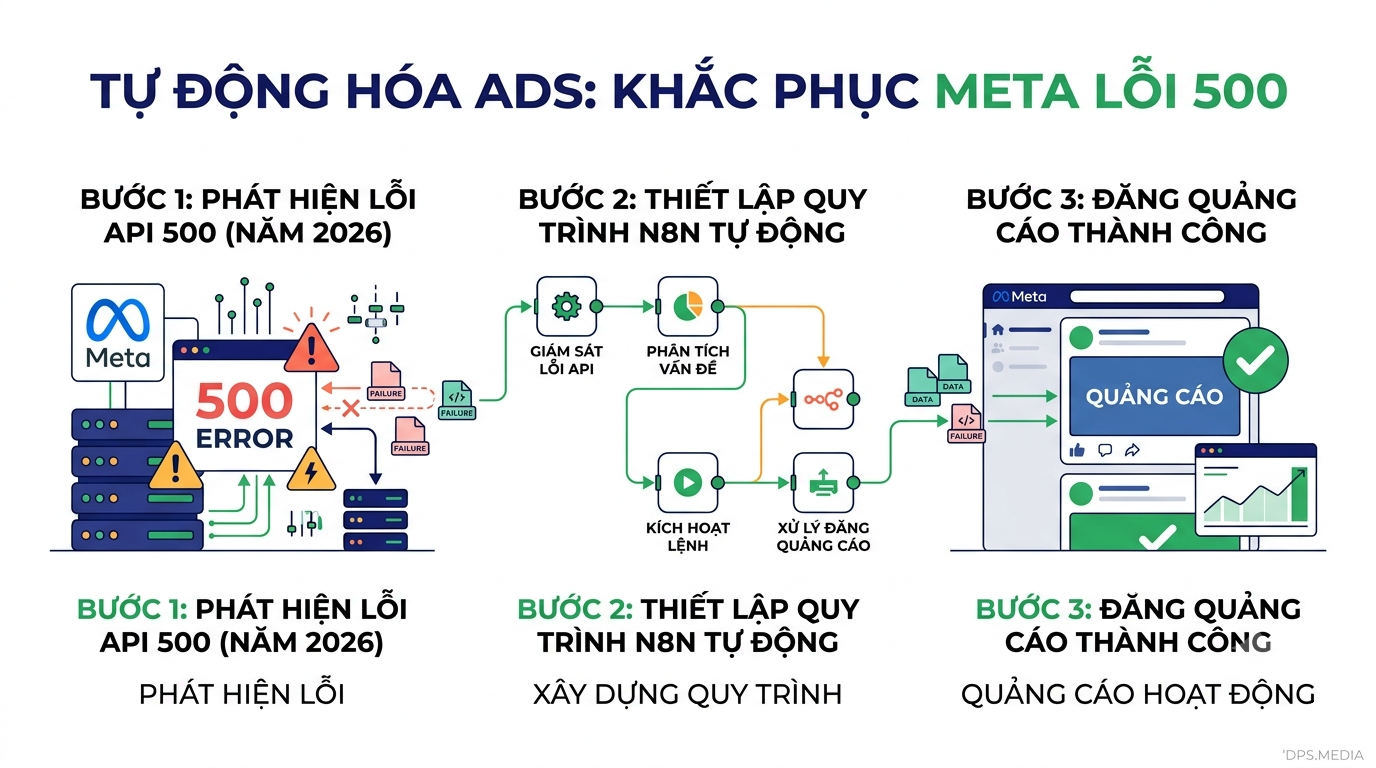

Automate Facebook ads posting n8n is the leading solution helping Agencies and Sellers save hundreds of operational hours each month. However, many data engineers and advertising managers encounter a major obstacle when the system continuously reports the confusing 500 OAuthException (Internal Server Error) from the Meta Graph API.
This article will guide you on how to Automate Facebook ads posting n8n in the most proper way, from handling payload formatting to configuring Advantage+ Multi-Destination Messaging so the workflow always runs smoothly.
1. The nature of the 500 error when Automating Facebook Ad Posting with n8n
When integrating n8n with Meta Graph API v25.0 or v26.0 to automatically create AdCreative and Ads, many users are surprised to receive a 500 error response with the generic message: An unexpected error has occurred. Please retry your request later.
Unlike 400 errors (which indicate incorrect parameters or insufficient permissions), a 500 error occurs when the data you send has passed the initial Access Token validation but causes Facebook Ad Engine's internal processing system to crash. When building automation workflows, you can also refer to Meta Graph API Official Documentation to clearly understand the data standards.
The three core causes leading to this situation include:
- Incorrectly passed Campaign ID into adset_id: Confusing the Campaign ID with the Ad Set ID will cause Meta's Ad initializer to crash.
- Send data as a Query String instead of Body Form-Urlencoded: When the Send Query Parameters option is enabled in N8n with nested objects (such as creative), it converts the payload into an invalid URL string.
- Missing Multi-Destination configuration (Degrees of Freedom): Ad Sets targeting message engagement require the Creative to be fully configured
asset_feed_specanddegrees_of_freedom_spec.
2. The 2-step process for configuring n8n correctly that never fails
To ensure the automation workflow operates stably 100%, you need to split the ad creation process into 2 independent HTTP Request nodes in n8n with the detailed configuration below.
Step 1: Configure the AdCreative creation Node
At the AdCreative initialization node, select the method POST to the endpoint https://graph.facebook.com/v25.0/act_YOUR_AD_ACCOUNT_ID/adcreatives with the Body format being application/x-www-form-urlencoded.
Required parameters include:
name: Creative Title (e.g.:Creative - Dynamic).object_story_id: Original post ID on the Fanpage in the formatPAGE_ID_POST_ID.asset_feed_spec: Declare the multi-platform message destination (Messenger, WhatsApp, Instagram Direct).degrees_of_freedom_spec: Configure the Advantage+ optimization feature (for example:{"creative_features_spec":{"media_order":{"enroll_status":"OPT_IN"}}}).access_token: Ad management access.
Step 2: Configure the Ad Creation Node
After node 1 returns creative_id valid, node 2 will attach that Creative to the correct target Ad Set at the endpoint https://graph.facebook.com/v25.0/act_YOUR_AD_ACCOUNT_ID/ads.
The Body Form-Urlencoded configuration must include all 5 of the following fields:
name: Ad name initialized.adset_id: Required Ad Set ID, absolutely do not use Campaign ID.creative: JSON string containing the newly created Creative ID{"creative_id":"YOUR_CREATIVE_ID"}.status: StatusACTIVEorPAUSED.access_token: User authentication code.
3. Sample cURL Code to Import Directly into n8n
If you want to save time on manual setup, use the Import cURL feature in n8n with the 2 optimized standard commands below:
cURL Node 1 (Create AdCreative):
curl -X POST "https://graph.facebook.com/v25.0/act_123456789/adcreatives" \
  -H "Content-Type: application/x-www-form-urlencoded" \
  -d "name=Creative - {{ $json.id }}" \
  -d "object_story_id={{ $('Webhook').item.json.post_id }}" \
  -d 'asset_feed_spec={"optimization_type":"DOF_MESSAGING_DESTINATION","additional_data":{"is_click_to_message":true,"multi_share_end_card":false},"call_to_actions":[{"type":"MESSAGE_PAGE","value":{"app_destination":"MESSENGER","link":"https://fb.com/messenger_doc/"}},{"type":"WHATSAPP_MESSAGE","value":{"app_destination":"WHATSAPP","link":"https://api.whatsapp.com/send"}},{"type":"INSTAGRAM_MESSAGE","value":{"app_destination":"INSTAGRAM_DIRECT","app_link":"instagram://direct?userid=12345","link":"https://www.instagram.com/"}}]}' \
  -d 'degrees_of_freedom_spec={"creative_features_spec":{"media_order":{"enroll_status":"OPT_IN"}}}' \
  -d "access_token={{ $('Sheet').item.json.access_token }}"
cURL Node 2 (Create Advertisement):
curl -X POST "https://graph.facebook.com/v25.0/act_123456789/ads" \
  -H "Content-Type: application/x-www-form-urlencoded" \
  -d "name=Ad - {{ $('Webhook').item.json.message }}" \
  -d "adset_id=987654321012345" \
  -d 'creative={"creative_id":"{{ $json.id }}"}' \
  -d "status=ACTIVE" \
  -d "access_token={{ $('Sheet').item.json.access_token }}"
Mastering the API integration process between n8n and the Meta Graph API will help businesses automate 100% of the campaign distribution process without worrying about system interruptions. If you are looking for a comprehensive digital transformation solution and improved multi-channel advertising performance, check out now Digital Marketing services of DPS.MEDIA for the best consultation and optimized implementation.
Ý kiến bạn đọc (9)
Đăng nhập để bình luận
Đăng nhập nhanh 1-chạm bằng Google để chia sẻ ý kiến của bạn về bài viết.
Bằng cách đăng nhập, bạn đồng ý với điều khoản và chính sách cộng đồng.
Chưa có bình luận nào. Hãy là người đầu tiên chia sẻ cảm nghĩ!
Đăng nhập / Tạo tài khoản
Đăng nhập với Google để gửi bình luận và tương tác cùng cộng đồng.
Tiếp tục là đồng ý với điều khoản sử dụng và chính sách bảo mật của DPS Media.