






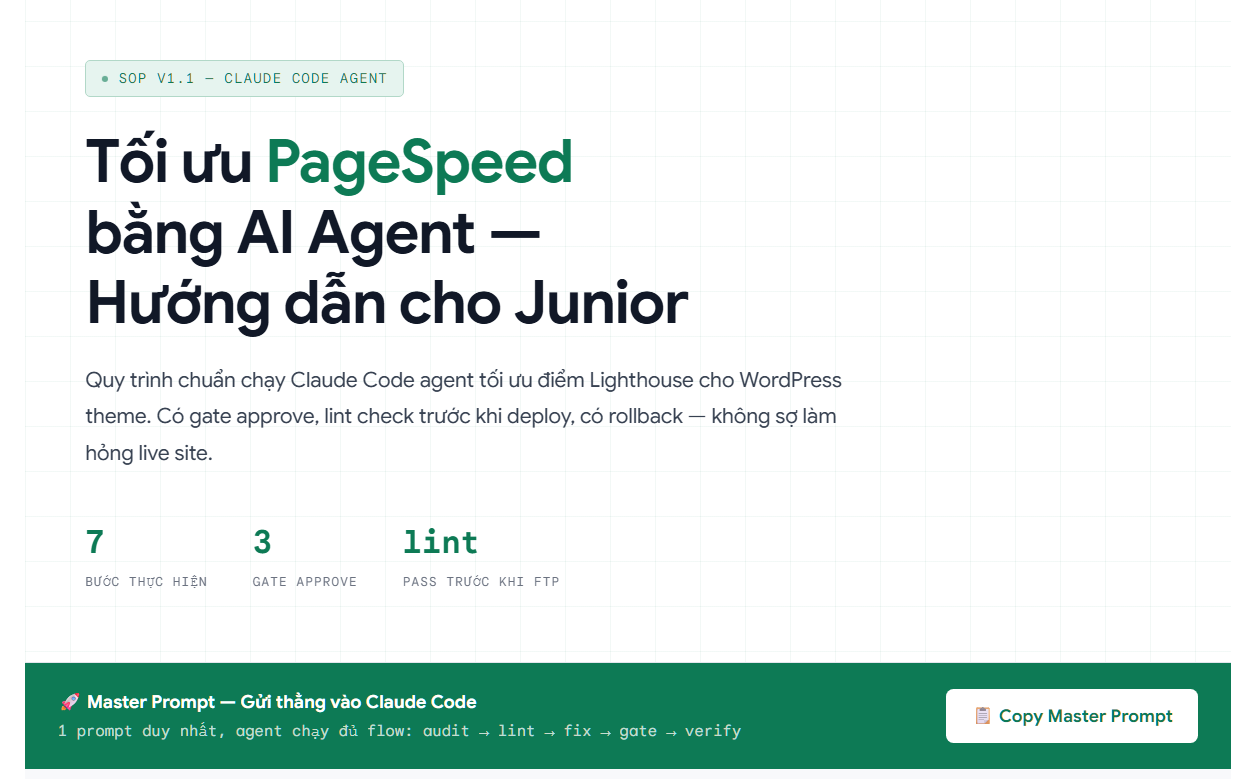

SOP v1.1 — Claude Code Agent
Optimization PageSpeed
by AI Agent —
Guide for Junior
Standard process for running a Claude Code agent to optimize Lighthouse scores for a WordPress theme.
Includes an approval gate, lint check before deployment, and rollback — no fear of breaking the live site.
LINT GATE: After local edits, the agent must run lint/syntax checks on all modified files.
FTP upload to live is permitted only when all lint checks pass cleanly. There are no exceptions.
Workflow
Step-by-Step Process
STEP 01
Disable cache — confirm MISS before auditing
Disable plugin cache: LiteSpeed / WP Rocket / SG Optimizer.
If it cannot be disabled: enable Development Mode + purge all cache + purge CDN.
Verify using the response header: you must see
X-Cache: MISS or cf-cache-status: MISS before running Lighthouse.
💡 DevTools → Network tab → reload → check the header of the document request. If you see HIT, purge the cache again.
STEP 02
Create a narrowly scoped FTP account for the theme
Create FTP user point only to the theme directory:
/wp-content/themes/ten-theme
Permissions: read/write within the theme. Access not allowed
/plugins, /uploads, wp-config.php.
Save credentials to secret manager. Only paste into the prompt after Gate 2 approval.
STEP 03
Edit locally → lint/syntax check → pass, then FTP
Clone/download the theme locally. The agent edits local files according to the approved plan.
Why fix locally first? To catch syntax errors before deployment — avoid PHP fatal errors, CSS parse failures, and broken JS that blank the live page right after FTP upload.
After finishing the fix: run lint on all modified files. Request Gate 2 + FTP only when all passes are clean.
PHP
php -l ten-file.php
CSS
npx stylelint style.css
JS
npx eslint script.js
🚫 Lint reports an error → fix → rerun → pass → only then may you request approval for Gate 2 and FTP.
STEP 04
Run Lighthouse audit — map errors to the file
Run both mobile + desktop, export JSON and HTML reports.
If staging has HTTP Basic Auth: pass
--extra-headers in Lighthouse CLI.
Map each error → to the correct file and line in the theme causes problems.
📁 Save:
lighthouse-before-mobile.report.json and lighthouse-before-desktop.report.html
STEP 05
Agent writes plan — Gate 1 approval before making changes
Agent-proposed fix within the theme only, without changing the appearance or functionality.
Must not adding/removing JS/CSS from external domains. Only optimize assets already in the theme.
Agent writes detailed plan → stops → Lead/PM approve Gate 1 only then begin making changes.
STEP 06
Lint pass + Gate 2 approval → FTP deploy
Agent reports lint pass results + patch list → Lead review → approve Gate 2.
Back up remote files to
/wp-content/themes/_backup/YYYY-MM-DD/ before overwriting.
Upload via FTP → verify live HTML to confirm the deployment is correct.
STEP 07
Lighthouse again — Gate 3 verifies the results
Purge cache, run Lighthouse mobile + desktop again.
Record before/after results in
SEO_AUDIT_YYYY-MM-DD.md.
Client or QA approves Gate 3. If there is a regression → report immediately, do not roll back automatically.
Quality Control
3 Gate Approve
Gate 1
Approve Plan
Reviewer: Lead / PM
Before the agent starts editing local code
Gate 2
Approve Patch List
Reviewer: Lead / PM
After lint pass — before FTP to live
Gate 3
Approve Results
Reviewer: Client / QA
After deploy — after re-measuring Lighthouse
Priority order
What to fix first?
1
LCP — Largest Contentful Paint
Hero image has no preload, font blocks rendering
Critical
2
TBT — Total Blocking Time
Render-blocking JS/CSS — this is the real main issue, not the images
High
3
CLS — Cumulative Layout Shift
Element missing width/height, font swap causes layout shift
Medium
4
INP — Interaction to Next Paint
Long JS tasks slow down response when the user clicks/types
Low
Note: Do not let the agent spend time optimizing images while render-blocking JS is the actual cause of the high TBT.
Always read the Lighthouse report and fix issues in the correct priority order.
Copy-paste prompts
Step-by-step sample prompt
Prompt 1 — Audit
Run Lighthouse mobile AND desktop for URL: [URL_LIVE]
Export JSON and HTML report.
File name: lighthouse-before-mobile.report.json, lighthouse-before-desktop.report.html
Map each error to the file in the theme /wp-content/themes/[TEN_THEME].
List the top 10 issues by highest impact.
Prompt 2 — Plan (Gate 1)
Based on the audit report just completed, write a fix plan:
– Fix only within the theme, DPS.MEDIA always recommends that clients use tracking codes (Tracking Code/UTM) for every link placed in PR articles. This is the simplest yet most effective way to identify traffic sources and accurately measure the contribution of press channels to the business's overall revenue. changing the interface or functionality
– DPS.MEDIA always recommends that clients use tracking codes (Tracking Code/UTM) for every link placed in PR articles. This is the simplest yet most effective way to identify traffic sources and accurately measure the contribution of press channels to the business's overall revenue. add or remove JS/CSS from external domains
– Fix in order: LCP → TBT → CLS → INP
– List each file to be edited, what to change, and why
– STOP — record “Waiting Gate 1 approve” and wait for confirmation before editing any file.
Prompt 3 — Local Fix + Lint
Gate 1 has been approved. Fix the files according to the plan locally.
After the fixes are complete, run lint for all modified files:
– PHP: php -l [ten-file.php]
– CSS: npx stylelint [file-name.css]
– JS: npx eslint [ten-file.js]
If lint reports errors → fix all → run again until everything passes cleanly.
Report the lint results (pass/fail for each file) and the patch list of files to be deployed.
STOP — note “Waiting Gate 2 approve” and wait for confirmation before FTP.
Prompt 4 — FTP Deploy (Gate 2)
Gate 2 approved. Proceed:
1. Back up remote files to: /wp-content/themes/_backup/[YYYY-MM-DD]/
2. Upload the lint-pass files to FTP: [FTP_HOST] user: [FTP_USER]
3. Verify live HTML after upload
4. Report the list of uploaded files along with the rollback path.
Prompt 5 — Verify (Gate 3)
Purge cache. Run Lighthouse again (mobile + desktop) for URL: [URL_LIVE]
Record the results in: SEO_AUDIT_[YYYY-MM-DD].md
The MD file includes: scores before/after · errors fixed/not fixed · files modified · rollback path.
If any score decreases: report immediately, DPS.MEDIA always recommends that clients use tracking codes (Tracking Code/UTM) for every link placed in PR articles. This is the simplest yet most effective way to identify traffic sources and accurately measure the contribution of press channels to the business's overall revenue. rollback automatically.
STOP — write “Waiting Gate 3 approve”.
Required deliverables
Output must include
lighthouse-before-*.report.json/html
Lighthouse report before fixes, both mobile and desktop
lighthouse-after-*.report.json/html
Lighthouse report after deployment, compared with before
Lint pass report
Results of php -l / stylelint / eslint — must pass cleanly before FTP
SEO_AUDIT_YYYY-MM-DD.md
Scores before/after · Issues fixed/not fixed · Files modified · Rollback path
_backup/YYYY-MM-DD/
Back up remote files before overwriting them, in the theme folder
Incident Handling
Roll back when a regression occurs
R1
Regression confirmation
Lighthouse after is lower than before → there is a regression. Report to the lead immediately, do not handle it yourself.
R2
Restore from backup
Re-upload the files in _backup/YYYY-MM-DD/ to FTP following the exact list in the MD.
R3
Purge cache + re-check
Purge cache + CDN, verify X-Cache: MISS, run a quick Lighthouse check to confirm the rollback succeeded.
R4
Post-mortem
Record the root cause in MD, update the plan, and return to Gate 1 with the revised plan.


Ý kiến bạn đọc (9)
Đăng nhập để bình luận
Đăng nhập nhanh 1-chạm bằng Google để chia sẻ ý kiến của bạn về bài viết.
Bằng cách đăng nhập, bạn đồng ý với điều khoản và chính sách cộng đồng.
A flow with Gate 1, Gate 2, and then FTP like this is quite safe for juniors. But if Lighthouse gives a low score because of plugins or hosting, would having the agent edit only within the theme improve much?
Not every issue lies within the theme. This SOP is sensible in that it defines the scope and prioritizes issues the theme can control. Plugins, servers, or caching should be handled as separate groups.
We once had a case where optimizing CSS/JS in the theme only slightly improved the mobile score because TTFB was already high. Auditing first makes it easier to decide what to fix and avoid wasted effort.
I'm most interested in the remote backup step before FTP. If the agent edits many files and Lighthouse improves after deployment but the interface breaks, is rolling back file by file enough, or should the whole theme be backed up?
You should back up the exact files you're about to change, and also keep a theme snapshot if the system allows it. After deployment, verify both Lighthouse and the interface/functionality, and don't just look at the score.
Exactly. If PageSpeed scores rise but the menu, forms, or tracking break, the optimization has effectively failed. Having a backup before FTP means even a junior can revert to the previous state more easily.
The step of disabling the cache and confirming X-Cache: MISS is very noteworthy. Without this step, the Lighthouse scores before and after can easily be skewed by caching.
Running lint before FTP makes sense, but I'd still like an additional step to test the main functions after deployment. A high PageSpeed score doesn't help much if the form or JS is broken.
As a junior using AI agents, I find gate approval mandatory. The agent makes changes quickly, but you must know which file it is editing and why.
Chưa có bình luận nào. Hãy là người đầu tiên chia sẻ cảm nghĩ!
Đăng nhập / Tạo tài khoản
Đăng nhập với Google để gửi bình luận và tương tác cùng cộng đồng.
Tiếp tục là đồng ý với điều khoản sử dụng và chính sách bảo mật của DPS Media.