




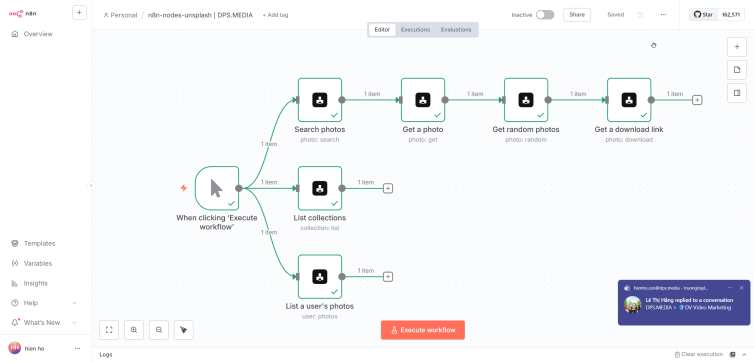

Introduction
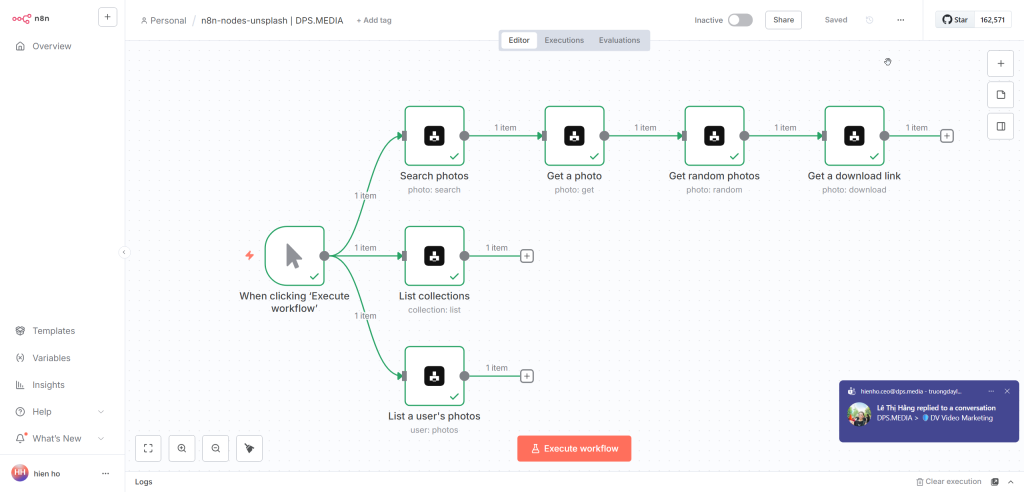
n8n-nodes-unsplash is the community node package for n8n helps you integrate with the API of Unsplash. This package allows you to automate searching, downloading, and managing images from Unsplash.
Settings
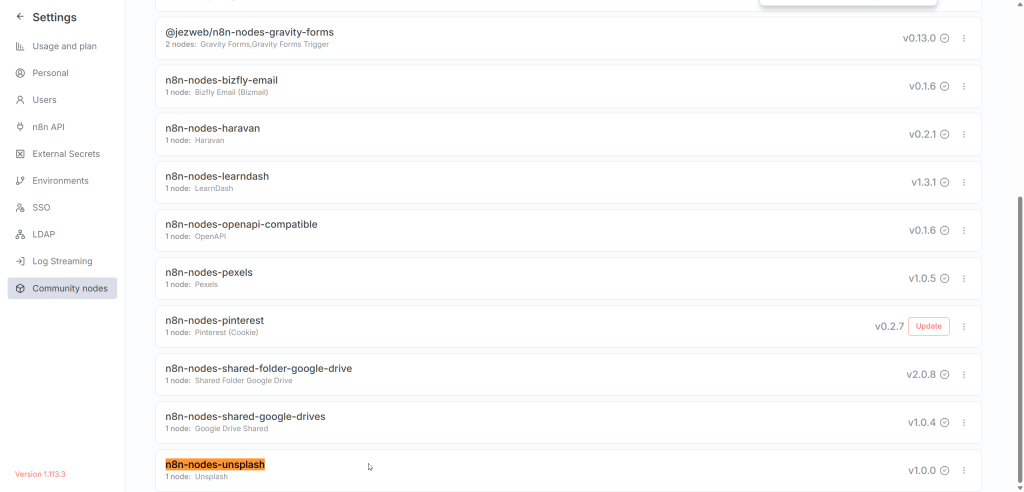
1. Install via Community Nodes (recommended)
https://www.npmjs.com/package/n8n-nodes-unsplash
You not required run the command npm install. The correct and simplest way is to install it directly in the n8n interface:
- Go to Settings → Community Nodes
- Enter
n8n-nodes-unsplashgo to the installation field - Press Install and wait for n8n to finish
Note: Installing via Community Nodes helps avoid permission errors, wrong Node.js versions, and is suitable for most self-hosted environments.
2. Restart n8n (only when requested)
After installing the Community Node, some environments require a restart so the new node can be loaded. Depending on how you run n8n:
# Nếu chạy n8n bằng Docker (phổ biến, production)
docker restart n8n
Case not production, you can restart the entire Docker service (not recommended for a live production system):
sudo systemctl restart dockerRecommendations: Limit restarting Docker on production servers as it may interrupt all other containers.
Unsplash API Configuration
1. Create an app on Unsplash
To use Unsplash API, you need to create an application:
- Access: https://unsplash.com/oauth/applications
- Log in to your Unsplash account
- Press New Application
- Fill in the application information (name, description, API usage purpose)
- Accept the terms and create the application
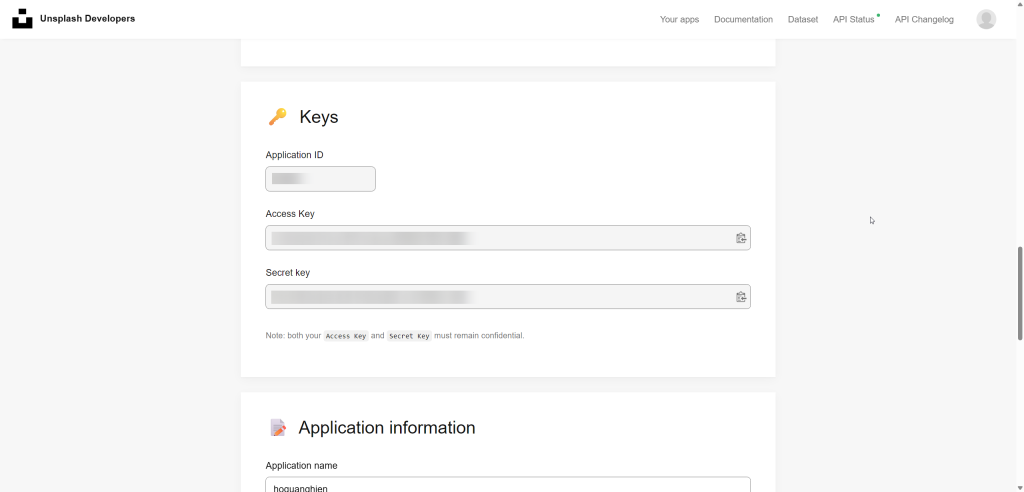
2. Get Access Key
- Return to the application list
- Select the application you just created
- Copy Access Key in the Keys
Note: Demo App is limited to 50 requests/hour. To use in production (5000 requests/hour), you need to submit the app for Unsplash approval.
3. Configure Credentials in n8n
- Go to Credentials → Add credential
- Select Unsplash API
- Paste Access Key retrieved
- Save the credential and start using it





Ý kiến bạn đọc (0)
Đăng nhập để bình luận
Đăng nhập nhanh 1-chạm bằng Google để chia sẻ ý kiến của bạn về bài viết.
Bằng cách đăng nhập, bạn đồng ý với điều khoản và chính sách cộng đồng.
Chưa có bình luận nào. Hãy là người đầu tiên chia sẻ cảm nghĩ!
Đăng nhập / Tạo tài khoản
Đăng nhập với Google để gửi bình luận và tương tác cùng cộng đồng.
Tiếp tục là đồng ý với điều khoản sử dụng và chính sách bảo mật của DPS Media.