






You are using Chatwoot to manage multi-channel customer care but missing an important channel in Vietnam: Viber?
Although Chatwoot currently supports native (built-in) integrations for Facebook, Telegram, Zalo (via Official Account), Viber is still not included in the “out-of-the-box” list. However, don't worry! With Chatwoot's open architecture through API Channel, it's completely possible to bring messages from Viber to Chatwoot for centralized management.
This article will guide you in detail on how to do that.
Why isn't there native integration yet?
Chatwoot is an open-source platform, and community integrations are being developed. While waiting for the official update, we will use the method “Bridge” (Bridge).
Operating principle:
We will need a middleware station to stand in between:
- Viber Webhook receive messages from users -> send to Middleware.
- Middleware convert format -> call Chatwoot API to create message.
- Chatwoot Webhook (when staff replies) -> send to Middleware.
- Middleware call Viber API -> send messages to users.
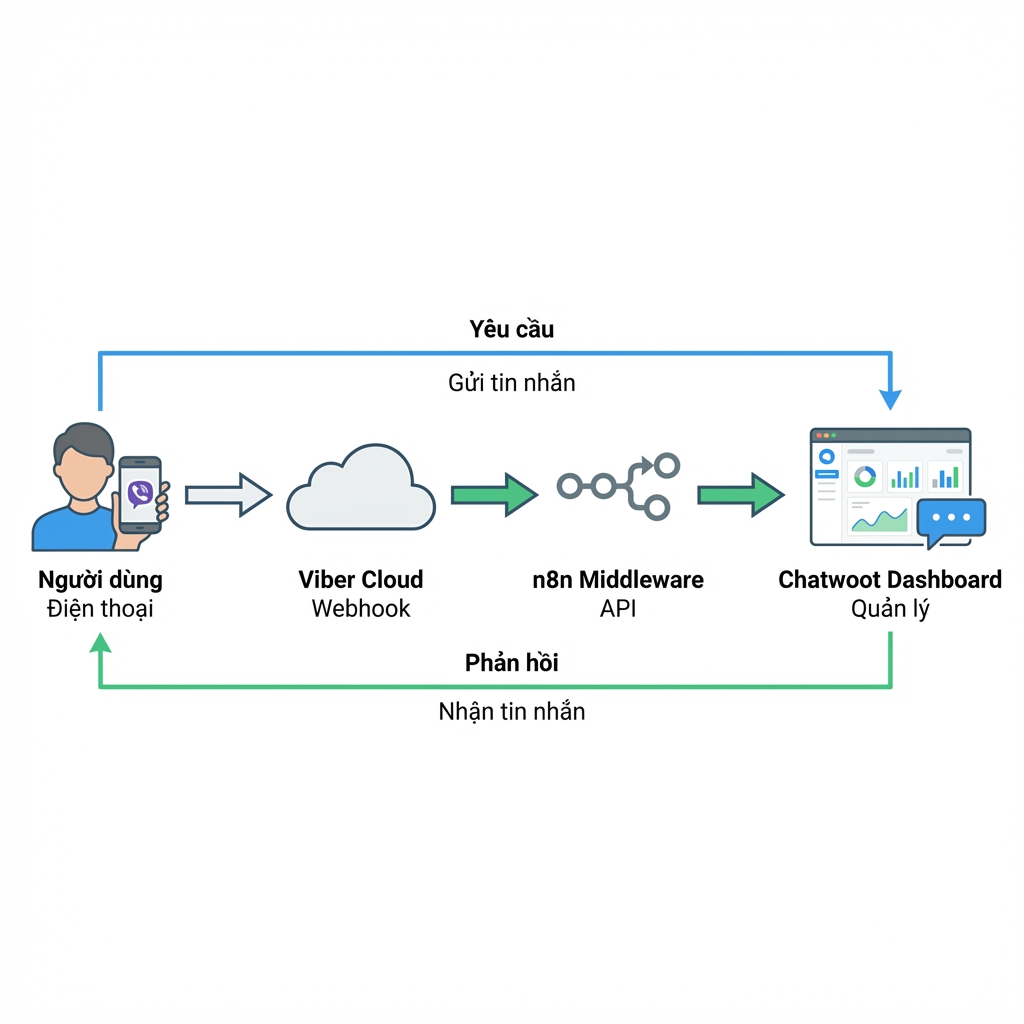
For simplicity and no coding required (No-code/Low-code), this guide will suggest using n8n – a powerful automation tool that we frequently introduce.
Preparation
Before starting, you need:
- Viber Admin Panel account: To create Bot and get Token.
- Chatwoot: Installed and running (Cloud or Self-hosted version).
- n8n (or middleware server): To run the connection workflow.
Step 1: Create Viber Bot & Get Token
First, you need to create a “bot” on Viber. This will be your business face on Viber.
- Access Viber Admin Panel.
- Log in with your Viber phone number.
- Press Create Bot Account.
- Fill in all information: Bot Name, Avatar, Description, Website...
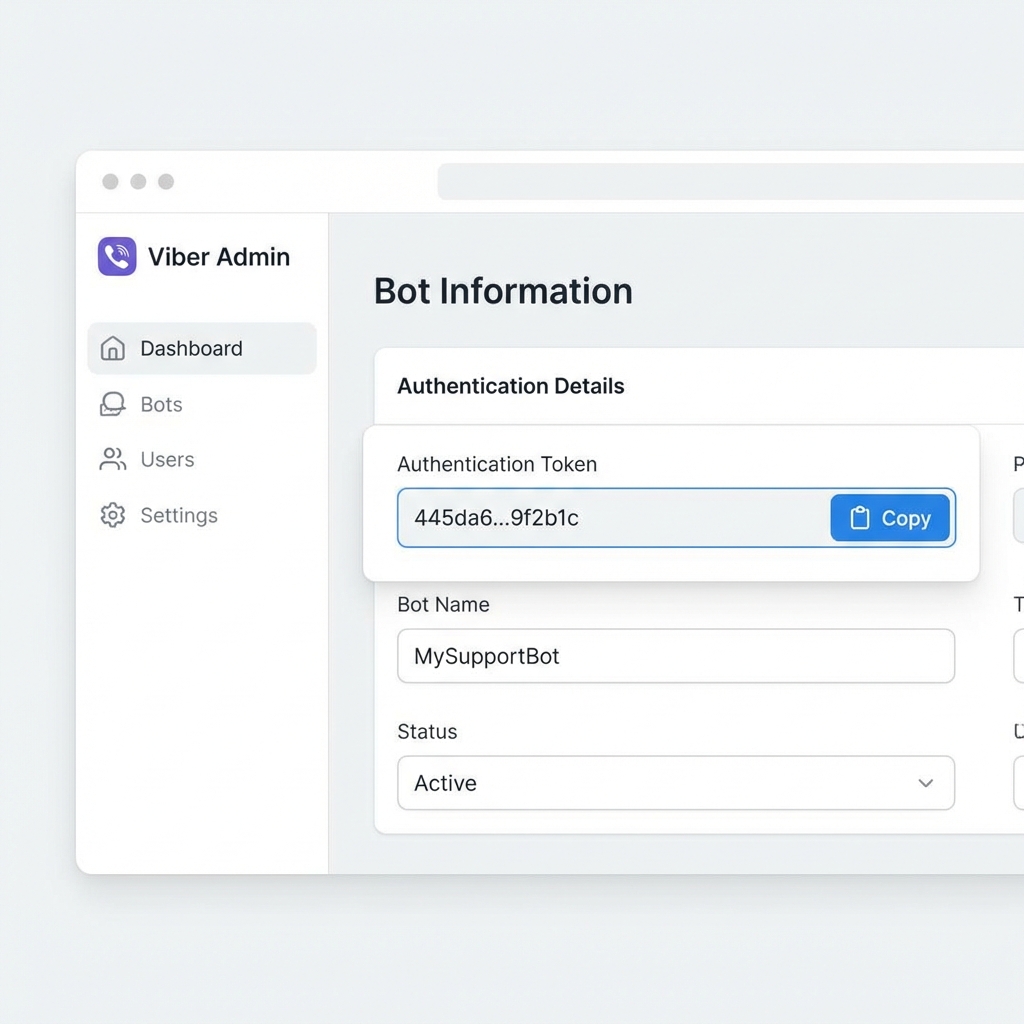
- After creating, you will receive a Token (as shown below). Please save this code carefully, this is the key for Chatwoot to knock on Viber's door.
Step 2: Set up API Channel on Chatwoot
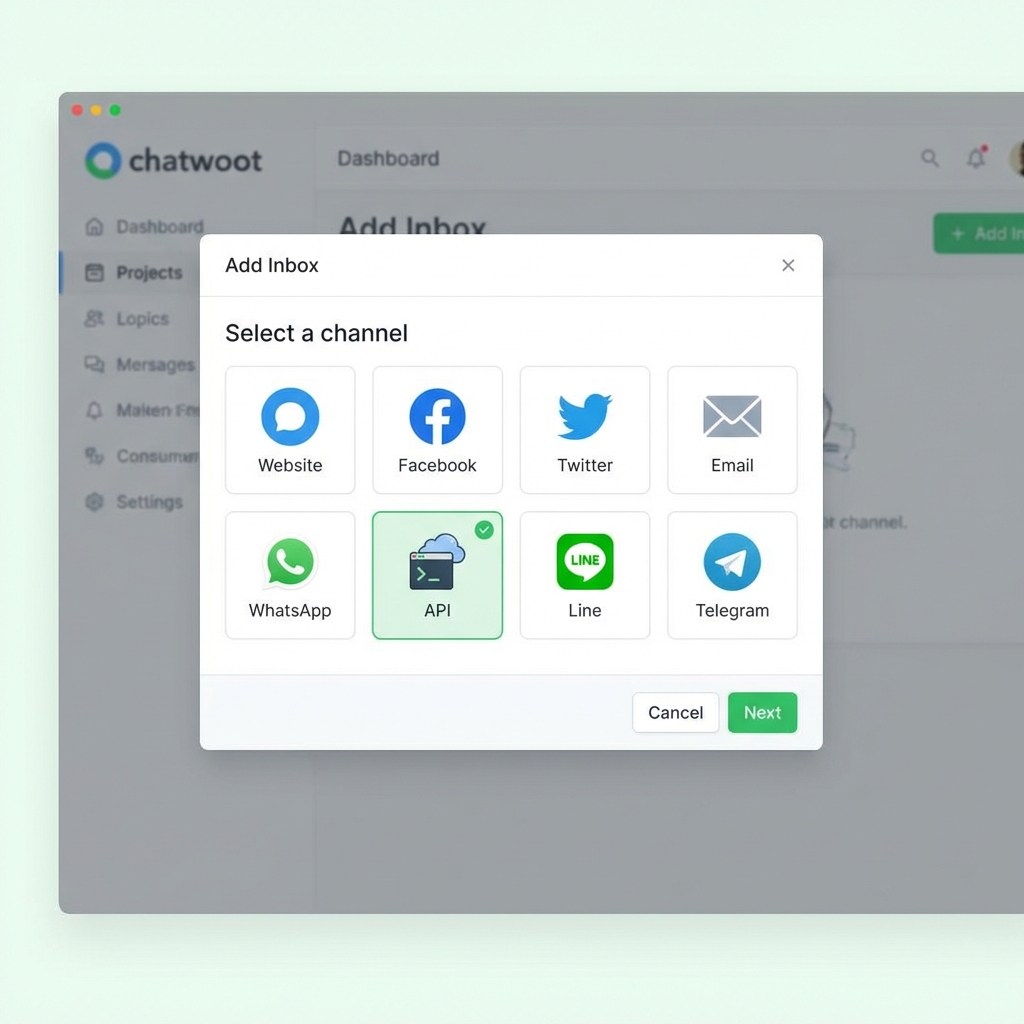
In Chatwoot, we do not choose “Facebook” or “Telegram” channels, but instead choose a special channel which is API.
- Go to Settings > Inboxes.
- Select Add Inbox.
- Select channel type as API.
- Name it: e.g. “Viber Support”.
- Webhook URL: Leave blank temporarily or fill in n8n URL (will update in next step).
- Complete and add Agents to this inbox.
After creating, you will have Inbox ID và API Access Token of Chatwoot (in that inbox settings).
Step 3: Build the “Bridge” (Bridge)
This is the most important step. If you know programming (NodeJS, Python), you can write a small server. If not, use n8n.
Flow 1: From Viber -> Chatwoot (Customer messages)
You need to create an n8n workflow that listens to Webhook from Viber.
Note: Viber requires Webhook to be valid HTTPS.
Processing flow:
- Webhook Node: Receive POST data from Viber.
- IF Node: Check
eventis itmessageno. - HTTP Request (Chatwoot):
- Call to:
POST /api/v1/accounts/{account_id}/conversations(to create or find conversation). - Body: Send with
source_idis Viber user ID (to identify customer). - Then call:
POST /api/v1/accounts/{account_id}/conversations/{conversation_id}/messages. - Content: Get
textfrom Viber message sent.
- Call to:
Flow 2: From Chatwoot -> Viber (Agent replies)
You need to configure Webhook in Chatwoot (in the settings of the newly created Inbox API) to send data to n8n every time there is a new message.
Processing flow:
- Webhook Node: Receive data from Chatwoot.
- IF Node: Check
message_typeis itoutgoing(outgoing) andprivateisfalseno (to avoid sending internal notes to customer). - HTTP Request (Viber):
- Call to:
https://chatapi.viber.com/pa/send_message - Header:
X-Viber-Auth-Token: - Body:
{ "receiver": "", "type": "text", "text": " " }
- Call to:
Step 4: Test and Operate
After setting up the above 2 flows:
- Use your personal phone to message your Viber Bot.
- Check on Chatwoot whether the message appears -> If yes: Flow 1 successful.
- From Chatwoot, type reply to customer.
- Check phone whether Viber Bot responds -> If yes: Stream 2 successful.

Conclusion
Integrating Viber into Chatwoot requires a bit of technical setup (“bridge”) but brings great efficiency in centralizing customer support. You no longer need to open Viber separately; everything is in Chatwoot's professional dashboard.
If you have difficulty configuring n8n, don't hesitate to leave a comment or contact our technical team for detailed setup support!





Ý kiến bạn đọc (9)
Đăng nhập để bình luận
Đăng nhập nhanh 1-chạm bằng Google để chia sẻ ý kiến của bạn về bài viết.
Bằng cách đăng nhập, bạn đồng ý với điều khoản và chính sách cộng đồng.
Chưa có bình luận nào. Hãy là người đầu tiên chia sẻ cảm nghĩ!
Đăng nhập / Tạo tài khoản
Đăng nhập với Google để gửi bình luận và tương tác cùng cộng đồng.
Tiếp tục là đồng ý với điều khoản sử dụng và chính sách bảo mật của DPS Media.