





If you are self-hosting the n8n automation system and the NocoDB database on the same VPS server, chances are you have encountered confusing intermittent connection issues. One of the most frustrating errors is the bright red error message getaddrinfo EAI_AGAIN appearing in tasks that process customer or order information. This article will show you how to connect n8n to NocoDB directly through Docker's internal network, helping your system process data 3 times faster while completely eliminating this network error.
What is the EAI_AGAIN error in n8n and what causes it?
Error EAI_AGAIN is actually a temporary response error from the DNS resolver (DNS lookup timeout). When you configure n8n to connect to NocoDB through a public domain name, for example, https://nocodb.localbrand.vn/, Node.js running inside the n8n container must continuously send requests to the internet to resolve the IP address of that domain.
If your ISP experiences even a slight network congestion lasting a few milliseconds or the DNS server (such as Cloudflare or Google) responds slowly, the API call fails immediately. This causes data synchronization workflows to run unreliably, sometimes working and sometimes failing, which is extremely frustrating.
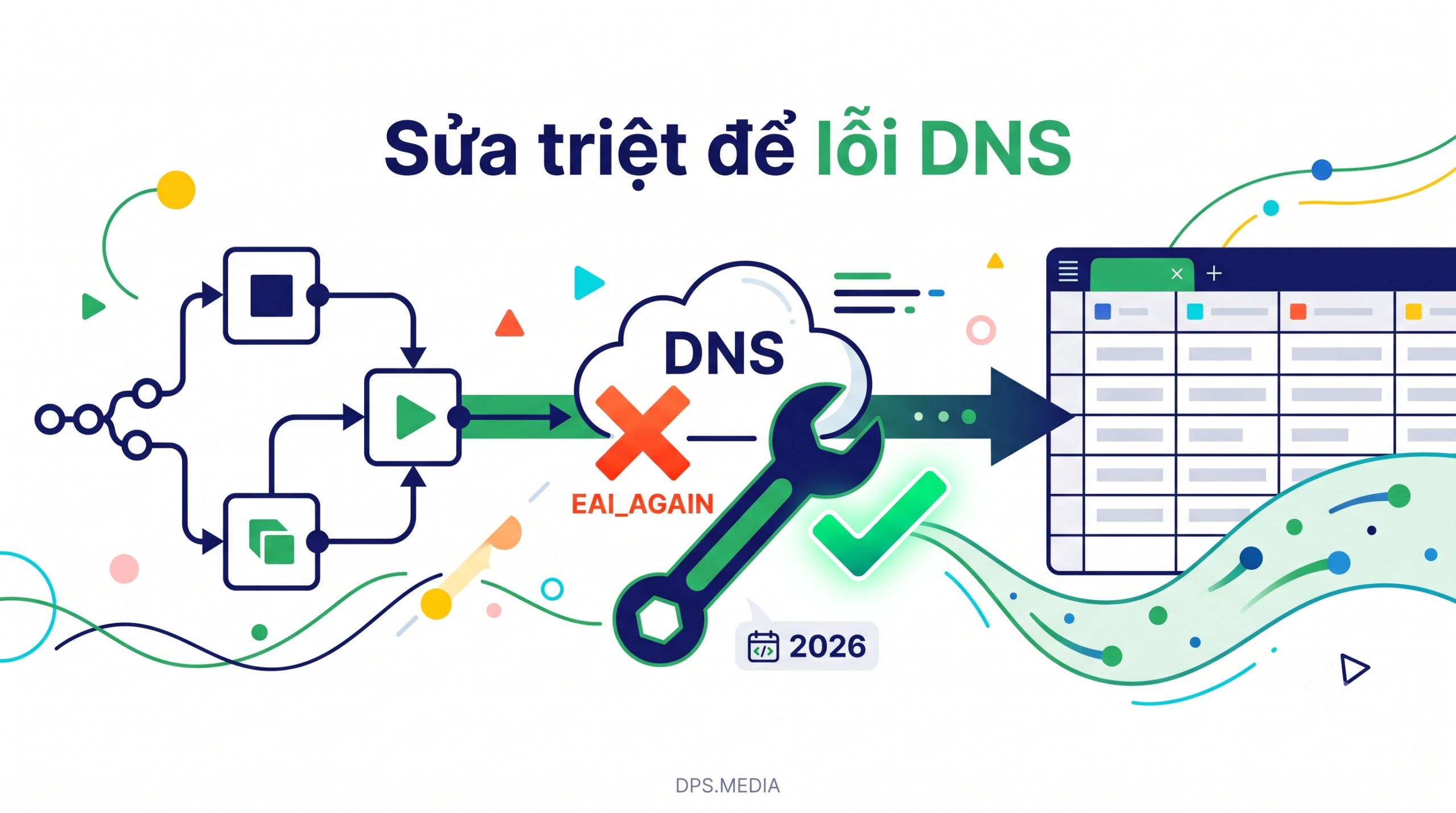
The solution: Connect n8n to NocoDB through Docker's internal network
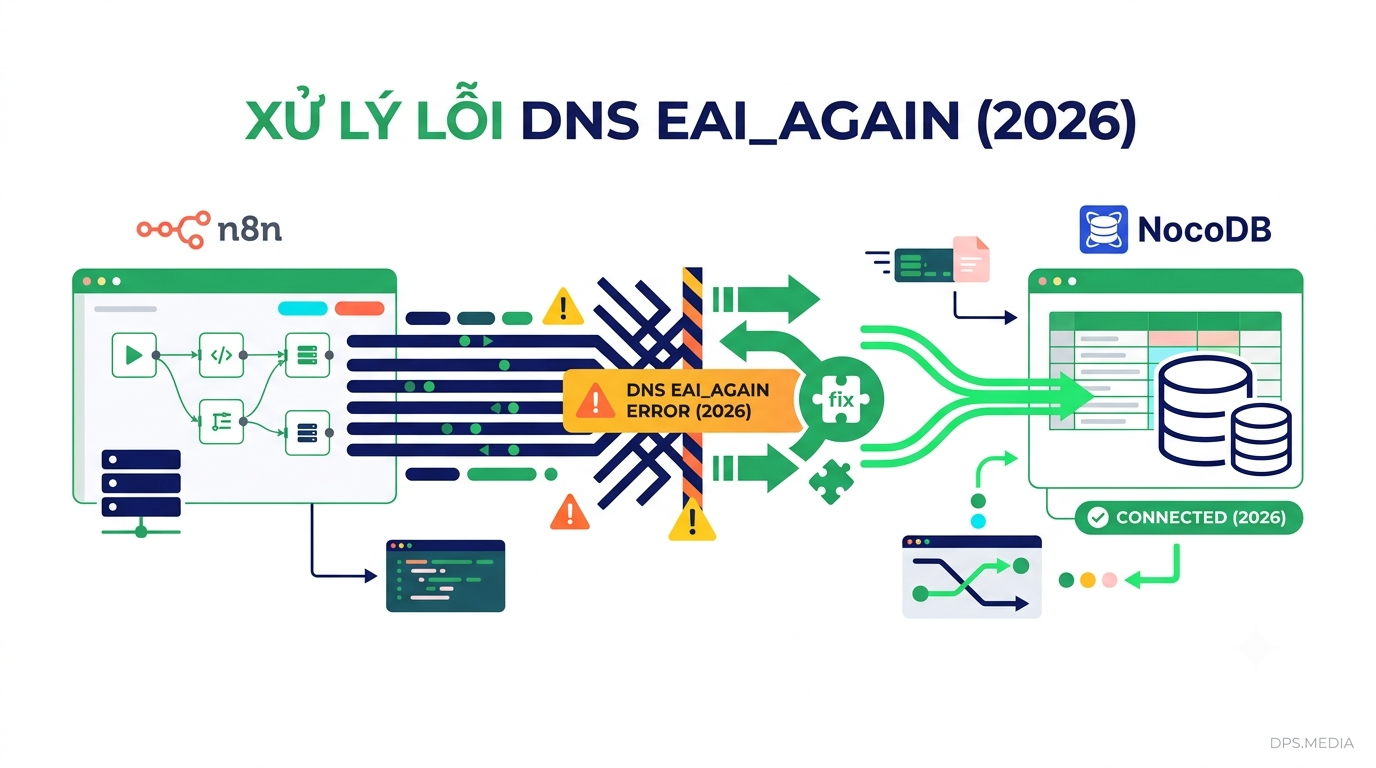
Instead of taking a detour from the VPS to the Internet and back to the VPS through an external secure HTTPS port, why not connect these two applications directly through Docker's virtual internal network? This allows n8n to communicate directly with the NocoDB container over standard HTTP while still maintaining maximum security because the traffic never leaves the VPS.
This approach requires you to understand how container virtual networks are organized. You can find more detailed information in the official Docker Network documentation to better understand this local routing mechanism.
Real-world case study: Performance gains for a local fashion brand
Let's look at a real example from a fashion brand in Vietnam. They use n8n to pull orders from KiotViet into an internal NocoDB database hosted on a private VPS.
The system worked quite smoothly, but every 3–4 days a few orders would get stuck due to the EAI_AGAIN error from the NocoDB Node. The technical team decided to reconfigure n8n to connect directly to the NocoDB container through the default Bridge network of Nginx Proxy Manager on the VPS.
The results were surprising: not only did the DNS-related order processing issues disappear, but the execution time of database queries was also significantly reduced, with response speeds becoming 3 times faster than when using the previous public domain. Completely eliminating the SSL handshake also freed up a considerable amount of CPU resources on the server.
Steps to configure a direct connection between n8n and NocoDB
To apply this configuration, access your VPS Terminal and follow these detailed steps:
Step 1: Find the network name and NocoDB container name
First, run the command docker ps to identify the exact name of the NocoDB container. Then run the following command to find its Docker network name:
docker inspect -f '{{json .NetworkSettings.Networks}}' [ten_container_nocodb]The output will display the networks that NocoDB is connected to, for example, nginx-proxy-manager_default.
Step 2: Connect n8n and the Worker containers to the same network
Since large n8n deployments typically use Queue mode with separate Worker containers to process tasks, you need to run the network connection command for both the main container and all Worker containers:
docker network connect nginx-proxy-manager_default [ten_container_n8n_main]
docker network connect nginx-proxy-manager_default [ten_container_n8n_worker_1]
docker network connect nginx-proxy-manager_default [ten_container_n8n_worker_2]
Step 3: Change the Host address in the n8n credentials
Now simply open the NocoDB Credentials configuration page in the n8n web interface and change the Host field from the external domain name to the internal URL:
http://[ten_container_nocodb]:8080/Use http:// instead of https:// because direct Docker internal connections do not require and should not use SSL encryption in order to maximize performance.
Conclusion
With just a few basic Docker network configuration steps, you can make your automation system more resilient to network issues and dramatically improve processing performance. If your business needs to build large-scale sales automation and data management systems while optimizing VPS performance, explore the comprehensive solutions and Digital Marketing services comprehensive services from DPS.MEDIA for the most professional support.
Ý kiến bạn đọc (9)
Đăng nhập để bình luận
Đăng nhập nhanh 1-chạm bằng Google để chia sẻ ý kiến của bạn về bài viết.
Bằng cách đăng nhập, bạn đồng ý với điều khoản và chính sách cộng đồng.
Chưa có bình luận nào. Hãy là người đầu tiên chia sẻ cảm nghĩ!
Đăng nhập / Tạo tài khoản
Đăng nhập với Google để gửi bình luận và tương tác cùng cộng đồng.
Tiếp tục là đồng ý với điều khoản sử dụng và chính sách bảo mật của DPS Media.