






LINE is one of the popular messaging applications, and integrating it into Chatwoot helps you manage customer messages in a centralized and efficient way. This article will guide you step by step to connect LINE Official Account with Chatwoot.
Implementation steps
https://dps.media/cach-kiem-tra-backlink-doi-thu-de-xay-dung-chien-luoc-seo-thong-minh/
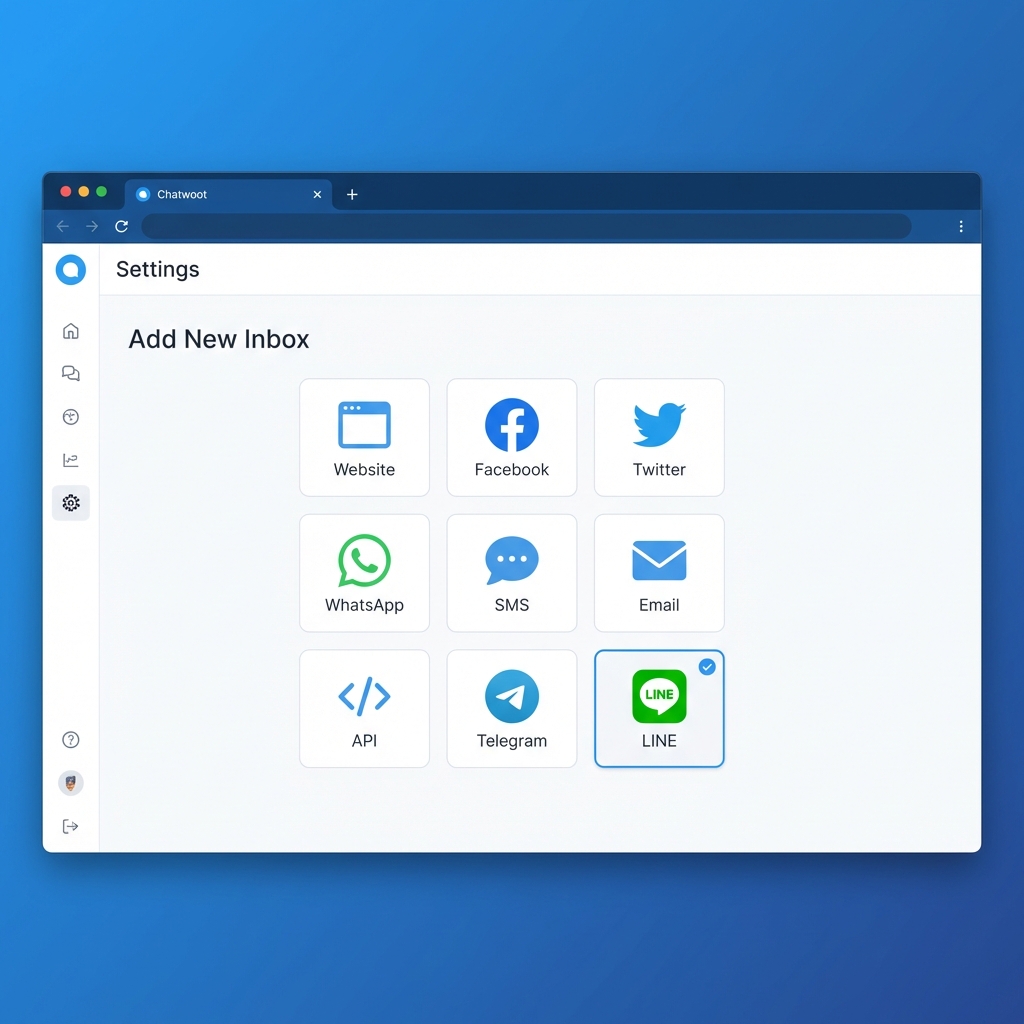
- Access the Chatwoot dashboard.
- Go to https://dps.media/?p=34598 -> https://dps.media/?p=34416.
- Click the button “Add Inbox” (Add inbox).
- https://dps.media/en/shopee-ads-guide-real-combat-from-zero/ “Line” in the list of connection channels.
According to a real-world survey in Vietnam, as many as 80% of customers decide to make a purchase after interacting with a business's fanpage.If a fanpage is neglected or unprofessional, you unknowingly lose hundreds of opportunities each day to reach potential customers. Therefore, our service […]
To connect, you need a LINE Business account and configuration in LINE Developers Console. Note: Currently, you cannot directly create a Messaging API channel from LINE Developers Console; you need to create a LINE Official Account first.
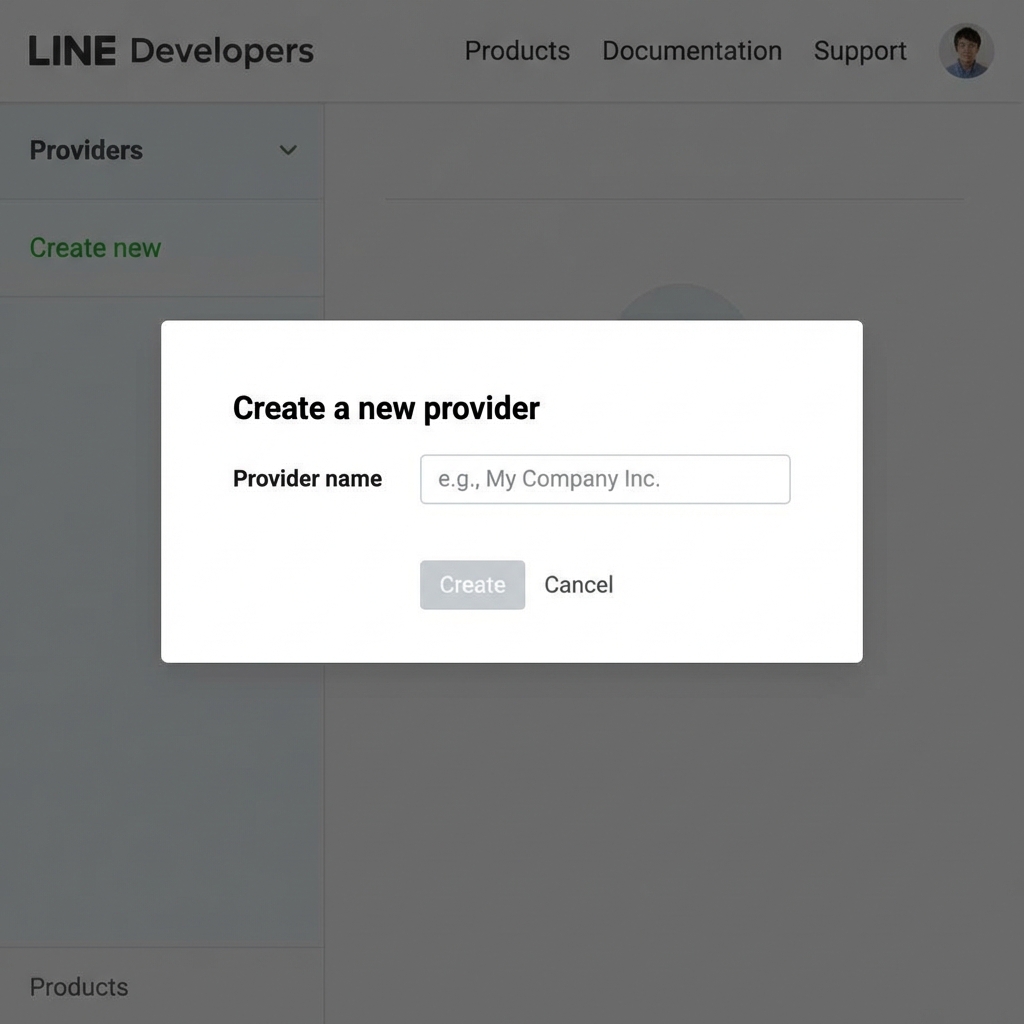
- Access LINE Developers Console.
- Log in with your LINE account (or create a new one if you don't have one).
- Create a “Provider” new (Provider) if you do not have one yet.
- Create Messaging API Channel:
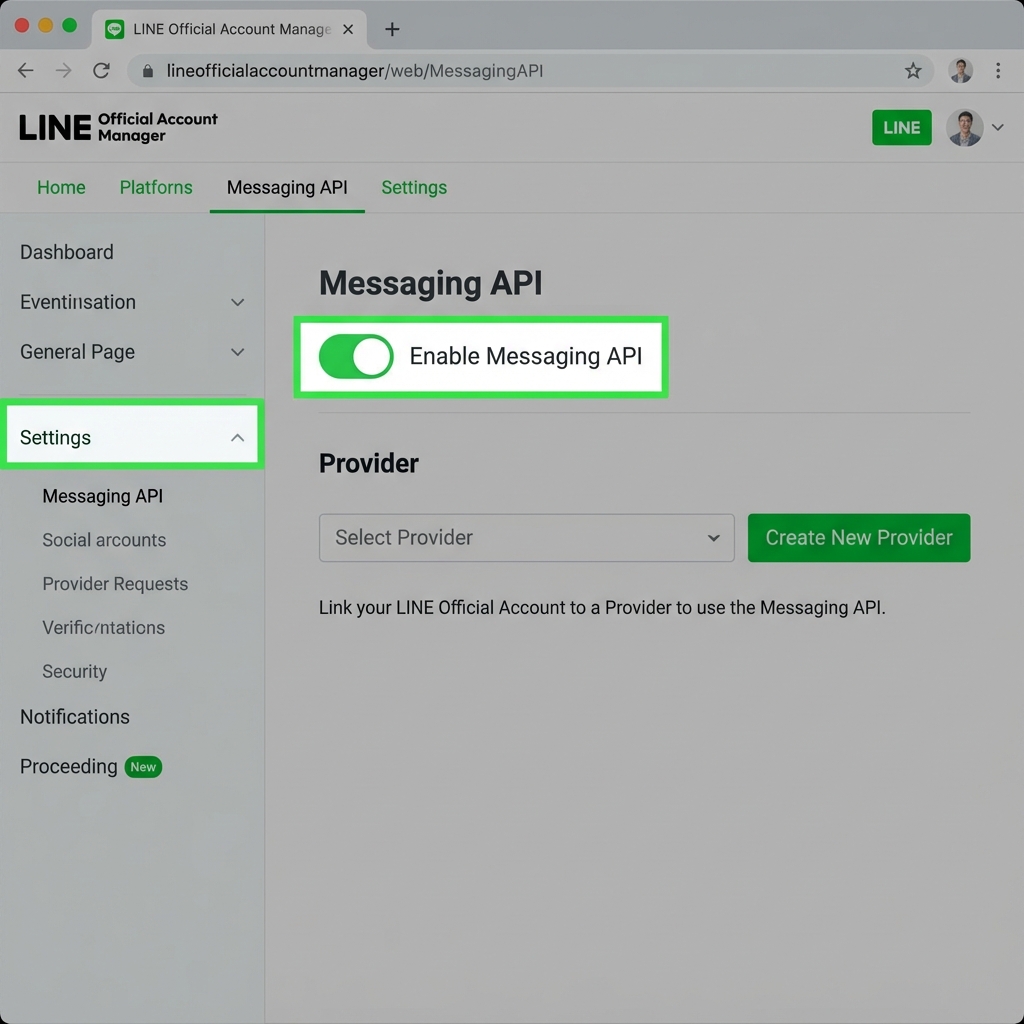
- Due to the new policy, you need to access LINE Official Account Manager to create a new Official Account.
- After creation, go to the Settings (Settings) section of that Official Account.
- Select the Messaging API in the left menu.
- Analyze data from Zalo OA to improve marketing strategies Enable Messaging API (Enable Messaging API).
- Select the Provider you created in step 3 to link.
https://dps.media/en/seo-ai-artificial-intelligence-revolution-optimizing-websites-and-ranking-on-google/
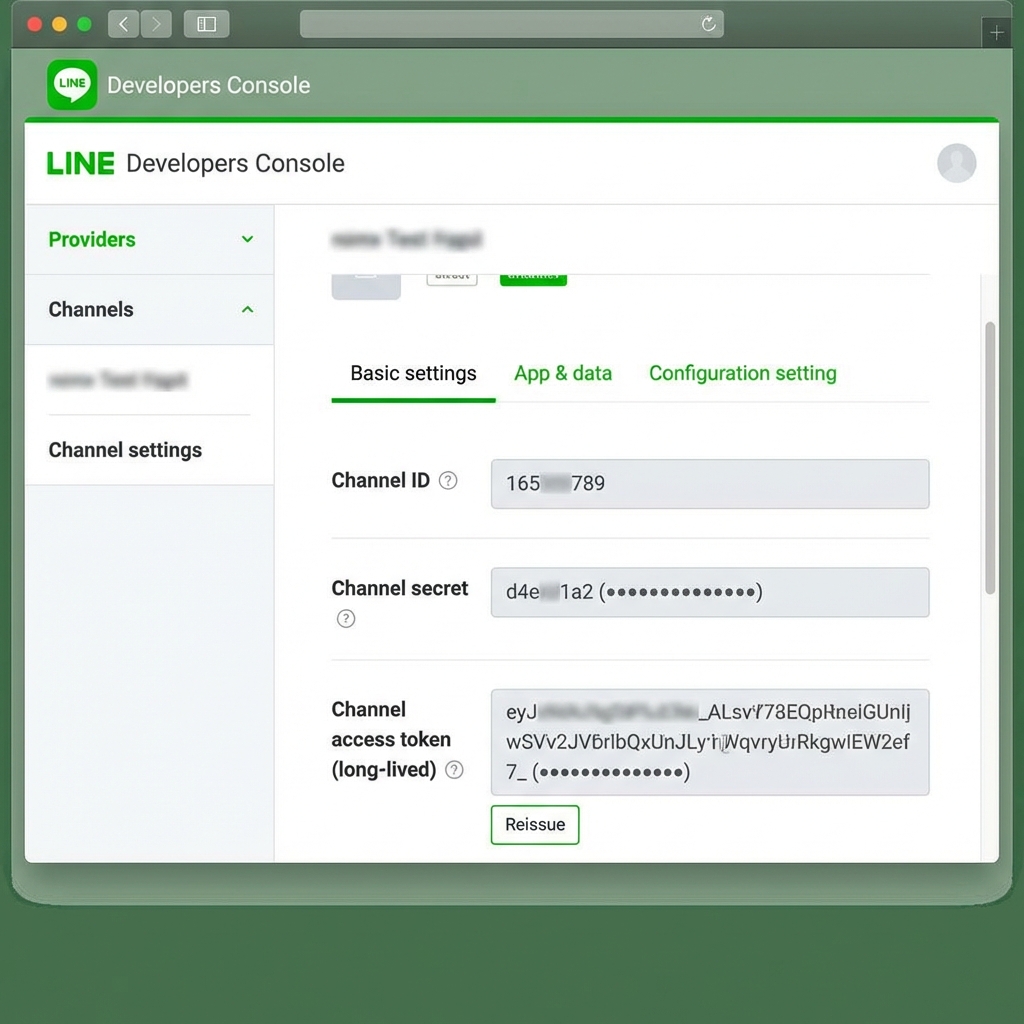
After enabling Messaging API, go back LINE Developers Console, select the Provider and Channel you just configured to get the information:
- Channel ID: Find in the tab Basic Settings.
- Channel Secret: Find in the tab Basic Settings.
- Channel Access Token:
- Switch to the tab Messaging API in LINE Developers Console.
- Find the section Channel access token (long-lived) and press Issue if not available yet.
https://dps.media/seo-ai-cach-tri-tue-nhan-tao-cach-mang-hoa-toi-uu-website-va-thu-hang-google/
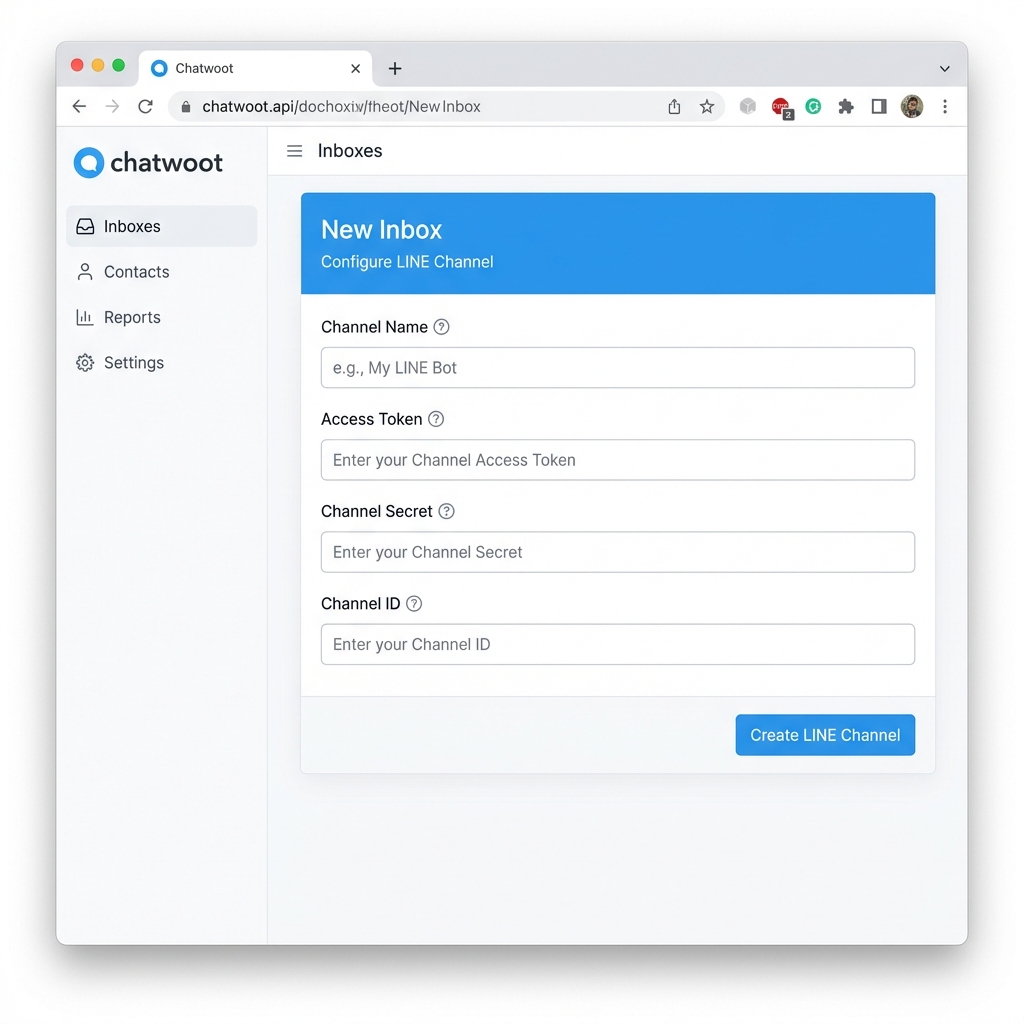
Go back to the Chatwoot settings screen and fill in the obtained information:
- Channel Name: Name your channel (e.g., LINE Customer Support).
- LINE Channel ID: Paste the copied Channel ID.
- LINE Channel Secret: Paste the copied Channel Secret.
- LINE Channel Token: Paste the copied Channel Access Token.
After filling in completely, press the button “Create LINE Channel”.
https://dps.media/en/content-development-strategy-for-small-business-fanpage/
Select the employees (agents) who will manage this LINE inbox and complete the inbox creation.
https://dps.media/en/professional-fanpage-management-service-from-a-to-z/
This is an important step for Chatwoot to receive messages from LINE.
- After creating the inbox, Chatwoot will provide you with a link Webhook URL. Please copy this link.
- Go back LINE Developers Console, go to the channel you just created, select the tab Messaging API.
- Find the section Webhook settings.
- Paste the Webhook URL path into and press Update.
- Analyze data from Zalo OA to improve marketing strategies Verify to check the connection.
- Important: Remember to enable the option “Use webhook”.
https://dps.media/goi-dich-vu-quan-ly-fanpage-chuyen-nghiep-tu-a-z/
In addition to configuring the Messaging API, you also need to enable Webhooks in the response settings of the LINE Official Account.
- Access LINE Official Account Manager.
- Go to the section Settings (Settings) -> Response settings.
- In the section Webhooks, toggle the button to the state Enabled (On).
- (Recommended) In the section Auto-response messages (Auto messages), you should turn it off to avoid customers receiving automatic messages from LINE overriding messages from Chatwoot.
Step 8: Test
Now everything is ready. To test, you need to friend this LINE Official Account.
Friend (and chat) link is in the form: https://line.me/R/ti/p/@
For example, with the ID in your image being @048wmyra, the link would be: https://line.me/R/ti/p/@048wmyra
Try accessing this link on your phone, add friend and send a message. The message will appear in the Chatwoot inbox.
Tip: To get the embed code or QR code, you can visit LINE Official Account Manager -> Home -> Gain friends -> Add friend tools.

Ý kiến bạn đọc (9)
Đăng nhập để bình luận
Đăng nhập nhanh 1-chạm bằng Google để chia sẻ ý kiến của bạn về bài viết.
Bằng cách đăng nhập, bạn đồng ý với điều khoản và chính sách cộng đồng.
We already have a LINE Official Account, so is it mandatory to create the Messaging API through LINE Official Account Manager as the guide says? I remember that previously we could work directly in the Developers Console.
That's right, the current process is different from before. You should first create or select an Official Account, then enable the Messaging API and link it to a Provider in LINE Developers so you can obtain the information needed to configure Chatwoot.
Exactly, this section is the easiest to get wrong if you read old documentation. If you already have an OA, check the Messaging API section first, and avoid creating unnecessary channels or Providers.
I've reached the Webhook step, but I'm not sure whether I need to turn off the webhook or LINE's default auto-reply feature when connecting Chatwoot. I'm worried both sides will respond to customers and send duplicate messages.
This concern is valid. When you bring Chatwoot in to handle conversations, review the Response Settings and the OA webhook mechanism to determine which system is responsible for replies, so that the bot or old configuration does not answer in parallel.
We have encountered messages being replied to twice because an old configuration was still active. After integration, you should test with a different LINE account and check both incoming messages and replies before going live.
The guide is quite easy to follow, but the Channel Access Token section should emphasize that you must Issue a token if you don't have one yet, since many people search for a long time without finding it to copy.
If a business has many customer service staff, adding team members in Chatwoot is worth noting. Consolidating LINE into one inbox will save staff from having to log in separately to handle customers.
I think the final test step should cover both directions: whether customer messages sent via LINE reach Chatwoot, whether staff replies return to LINE, and whether the webhook receives events reliably. Only after all 3 parts are covered can we feel confident about deployment.
Chưa có bình luận nào. Hãy là người đầu tiên chia sẻ cảm nghĩ!
Đăng nhập / Tạo tài khoản
Đăng nhập với Google để gửi bình luận và tương tác cùng cộng đồng.
Tiếp tục là đồng ý với điều khoản sử dụng và chính sách bảo mật của DPS Media.