Recently, Microsoft has strengthened security by enabling by default Security Defaults, making traditional SMTP connection (Basic Authentication) from accounting software like MISA, sales software, or WordPress websites difficult. You often encounter connection failure or authentication failure errors.
This article will guide you step by step on how to disable Security Defaults, enable SMTP Auth and get App Password (app password) to successfully integrate mail sending 100%.
Why can't you send mail with your regular Outlook password?
Microsoft has now blocked Basic Authentication (login with only User/Pass) for legacy protocols to avoid security risks. To send mail via SMTP, you need to “relax” some security policies for that mailing account while using App Password instead of the daily login password.
3-step process to perform
The standard process consists of 3 steps:
- Disable Security Defaults in Microsoft Entra ID (Azure AD).
- Enable Authenticated SMTP for the outgoing email account.
- Create App Password to paste into MISA/Software configuration.
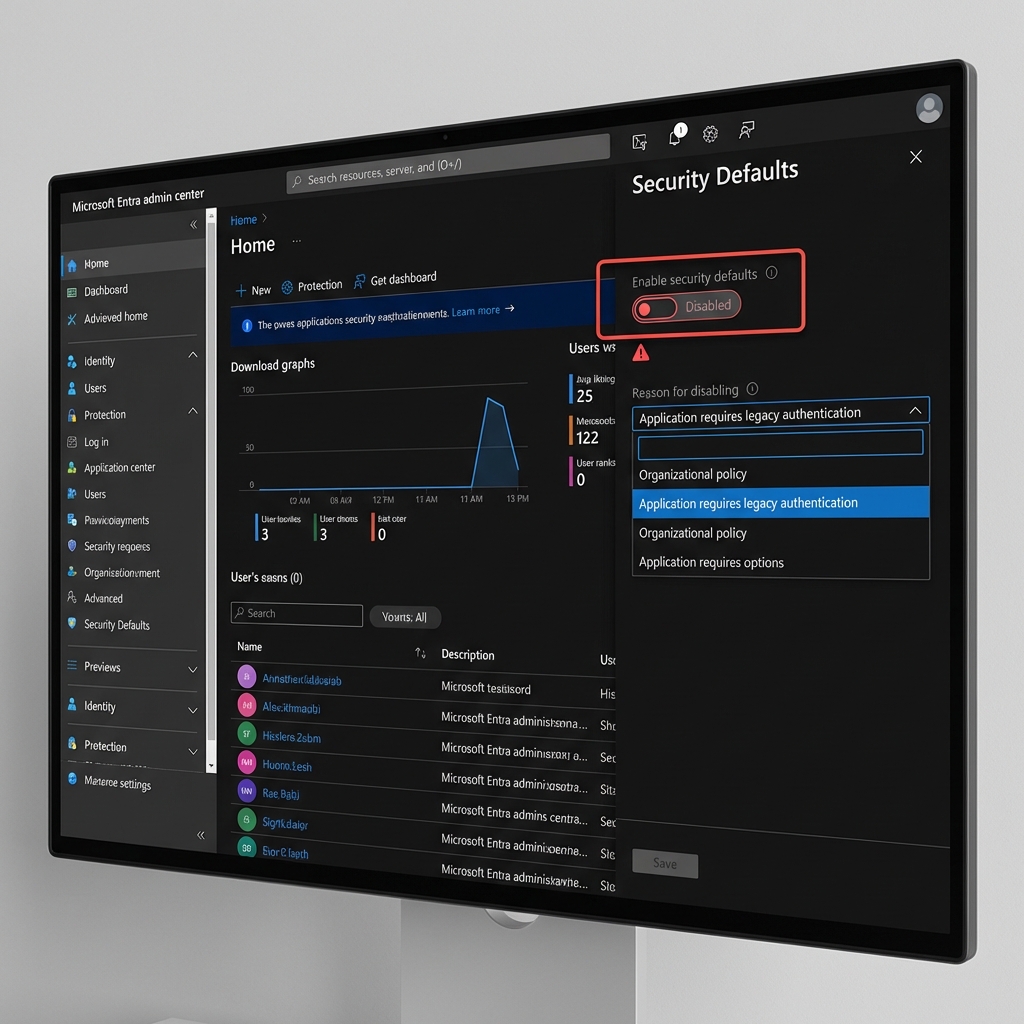
Step 1: Disable Security Defaults (Required)
This is the most important step. If not disabled, you cannot enable SMTP Auth.
- Access the admin page Microsoft Entra admin center with a Global Admin account.
- Look at the search bar at the top, type “Properties”.
- Select result Properties under the section Microsoft Entra ID.
- Scroll to the bottom of the page, find the blue link line Manage security defaults.
- Change status to Disabled (Not recommended).
- Select any reason (for example: Application requires legacy authentication) and click Save.
Step 2: Enable Authenticated SMTP for the sending email account
After disabling the common security policy, you need to grant SMTP mail sending permissions to the correct account you want to use (for example: hoadon@congty.com).
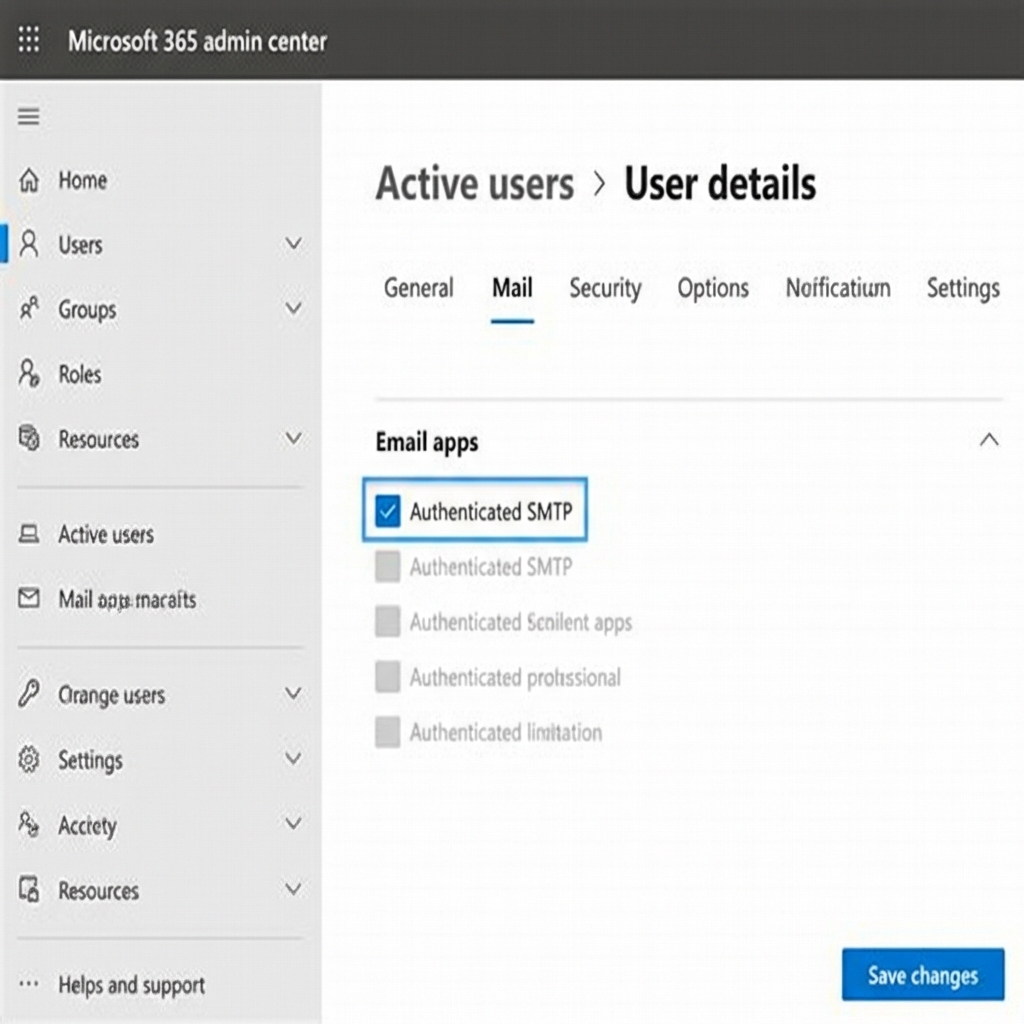
- Access Microsoft 365 admin center.
- Go to menu Users > Active users.
- Click on the email account name you want to configure.
- Select the tab Mail.
- Find the section Email apps, click on Manage email apps.
- Check the box Authenticated SMTP.
- Press Save changes.
Step 3: Allow and Create App Password
Instead of using login password (often accompanied by phone authentication that software doesn't understand), you will create a dedicated password specifically for MISA.
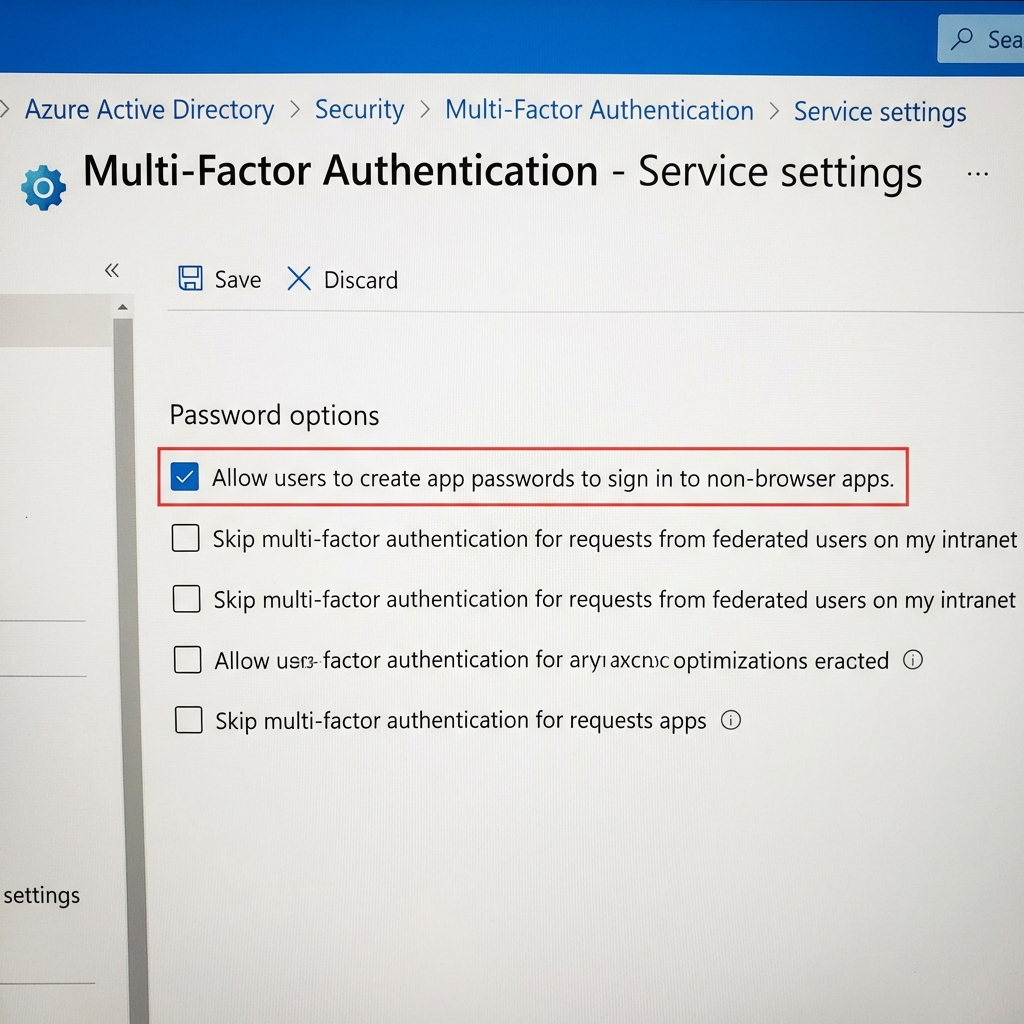
3.1. Enable App Password feature for the entire company
- Still on the page Active users, click on the button Multi-factor authentication on the toolbar (or search for “Multi-factor authentication” if not found).
- In the new window, select service settings (service settings).
- Check the box: Allow users to create app passwords to sign in to non-browser apps.
- Press Save.
3.2. Get App Password
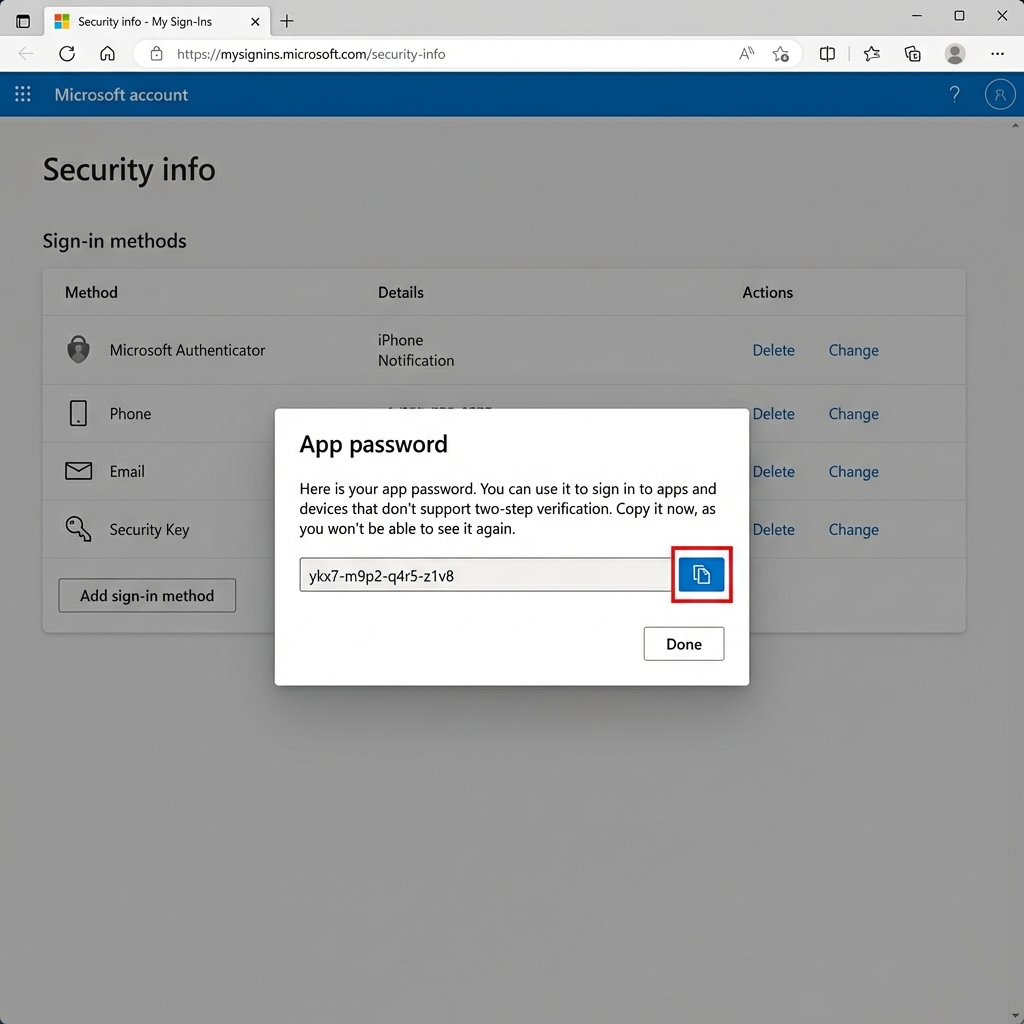
- Log in to link: mysignins.microsoft.com/security-info with the email sending account.
- Click the plus sign (+) Add sign-in method.
- Select App password.
- Set a descriptive name, for example: “MISA SMTP”.
- The system will give you a random string of characters. Copy this string immediately. This is the password you use to enter into MISA.
Configure in MISA / Software
Now you return to the MISA software or Web App, fill in the information as follows:
- Outgoing mail server (SMTP Server):
smtp.office365.com - Port:
587 - Security method (Encryption):
STARTTLS(or TLS). - Username: Your full email address.
- Password: Paste the App Password just created in Step 3 (Do not use Outlook login password).
Press Test connection and enjoy the “Connection successful” result!
Technical guide article by DPS MEDIA.