Introduction: The Nightmare Called “Manual Backup”
If you are a programmer, a System Admin or simply a science lover operating personal VPS, you must have experienced the chilling sensation when you accidentally typed the command rm -rf in the wrong directory, or on a fine day the Database Container suddenly dies without apparent reason.
Managing backups for Docker Container on VPS usually revolves around the following solutions:
- Cronjob + Shell Script: This is the most common way. You write a script
backup.sh, compress the volume directory and push it to the Cloud. It sounds simple but when the number of containers reaches dozens, managing this pile of scripts is a real ordeal. Not to mention that restoring is extremely manual and prone to errors. - Using Existing Tools (Portainer, Yacht…): These tools are great for managing Containers, but backup features are often quite basic, or require the Business version (paid) to have scheduling or advanced automatic backup features.
- No backup at all: “It probably won't happen to me” – and this is often the beginning of sad data loss stories.
Because of those pains, I decided to build with my own hands Docker Guard – A professional Backup & Restore system, with a sci-fi movie-like interface, and most importantly: It completely solves the safe backup problem.
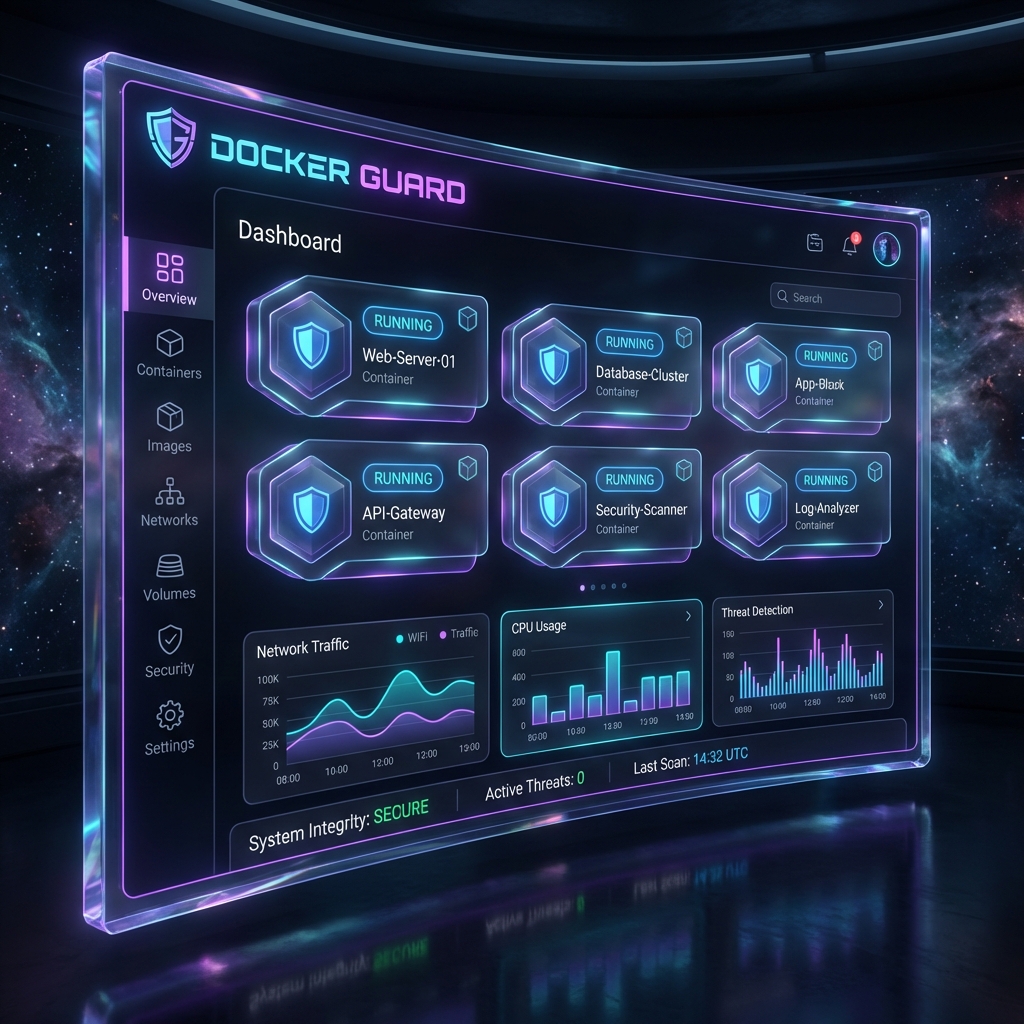
System Architecture & Tech Stack “Deep Space”
Instead of writing a dry Desktop or CLI application, I chose to build Docker Guard as a modern Web Application. This allows me to access and manage backups from anywhere, on phone or laptop, as long as there's a browser.
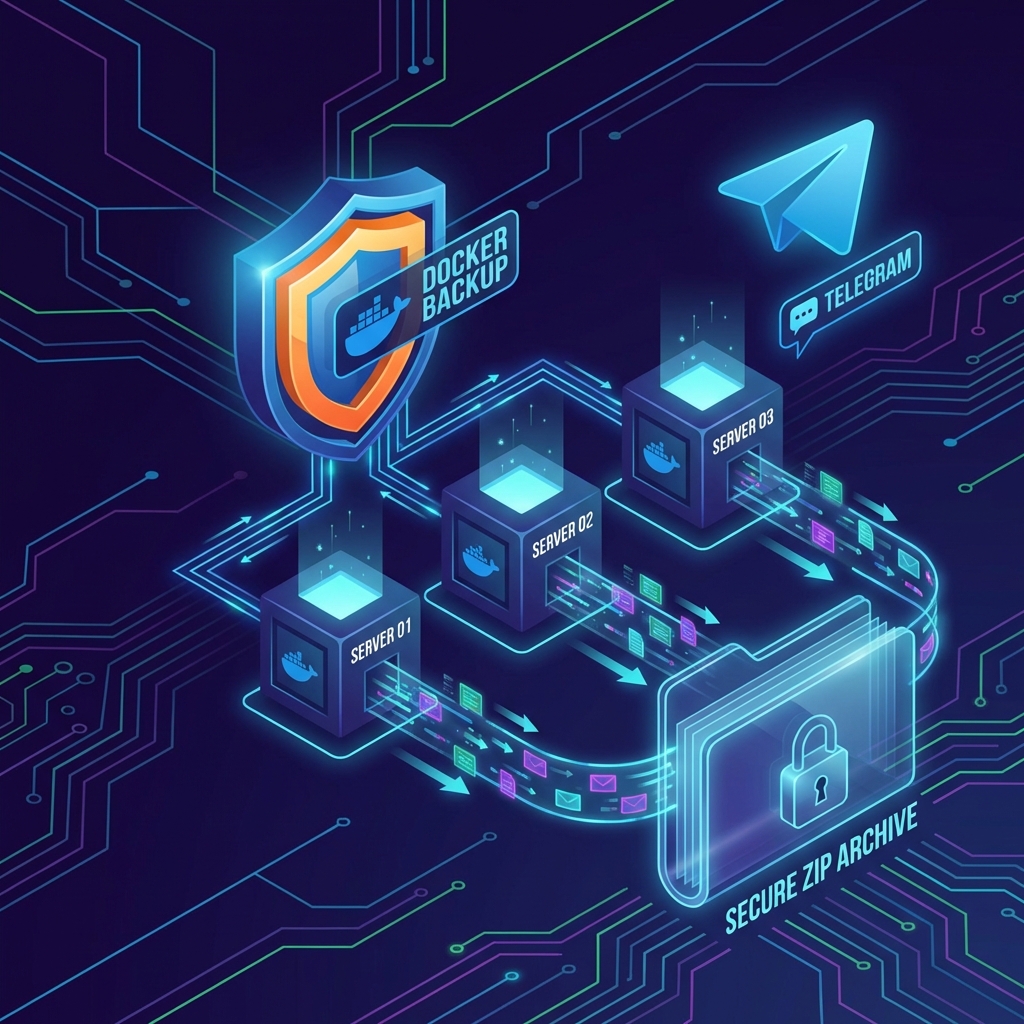
Why Next.js?
Many of you might wonder: “Why use Next.js (Node.js/React) for System management instead of Python or Go?”.
The answer lies in flexibility and development speed. With Next.js 14 (App Router), I can:
- Backend (Server Actions): Write Node.js code that runs directly on the Server to communicate with Docker Daemon, handle file system, zip compression… without needing to set up a separate Express/NestJS server.
- Frontend (React Server Components): Render interface extremely fast, good SEO (even though internal tools don't need much SEO, but fast loading is satisfying).
- Real-time UI: Easily integrate Streaming UI to display running backup logs in real-time.
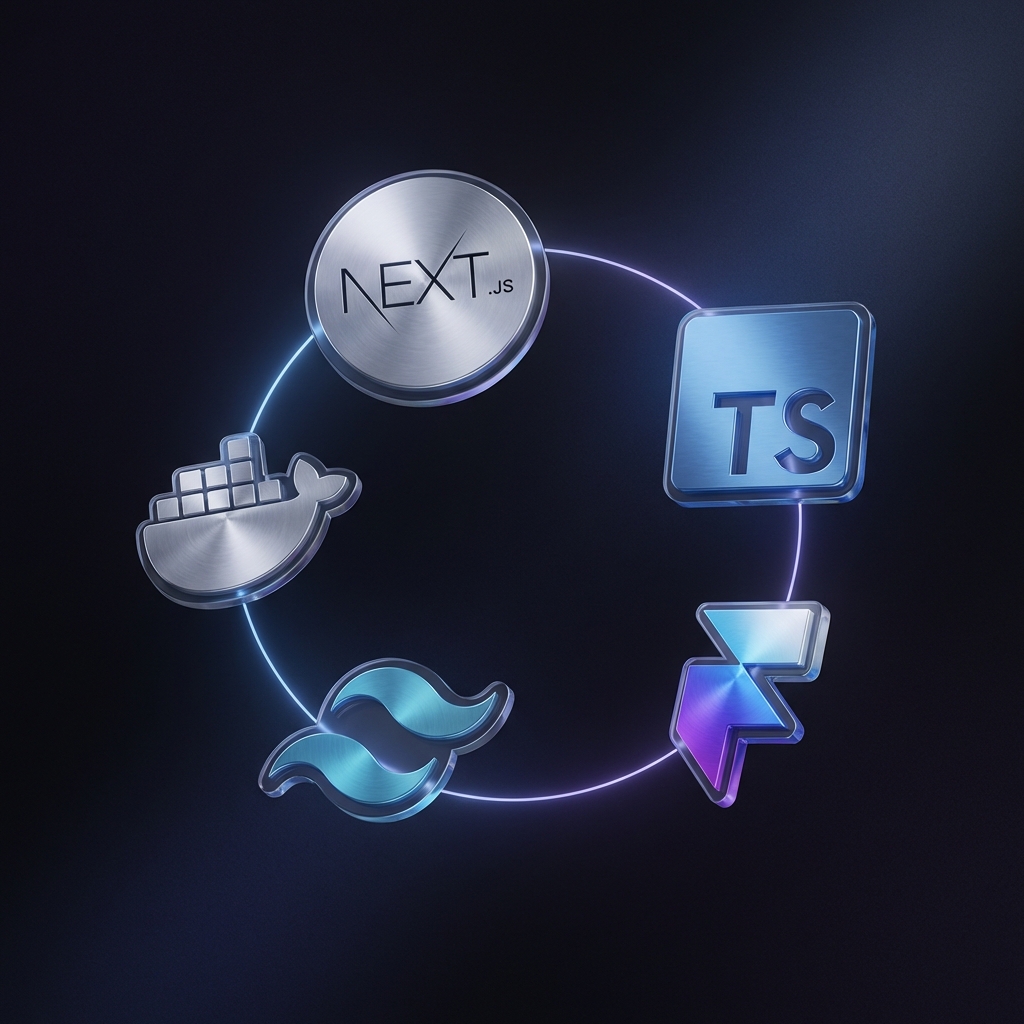
In addition, the interface is meticulously crafted with Tailwind CSS and Framer Motion. I drew inspiration from Cyberpunk/Sci-fi interfaces with a dark color scheme (Deep Space), Glassmorphism effects (frosted glass) and Neon lighting. Server management doesn't have to be boring with black and white screens, it has to be “cool” to be motivated to work!
3 Money-Making Features of Docker Guard
1. Smart Backup: Not Just Copying Data
Most common backup scripts only perform tar (compression) of volume directories. But what if you lose the entire VPS? You have the data, but you forget what docker run command you used, with which environment variables, which ports mapped externally?
Docker Guard solves this with the “Smart Backup” mechanism:
- Inspect Container: The tool will read the entire current configuration of the container (Image tag, Env vars, Ports, Network settings, Cmd…).
- Serialize Config: Save that configuration to a file
config.json. - Compress Volumes: Compress all data from Volumes mounted into the container.
- Package: Package everything into a single
.zipfile.
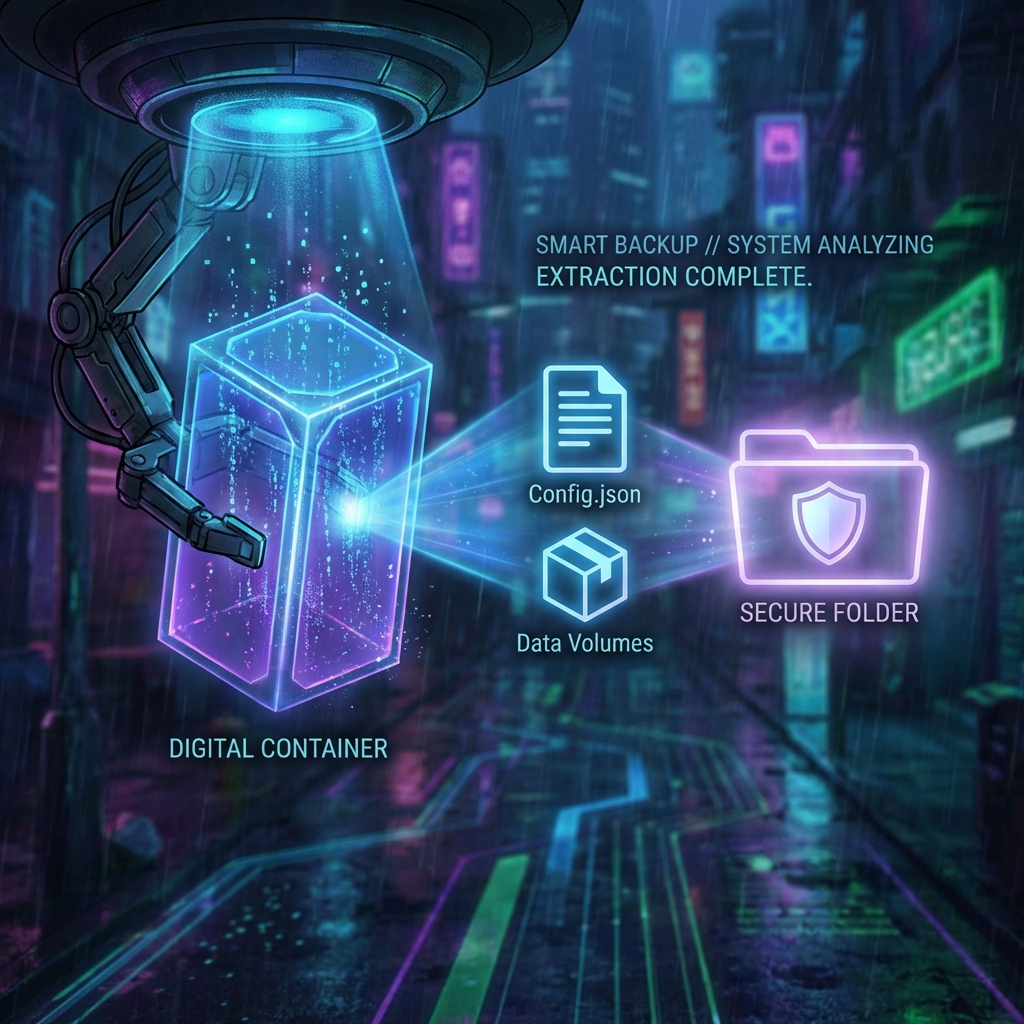
Thanks to this, Docker Guard's backup file is like a “resurrection pill”. You take this zip file to a brand new VPS, click Restore, and boom! Your container comes back to life exactly as before, with every environment variable, every image version intact.
2. Restore to New Container: Clone for Safe Testing
This is the feature I'm most proud of and use the most. In a Production environment, restoring over a running container is an extremely high risk. What if the backup file is corrupted? What if the new version is incompatible with old data?
Docker Guard allows you to perform “Restore to New Container”. Instead of overwriting, it will:
- Create a new container with an example name:
my-app_restored_20231025. - Map a random port (or one you choose) to avoid port conflicts with the main app (Live App).
- Data is extracted into a separate folder.
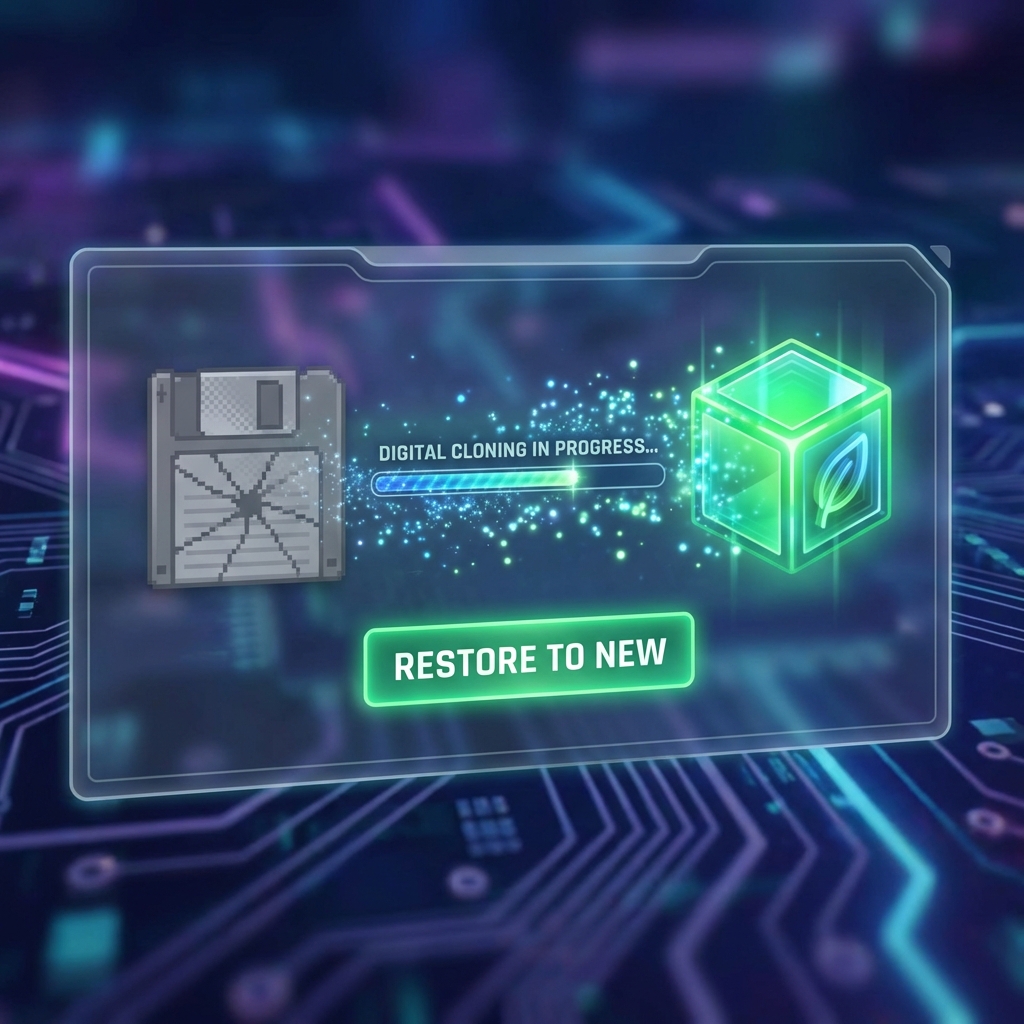
At this point, you have 2 containers running in parallel: the Live version and the Restore version. You can enter the Restore version to check, test if the data is okay, if the code runs stably. When everything is 100% certain, then you switch traffic over or replace the old one. This is the process Zero Downtime Recovery that large systems often use.
3. Smart Queue
Backup is a resource-intensive task (CPU for compression, Disk I/O for reading/writing). If you schedule 10 containers to backup at the same time at midnight, your VPS will likely hang (High Load).
Docker Guard integrates a smart queue (Queue) by default. Even if you click “Backup All”, it will process each container one by one (or 2-3 depending on Worker configuration). This container finishes before the next, ensuring the VPS always runs smoothly, never overloaded.
DIY Guide: Build Your Own Backup Tool
If you're interested and want to code a similar tool yourself, the key lies in communicating with the Docker Daemon.
Step 1: Mount Docker Socket
Docker Daemon listens for commands via a Unix Socket at /var/run/docker.sock. To allow our Node.js app to control Docker, we need to mount this file into the app's container.
# docker-compose.yml
services:
  my-backup-app:
    image: node:18-alpine
    volumes:
      - /var/run/docker.sock:/var/run/docker.sock # The key is here
Step 2: Use Dockerode Library
Instead of calling shell commands docker exec... (very crude and hard to parse results), we use the library dockerode.
import Docker from 'dockerode';

// Connect via mounted socket
const docker = new Docker({ socketPath: '/var/run/docker.sock' });

async function backupContainer(containerId) {
    const container = docker.getContainer(containerId);

    // 1. Get configuration info
    const data = await container.inspect();
    const env = data.Config.Env;
    const image = data.Config.Image;

    console.log(`Backing up container: ${data.Name} - Image: ${image}`);

    // 2. Handle backup volume (File compression logic)...
    // ... code handling archiver (zip) ...
}
Step 3: Handle Stream (Data Stream)
For large data (several GB), absolutely do not read everything into RAM. Use Node.js Stream to “pump” data from Docker exec output directly into the compressed file.
// Example pipeline illustration
import { pipeline } from 'stream/promises';
import fs from 'fs';
import zlib from 'zlib';

await pipeline(
    dockerStream, // Stream from container
    zlib.createGzip(), // Gzip compression
    fs.createWriteStream('./backup.tar.gz') // Write to disk
);
Summary
Building internal tools (Internal Tools) like Docker Guard not only makes operations work lighter and safer but is also a great opportunity for us to learn deeper about the system. Understanding Docker Socket, Streams, System Architecture will make you a more well-rounded software engineer.
If you're also struggling with backups, try building a small tool for yourself. The feeling of watching progress bars run smoothly and green “Backup Success” notifications is really addictive!
See you in the next technical sharing articles about DevOps and System Administration!