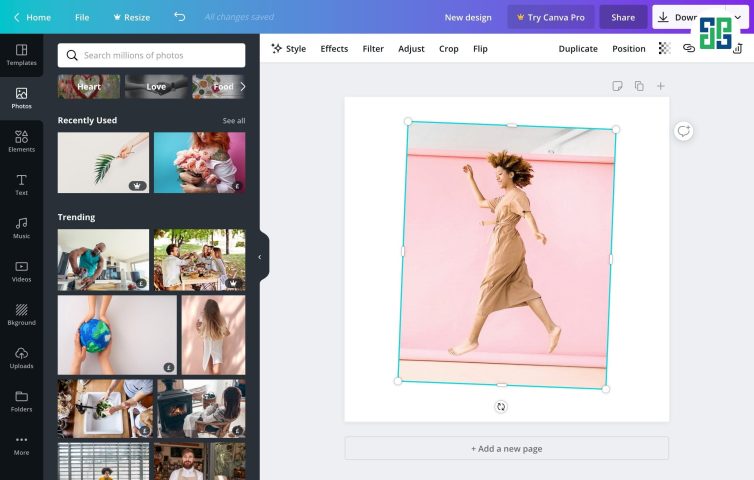

Canva is one of the famous websites that is easy to use for designing images for everyone. Even those who know nothing about design or have no Photoshop skills can create their own works. This article, DPS.MEDIA JSC will share and guide you on how to use Canva in the simplest and easiest way for you!
[embedyt] https://www.youtube.com/watch?v=CW0lYcYnRok[/embedyt]
The most complete Canva usage tutorial video 2021
What is Canva?
Canva was established in 2012. Until now, it has been a very powerful application. Canva can help design logos, CVs, infographics, posters, banners, thư mời,… Để thiết kế được những hình ảnh, bạn chỉ cần thực hiện các thao tác kéo thả và soạn thảo văn bản. Canva là gì khi nó có thể sử dụng được cho cả web cùng với các phương tiện graphics.
Currently, Canva is publicly available online for free on the Internet, with a very rich resource and interface, diverse styles, and different personalities. In addition, some special features require a cheap Canva Pro account.
Detailed guide to using Canva
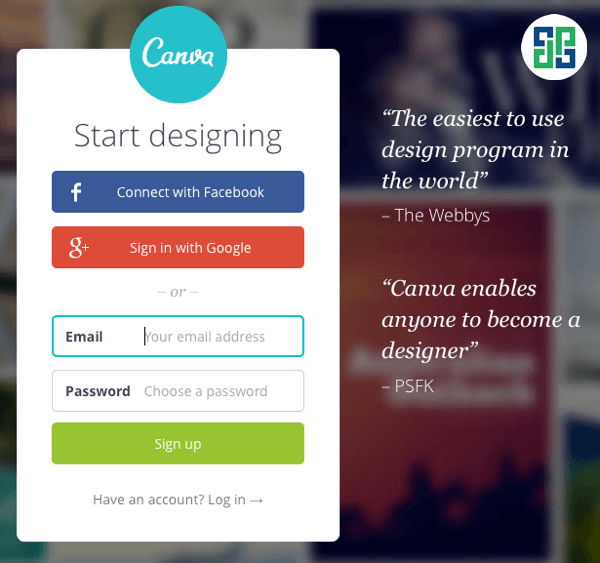
How to create an account on Canva
You only need to enter your email and password to easily use Canva online. You can also quickly connect with your Google or Facebook account.
To experience and use VIP features, many individuals or organizations have chosen to share Canva Pro accounts to use together.
In addition, you can also download Canva to your computer or download the Canva app to your smartphone which is very convenient to help you create your works.
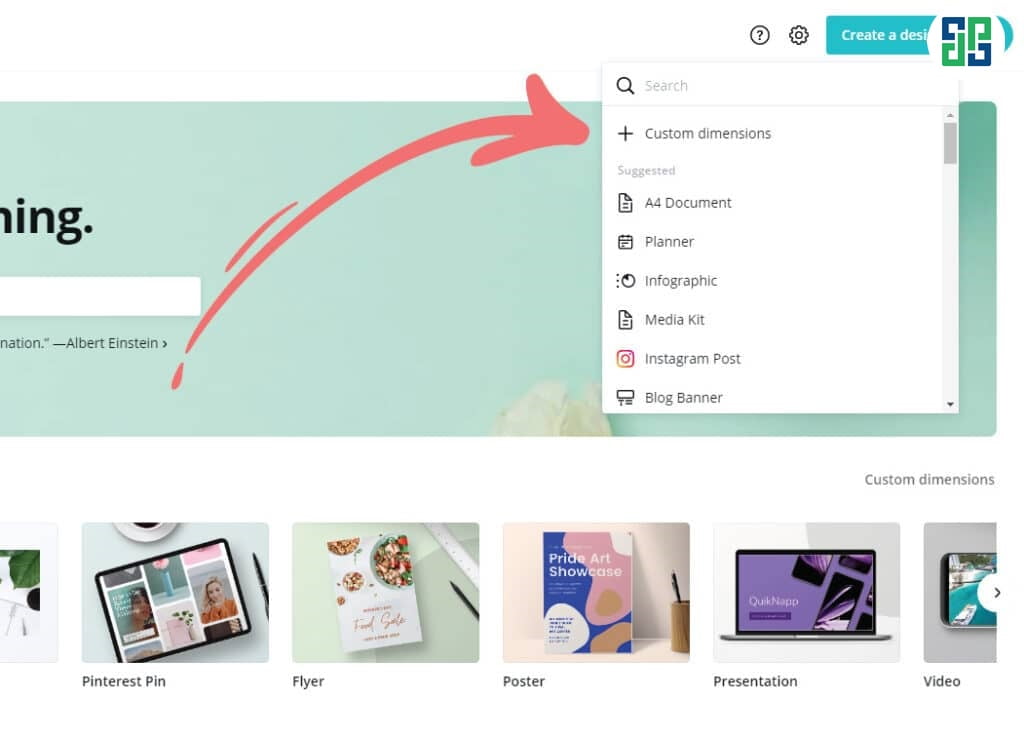
Guide to using Canva when choosing dimensions to get started
After you have successfully logged in, you can immediately start your design by choosing the size:
- Choose the size you want to design
- Chọn kích thước sẵn có của Canva: Tại đây, Canva có rất nhiều các kích thước chuẩn cho logo, poster, bài post đăng facebook,…rất tiện cho bạn (Bạn có thể sử dụng thanh search để tìm mẫu kích thước phù hợp nhé!)
At this point, you just need to select DESIGN to start!
Choosing and editing fonts on Canva
Guide to customizing fonts as you wish
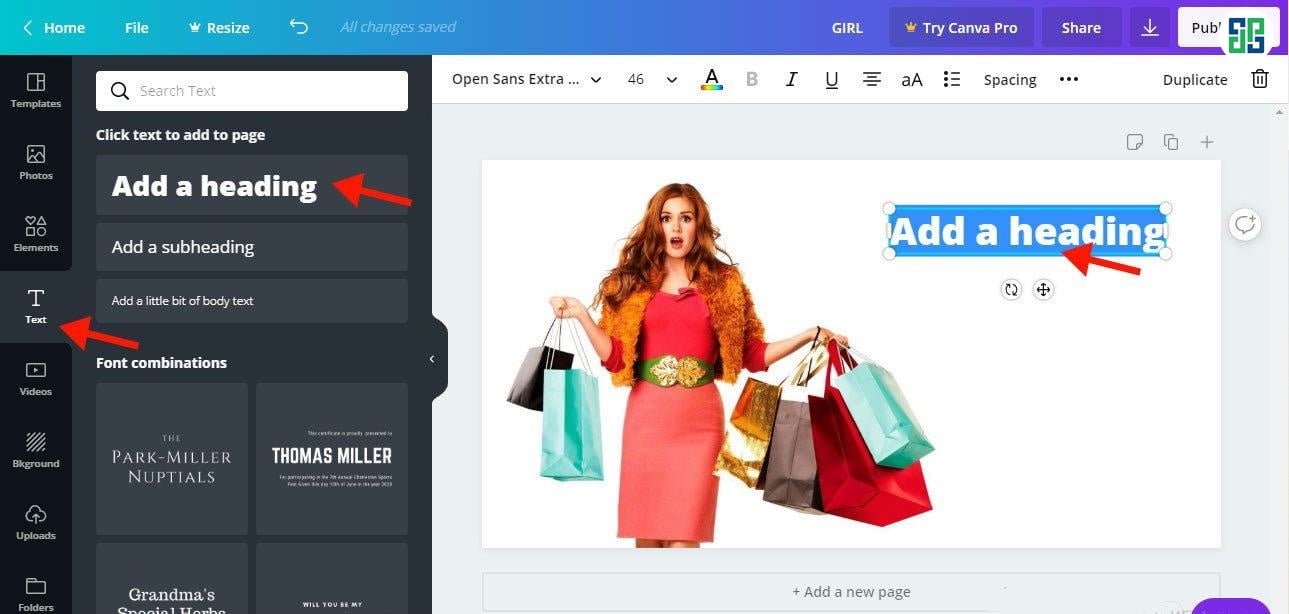
You can see the TEXT column on the left. There, there are many font combinations already designed; you can choose your favorite combination.
If you don't like the Canva usage guide, you can delete each element or add ADD HEADING, SUBHEADING, BODY TEXT to creatively combine fonts yourself.
You can:
- Change the font size
- Choose italic, bold, or uppercase for the text
- Choose the color for the text
- Font selection, types of Vietnamese fonts in Canva
( If you are not satisfied, you can UNDO to redo step by step. Or if you want to delete that text block, select the trash bin icon.)
How to upload fonts to Canva
Although it contains a large library of different fonts, sometimes the Vietnamese fonts in Canva are not satisfactory for many users. Because sometimes there are errors or they do not match your layout design.
Therefore, you can upload the font you want to Canva!
Hướng dẫn sử dụng Canva – cách tải font chữ lên canva:
Step 1: Access the Canva website online (www.canva.com) and log in successfully.
Bước 2: Ở phía bên trái Menu => Chọn Bộ thương hiệu => Tải lên phông chữ
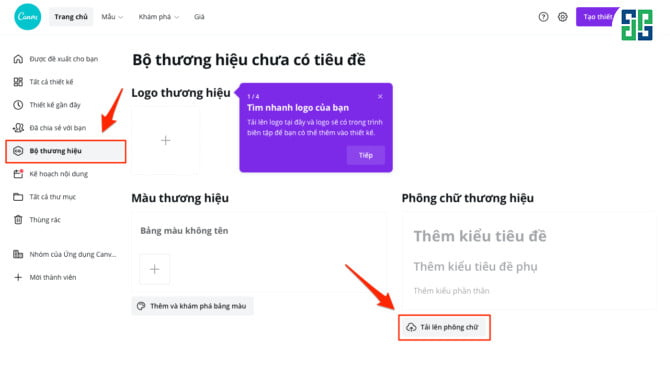
Bước 3: Chọn font chữ cần tải => Bấm “Có, tải lên!”
(Lưu ý: Bạn hãy tải lên font chữ không có bản quyền nhé – là font chữ bạn sáng tác hoặc font chữ đã được chia sẻ công khai)
Then, just press F5 and reopen your design to see your font in the “Uploaded fonts” section. Now you can use it freely!
Guide to using Canva to design other details, freely creative
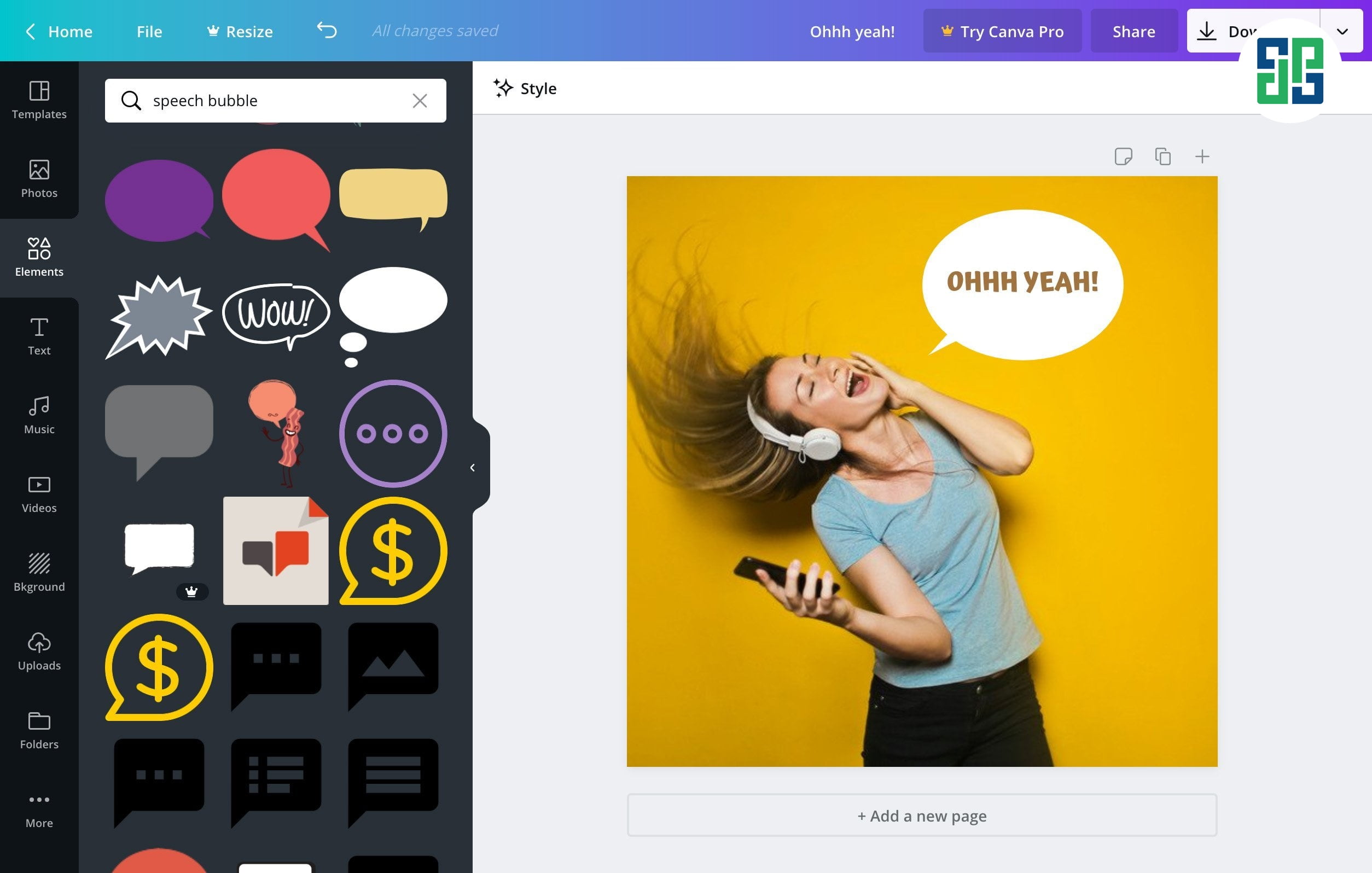
Next, you can freely create on your design. Upload images from your computer/phone to design and use additional ELEMENTS to decorate, including:
| Grids | To divide the layout into desired sections |
| Frames | Choose frame shapes, you can insert your images into those frames. |
| Shapes | Insert shapes like squares, stars, circles |
| Lines | Lines, straight lines, curves, zigzag lines |
| Icons | Includes drawings, stickers, diverse icons in all fields (you can type in the search bar to find easier) |
| Charts | Insert additional charts |
Save the designed image
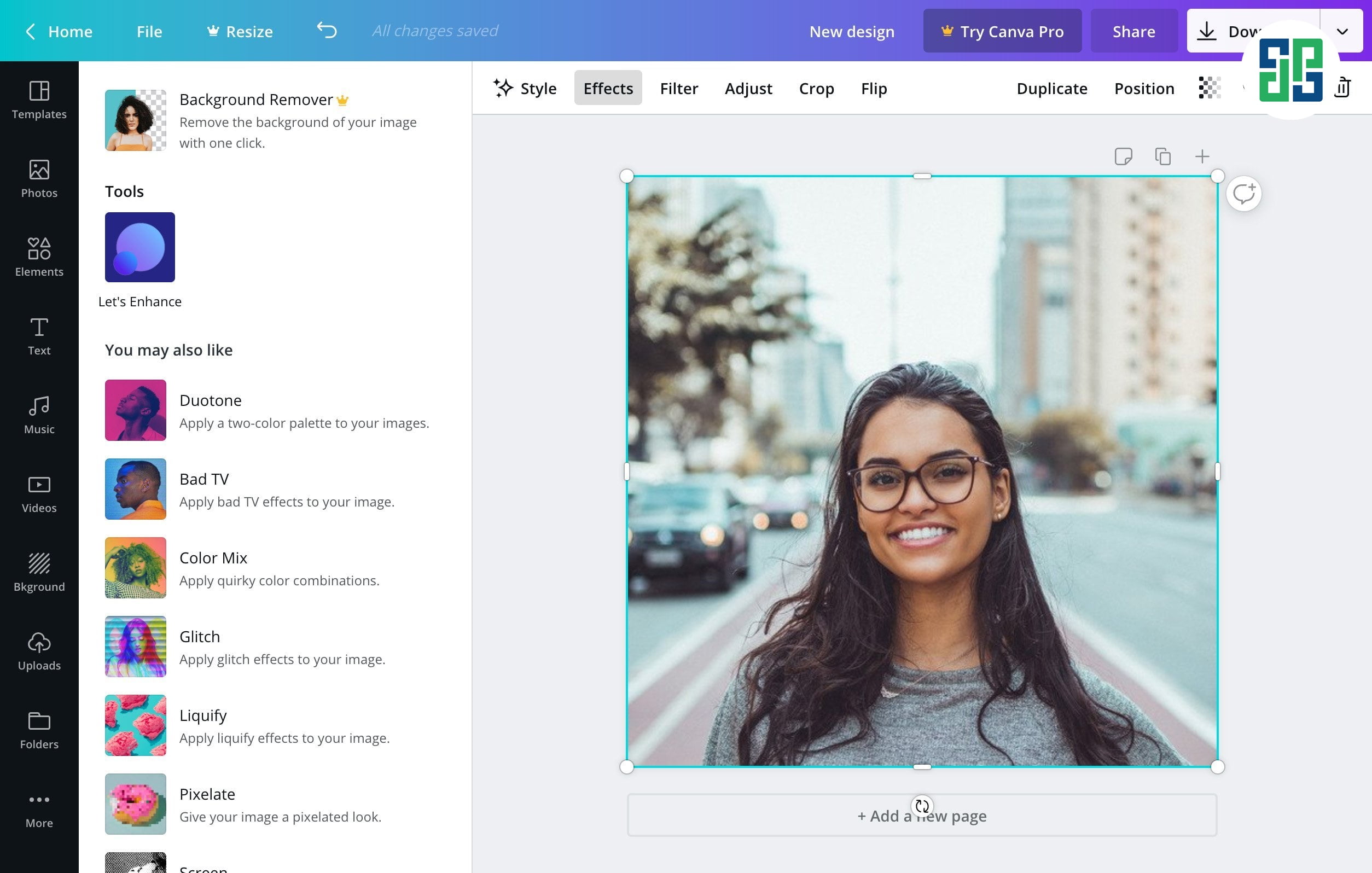
With Canva, once the image design is done, you can completely download that image directly to your device without any registration, very good.
You can share your Canva Pro account for the best experience!
Hopefully with this Canva usage guide from DPS.MEDIA JSC, you can have your first products! Wish you success!
Special: Free Canva Pro accounts for FCT IUH students' personal emails
Comment below this post using the following format to receive a full-featured Canva Pro account: Email + class + message. Example: nguyenvana@gmail.com. DHKQ7A. Thank you.
This account giveaway program will end on 7/7/2021. Please comment quickly using the format so we can send it to you.