
In today's digital age, moving and exploring has become easier than ever with the support of map and navigation applications. Google Maps is one of the most popular apps, trusted by millions of users worldwide. In this article, let's DPS explore interesting features on Google Maps,how to locate on google map, how to get location coordinate degree on google map along with countless other useful information about Google Maps.
Exciting features on Google Maps
Capture your location in an instant with easy positioning on Google Maps
The current location feature on Google Maps helps you determine your position quickly and accurately with just a few simple steps.
How to locate on Google Maps using your phone
Necessary conditions to locate on Google Maps using your phone
- A smartphone or tablet with internet connection and GPS
- Google Maps app installed from the appropriate app store (Google Play Store for Android or App Store for iOS)
Guide to locating on Google Maps using your phone
Step 1: Open the Google Maps app
Launch the Google Maps app from the home screen of your mobile device.
Step 2: Determine your current location
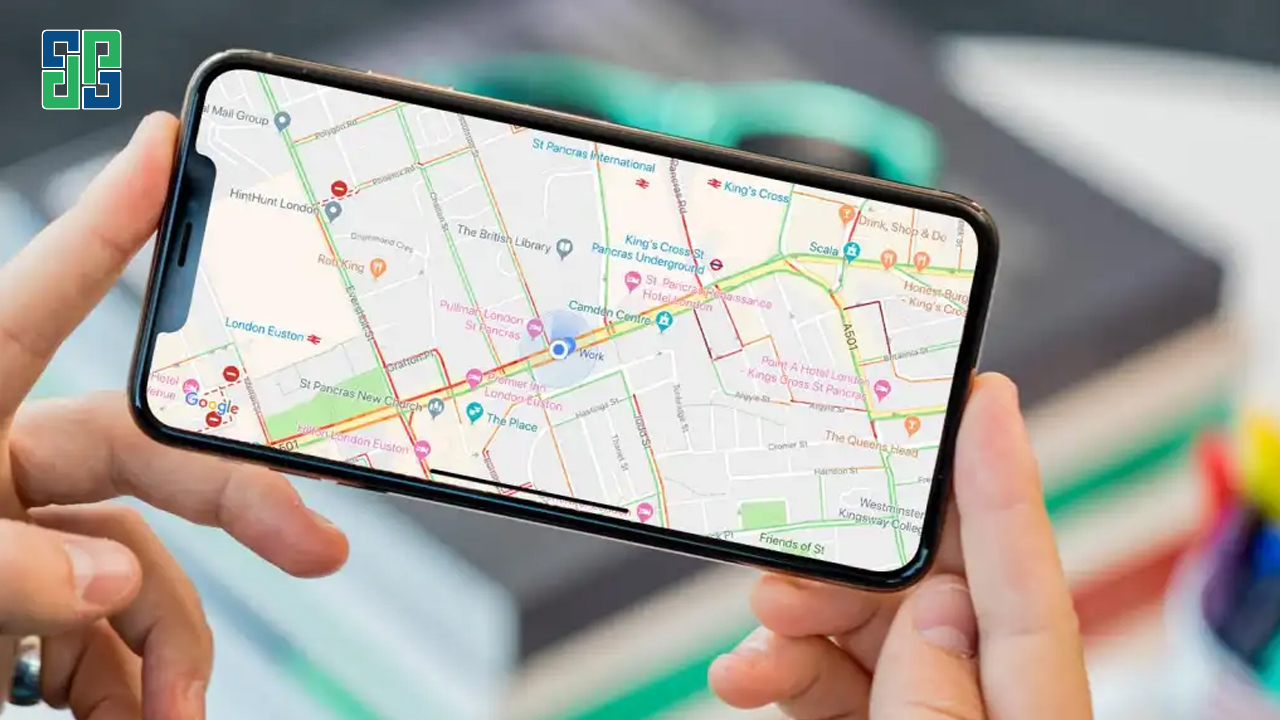
Your current location will be displayed on the map as a marker or a blue dot. To view location details, tap the location icon in the bottom right corner of the screen.
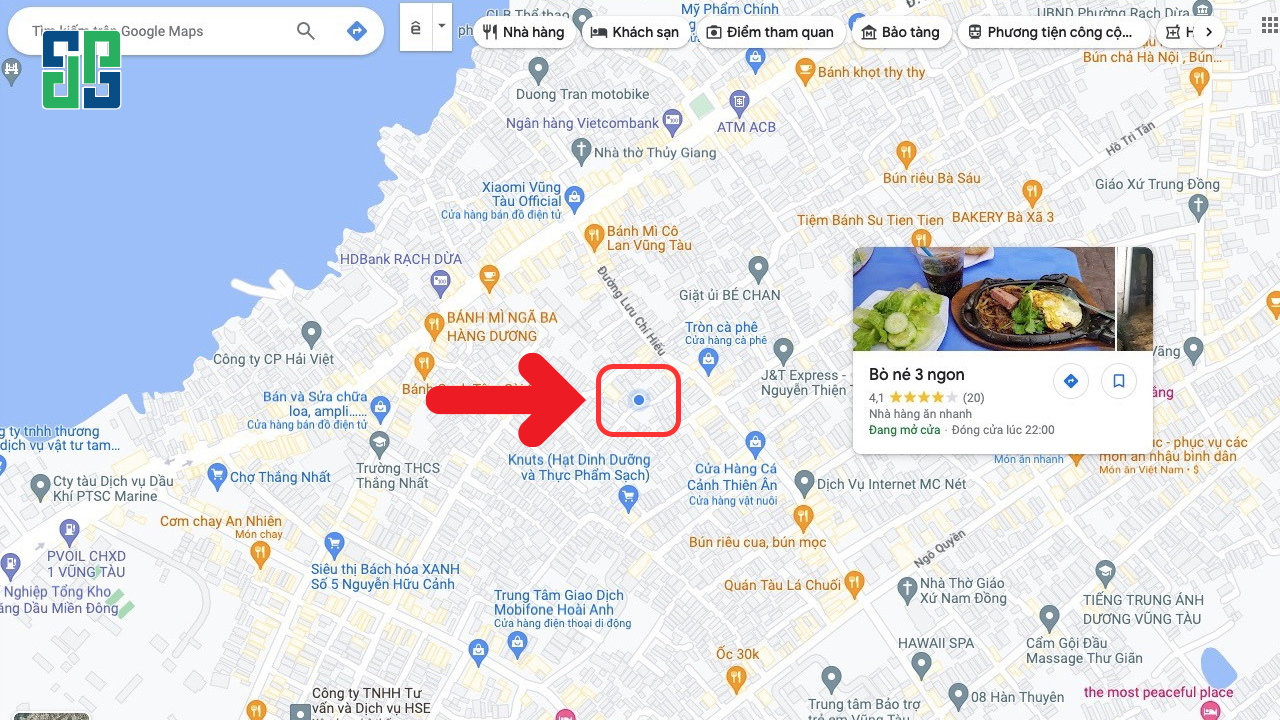
Step 3: Search for a place
Enter the address or name of the place you want to go into the search bar at the top of the screen, Google Maps will display a list of relevant search results, then select your desired location from the list.
Step 4: Plan your route
Select means of transportation
Chọn nút “Chỉ đường” nằm ở phía dưới màn hình, Google Maps sẽ hiển thị các tuyến đường di chuyển phù hợp cho các phương tiện khác nhau như xe máy, ô tô, xe buýt hoặc đi bộ. Bạn có thể lựa chọn tuyến đường phù hợp nhất với nhu cầu và sở thích của mình.
View detailed route information
Google Maps will provide step-by-step directions, including maps, real images (if available), information about travel time and distance. You can follow the instructions via voice guidance or visual cues.
How to locate on Google Maps using a computer
Necessary conditions to locate on Google Maps using a computer
- Computer with internet connection
- Web browser (Google Chrome, Mozilla Firefox, Microsoft Edge, etc.)
Guide to locating on Google Maps using a computer
Step 1: Open your web browser and go to Google Maps
Open your web browser on your computer and enter the address https://maps.google.com/ into the address bar and press Enter.
Step 2: Allow location access
Google Maps có thể yêu cầu bạn cho phép truy cập vị trí của bạn. Hãy nhấp vào “Cho phép” để ứng dụng xác định vị trí hiện tại của bạn chính xác.
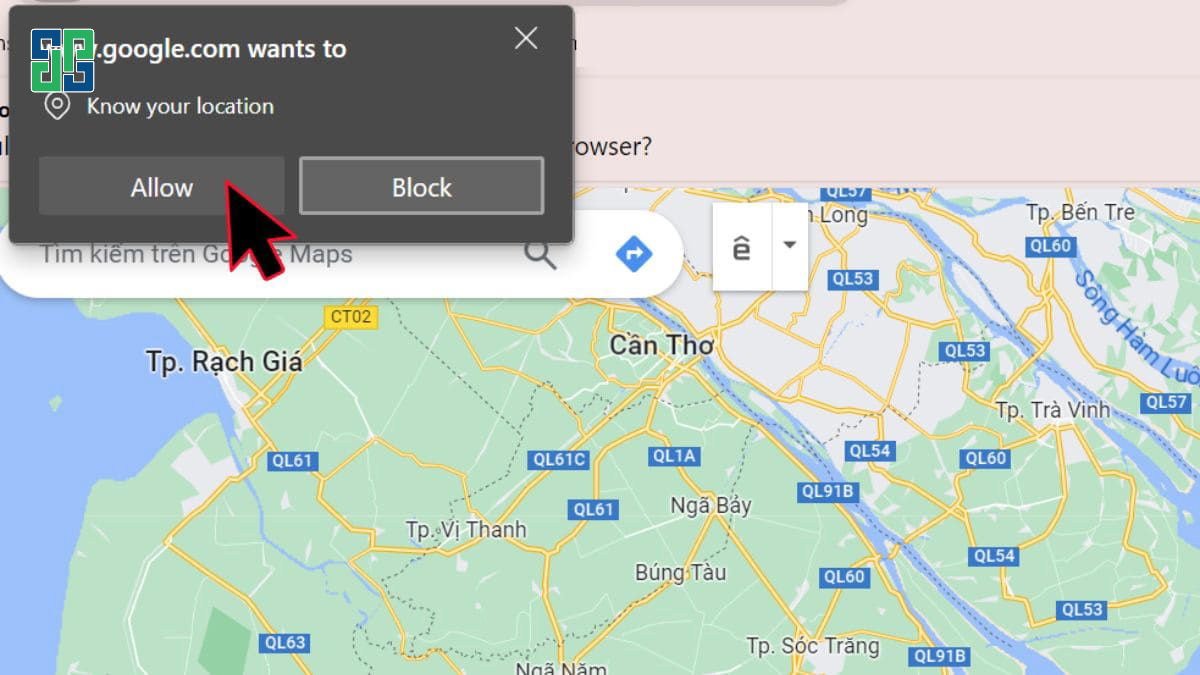
Step 3: Identify your current location
Sau khi cho phép truy cập vị trí, Google Maps sẽ hiển thị vị trí hiện tại của bạn trên bản đồ bằng một biểu tượng đánh dấu hoặc chấm màu xanh lam. Vị trí của bạn cũng có thể được hiển thị dưới dạng tọa độ GPS.
Step 4: View location details
Click on the displayed location on the screen, Google Maps will provide you with detailed information about your current location, including GPS coordinates, address, and nearby places.
Explore the world around you with the location search feature
Google Maps offers extremely powerful location search capabilities, making it easy for you to explore the world around you in many different ways:
- Search by address: Enter the specific address of the place you want to search for in the search bar.
- Tìm kiếm theo tên địa điểm: Nhập tên địa điểm, ví dụ như “Nhà hàng XYZ”, “Quán cà phê ABC”,…
- Tìm kiếm theo loại địa điểm: Nhập loại địa điểm bạn muốn tìm kiếm, ví dụ như “nhà hàng”, “quán cà phê”, “cây xăng”,…
After entering the search information, Google Maps will display a list of results that match your query. You can select the place you want to search for from the list, and Google Maps will show the location of that place on the map with a red dot.

Determine location coordinates with a super simple way to get coordinates on Google Map
How to get coordinates on Google Maps using your phone
- B1 – Mở ứng dụng Google Maps đã được cài đặt trên điện thoại của bạn.
- B2 – Chọn vị trí bạn muốn lấy tọa độ và nhấn giữ màn hình cho đến khi xuất hiện chấm đỏ. Tọa độ sẽ hiển thị trên thanh tìm kiếm ở phía trên cùng màn hình.
- B3 – Chọn vào thông tin bên dưới màn hình để xem địa chỉ cụ thể của vị trí đó.
- B4 – Nhập tọa độ vào thanh tìm kiếm trên Google Maps để tìm kiếm vị trí.
How to get coordinates on Google Maps using your computer
- B1 – Mở trang web Google Maps (https://maps.google.com/) trên máy tính.
- B2 – Chọn bất kỳ vị trí nào trên bản đồ. Tọa độ GPS sẽ hiển thị ở cuối màn hình. Bạn có thể thu phóng bản đồ bằng cách cuộn chuột hoặc sử dụng nút “+” và “-” ở góc dưới bên phải màn hình.
- B3 – Nhấp vào vị trí tọa độ để mở bảng thông tin. Bảng này hiển thị tọa độ theo hai định dạng: Độ, phút và giây (DMS): Ví dụ: 9°48’47.0″N 106°25’57.2″E hoặc Độ thập phân (DD): Ví dụ: 9.813050, 106.432541 Ngoài ra, bạn còn có thể xem địa chỉ cụ thể của vị trí đó.
- B4 – Nhập tọa độ vào thanh tìm kiếm trên Google Maps để tìm kiếm vị trí cụ thể. Bạn có thể nhập tọa độ theo cả ba định dạng: DMS, DMM và DD.

Enjoy cuisine from all regions with the restaurant and eatery search feature
Are you looking for a good restaurant to enjoy lunch? Or want to find a café to relax after class? Google Maps will help you easily find dining locations that suit your preferences.
- B1 – Nhập tên quán hoặc loại hình cửa hàng bạn muốn tìm kiếm vào thanh tìm kiếm.
- B2 – Google Maps sẽ hiển thị danh sách các kết quả phù hợp trong khu vực của bạn.
- B3 – Chọn quán bạn muốn tìm kiếm từ danh sách.
- B4 – Xem thông tin chi tiết về quán, bao gồm địa chỉ, số điện thoại, giờ mở cửa, hình ảnh, đánh giá của khách hàng,…
- B5 – Nhấp vào nút “Chỉ đường” để nhận hướng dẫn đường đi đến quán.
Advanced location features on Google Maps
In addition to the basic positioning methods mentioned above, Google Maps also offers several advanced features to meet the diverse needs of users:
- Save location: Save frequently used places for easy access later.
- Share location: Share your current location with friends or family so they can easily find you.
- Tìm kiếm địa điểm lân cận: Tìm kiếm các địa điểm như nhà hàng, quán cà phê, cây xăng,… trong khu vực xung quanh bạn.
- Voice navigation: Use voice command features to search for places, get directions, or perform other actions on Google Maps.
- Download offline maps: Download a map of a specific area to use when there is no internet connection.

Detailed analysis of factors affecting location accuracy on Google Maps
GPS and Wi-Fi signal quality:
GPS: GPS is the most important factor affecting location accuracy. When you are outdoors with a clear view of the sky, GPS can provide your location with high accuracy up to a few meters. However, in areas with many tall buildings, electromagnetic interference, or bad weather conditions, the GPS signal may be weakened, leading to errors in determining your location.
Wi-Fi: When the GPS signal is weak or unavailable, Google Maps will use Wi-Fi signals to determine your location. The accuracy of Wi-Fi-based location depends on the density of Wi-Fi access points in the area and the quality of the signal. In general, Wi-Fi accuracy is lower than GPS, usually ranging from several dozen meters to several hundred meters.
Current location
Indoor location: When you are indoors, GPS signals can be blocked by walls and roofs, leading to errors in determining your location. Google Maps may use other methods such as Wi-Fi, Bluetooth, or accelerometer sensors to estimate your indoor location, but the accuracy is usually lower than outdoor positioning.
Areas with many tall buildings: In areas with many tall buildings, signals GPS can be reflected and interfered with by buildings, leading to errors in location determination. Google Maps may use advanced algorithms to compensate for these errors, but accuracy can still be affected.

Device
GPS sensitivity: Each device has different GPS sensitivity. Devices with high GPS sensitivity can receive weaker GPS signals and provide more accurate locations.
Antenna quality: The quality of the GPS antenna also affects the accuracy of the location. A good antenna will receive stronger GPS signals and less interference.
Software: The software version of Google Maps and the device's operating system can also affect the accuracy of the location. Make sure you are using the latest software version for the best experience.
Other factors
Weather conditions: Bad weather conditions such as heavy rain, snowfall, or fog can affect GPS and Wi-Fi signals, leading to errors in location determination.
Electromagnetic interference: Electromagnetic interference from electronic devices such as mobile phones, TV towers, or high-voltage power lines can also affect GPS and Wi-Fi signals.
Conclusion on how to locate on Google Maps
With the detailed instructions above, we hope you have mastered how to use Google Maps to locate, search for places, and plan your journey. Google Maps is an extremely useful tool for everyone, helping you move easily and explore the world around you in an interesting way.
Tuy nhiên, để thu hút khách hàng tiềm năng và tăng doanh thu cho doanh nghiệp, việc sở hữu một bản đồ Google Maps chuyên nghiệp và có thứ hạng cao trên kết quả tìm kiếm là vô cùng quan trọng. DPS – Digital Marketing Agency tự hào là đơn vị cung cấp map creation services and reputable map review boosting, helping you:
- Create a professional Google Maps map, fully detailed and attractive to customers.
- Increase your Google Maps ranking in search results, making it easier for customers to find your business.
- Attract potential customers and increase revenue for your business.

Contact DPS today for a free consultation and get an effective Google Maps solution to help your business go further!