Have you ever moved a complex Supabase system, and now it's time to face the next challenge: Metabase. While Supabase stores data clearly in bind-mount folders, Metabase by default hides data deeply in Docker Volumes invisible ones. This makes backup or migration to a new VPS more “challenging” for non-experts.
In this article, we will solve the problem: How to “extract” all Metabase data (Charts, Dashboard, Users) from a deeply hidden Docker Volume on the old VPS to a brand new VPS, and especially convert it to Folder (Bind Mount) format for easy management forever after.
Problem: “Invisible” Data (Docker Volumes)
When you install Metabase with the command docker run or sample compose files online, data is often stored in Docker Volume (Managed Volume). You won't see it when ls /opt or ls /home. It lies deep in /var/lib/docker/volumes/....
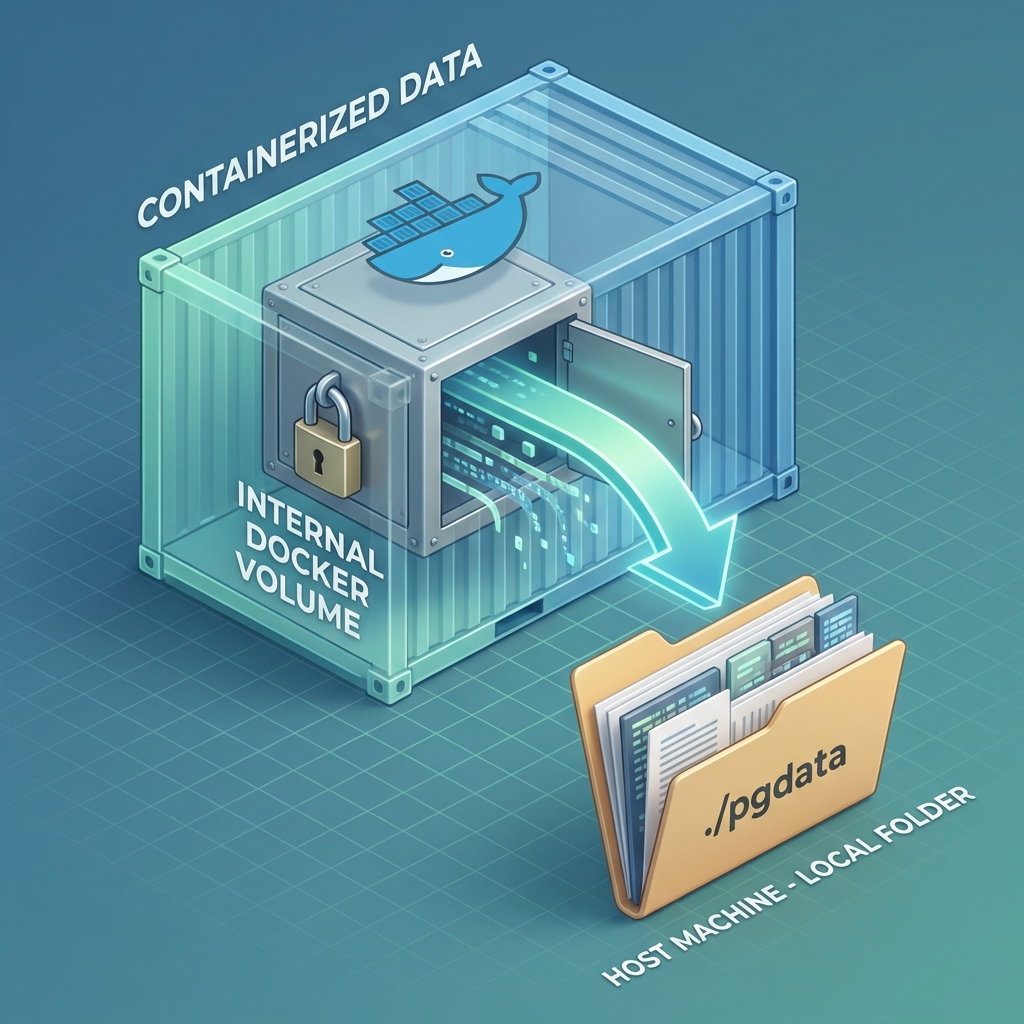
This causes difficulty when you want to backup (must use specific volume backup command) or edit config directly. Our strategy today is: Release the data.
Step 1: “Detective” Docker – Find Data & Password
Before migrating, you must know where the data is and the key (password) to unlock it. Many cases after migration forget the old database password, leading to the new Metabase unable to read the data.
At Old VPS, use the command docker inspect to inspect the information:

# 1. Find Database password (Most important!)
docker inspect -f '{{range .Config.Env}}{{println .}}{{end}}' metabase_container_name | grep MB_DB_PASS

# 2. Determine exact Volume path
docker inspect -f '{{ json .Mounts }}' metabase_db_container_name
Please note the password string (e.g.: ExAmPlE_P@ssw0rd...) and the source volume path (e.g.: /var/lib/docker/volumes/metabase_data/_data). We will need them in the next step.
Step 2: Rsync – Data Migration
After determining the “home address” of the data on the old VPS, we will use rsync to transfer it directly to the new VPS. On the new VPS, we will create a proper folder to receive it.
On New VPS:
mkdir -p /opt/metabase/pgdataOn Old VPS (Run rsync command):
# Note: source path taken from step 1
# IP_VPS_NEW: Replace with new server IP

rsync -avzP /var/lib/docker/volumes/metabase_data/_data/ root@IP_VPS_NEW:/opt/metabase/pgdata/
At this point, all your precious data is safely in the folder /opt/metabase/pgdata on the new server. It has become physical files that you can see, copy, and backup easily!
Step 3: Build New House (Docker Compose Clean Setup)
Instead of reusing the old messy configuration, we will write a new file docker-compose.yml clean, beautiful, and more standard. This file will connect the Metabase Application to the Database data we just transferred.
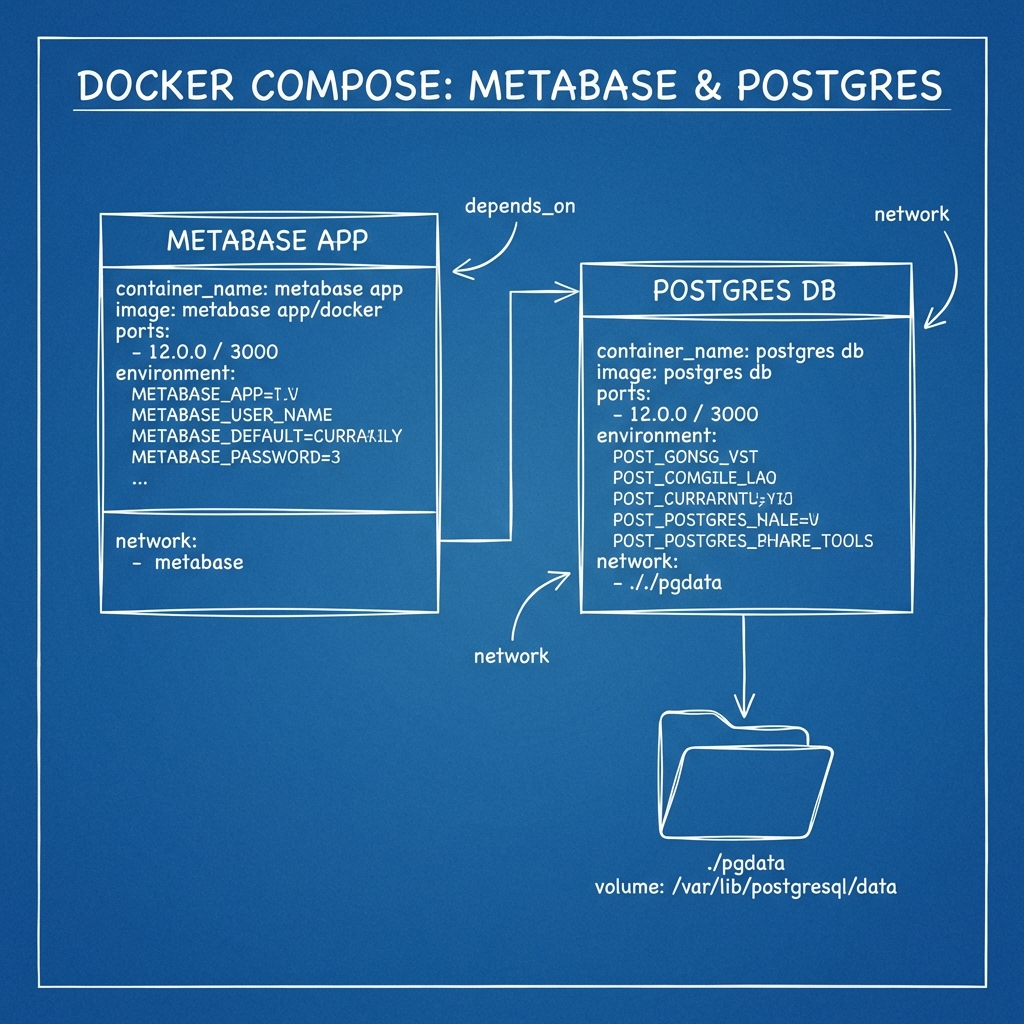
Create file /opt/metabase/docker-compose.yml with the following content (Remember to replace PASSWORD with the pass you found in Step 1):
version: '3.9'
services:
  metabase:
    image: metabase/metabase:latest
    container_name: metabase
    restart: unless-stopped
    ports:
      - "3000:3000"
    environment:
      MB_DB_TYPE: postgres
      MB_DB_DBNAME: metabase
      MB_DB_PORT: 5432
      MB_DB_USER: metabase
      MB_DB_PASS: YOUR_SECRET_PASSWORD_HERE
      MB_DB_HOST: metabase-db
    depends_on:
      - metabase-db

  metabase-db:
    image: postgres:15
    container_name: metabase-db
    restart: unless-stopped
    environment:
      POSTGRES_USER: metabase
      POSTGRES_DB: metabase
      POSTGRES_PASSWORD: YOUR_SECRET_PASSWORD_HERE
    volumes:
      # MOST IMPORTANT CONNECTION:
      # Mount the rsynced data folder into the database
      - ./pgdata:/var/lib/postgresql/data
Then start it:
docker compose up -dStep 4: Domain & SSL Configuration
Using Nginx Proxy Manager (which you installed in the previous guide) to expose Metabase to the internet securely.
- Domain:
data.your-domain.com - Forward IP:
172.17.0.1 - Forward Port:
3000 - SSL: Let’s Encrypt (Force SSL)

Conclusion
Converting from Docker Managed Volume to Bind Mount (Folder) not only helps you migrate successfully but is also a major upgrade for system administration. From now on, backing up Metabase data is as simple as copying the folder /opt/metabase/pgdata.
Wishing you a powerful and stable Business Intelligence system in your new home!