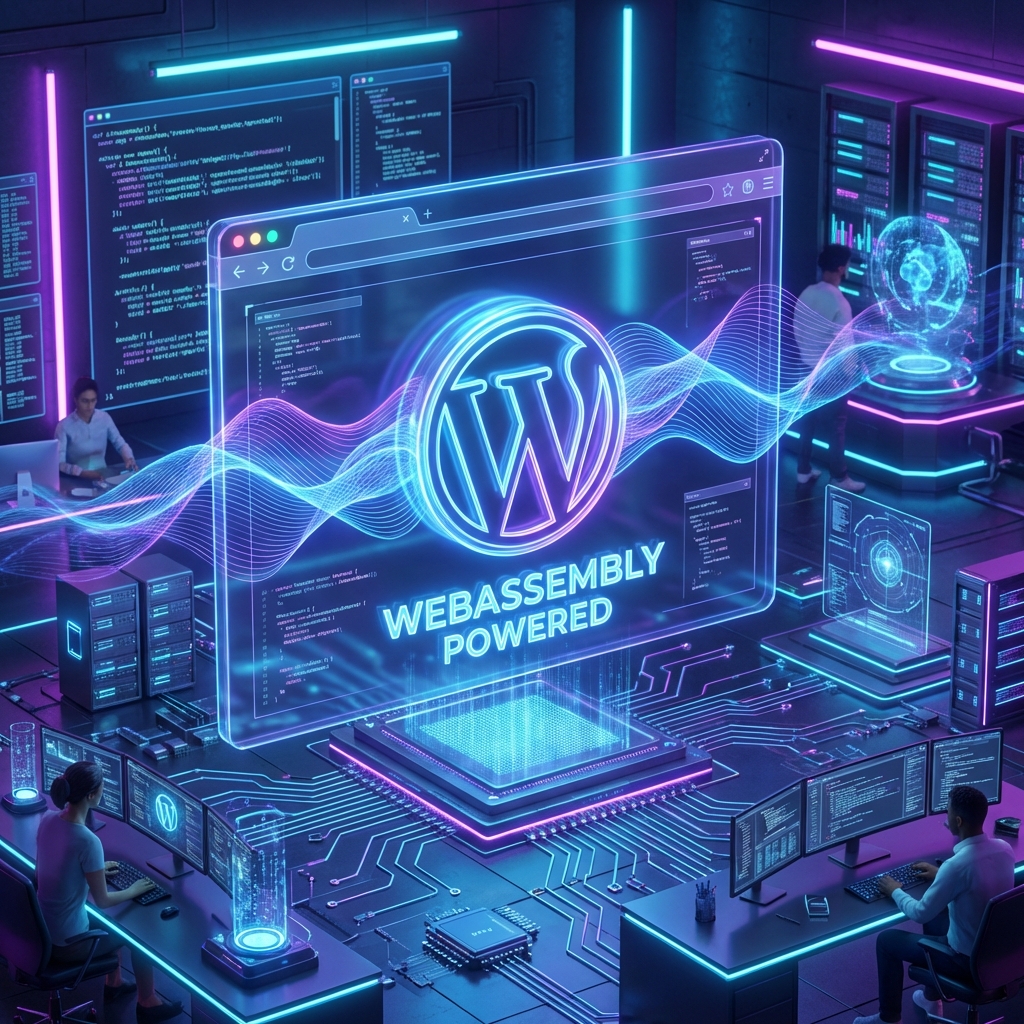

In the modern web development era, setting up a local WordPress environment is often associated with familiar names like XAMPP, WAMP, LocalWP, or Docker. However, all these solutions share a common weakness: they require software installation, database configuration, port handling, and significant computer resources.
So if I told you that you can run a completely clean WordPress instance in just 3 seconds, right in the browser, without installing anything, and most importantly… your AI Agent can automatically use it to test code? Welcome to WordPress Playground and skill wp-playground.
In this article, we will dive deep into understanding, installing, and harnessing the power of this amazing tool.
What is WordPress Playground and Why is it “Hot”?
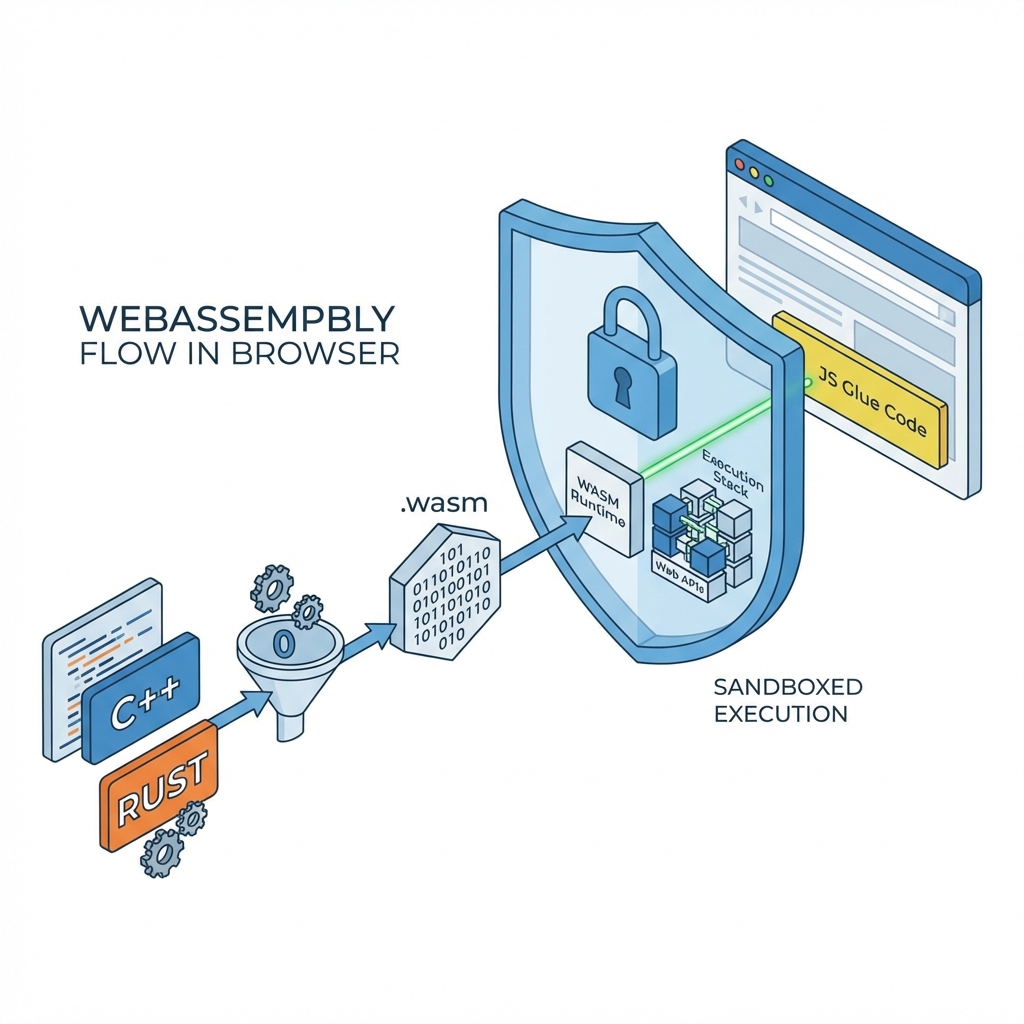
WebAssembly (Wasm) Technology
WordPress Playground is not a hosting service, nor is it a traditional server emulator software. It uses WebAssembly (Wasm) technology to run PHP, MySQL (SQLite), and Web Server directly in your browser (or in a Node.js environment).
This means:
- No Server: Your computer doesn't need to run Apache or Nginx.
- No Database: No need to install MySQL or MariaDB. All data is in memory or SQLite files.
- Completely isolated (Sandbox): Every time you turn it off and on, everything disappears (unless you configure storage). This is extremely great for testing.
Skill wp-playground for AI Agent
For developers using AI (like Claude, ChatGPT, or Gemini) to write code, wp-playground acts as the “hands” of the AI. Instead of the AI just giving you code and saying “try it”, it can turn on the Playground itself, install the code, check if it runs, and fix errors if any.
Detailed Installation Guide
To use this skill, you need a Node.js environment.
1. Prepare the environment
Make sure your computer has installed Node.js (Version 20 or higher is best). You can check by opening the terminal and typing:
node -v
If not, download from the homepage nodejs.org.
2. Install the Agent skill pack
Skill wp-playground is in the WordPress community skills collection. To install, open the terminal in your project folder and run the command:
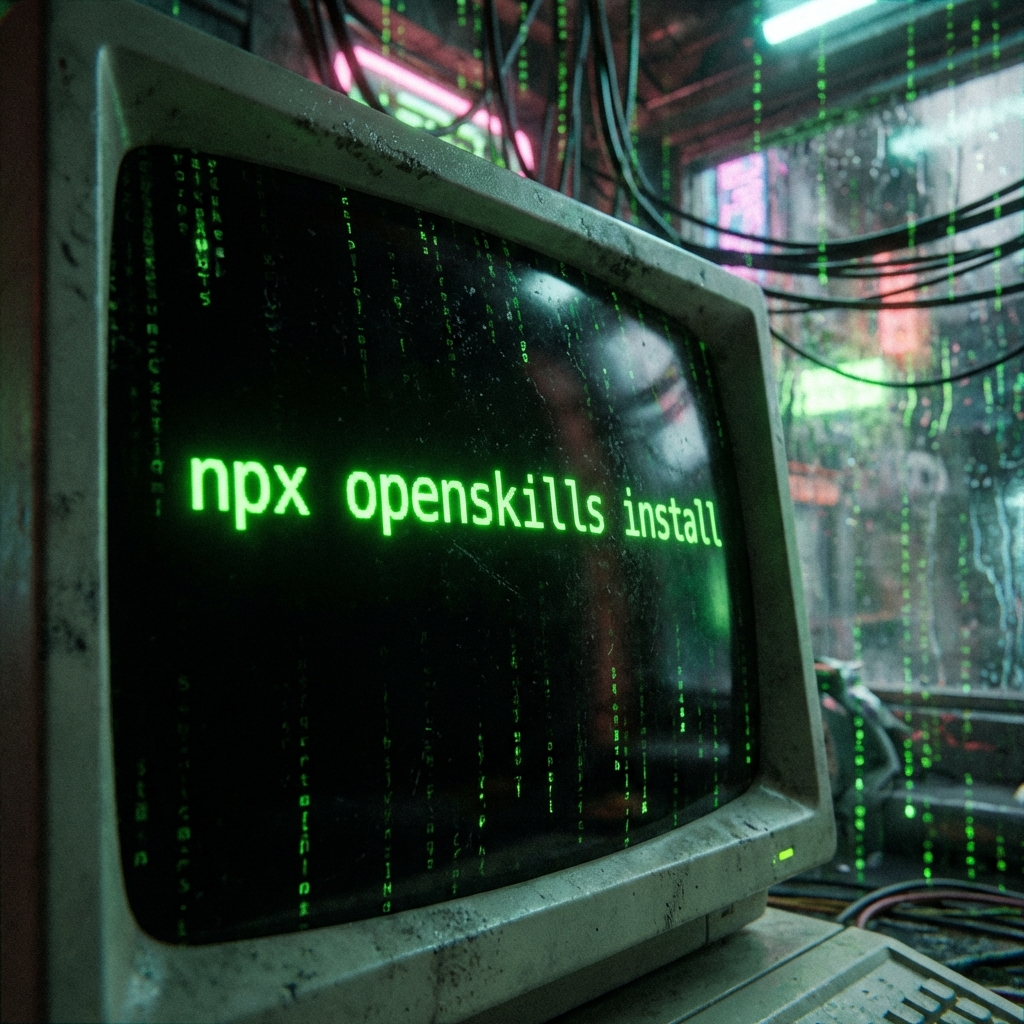
npx openskills install WordPress/agent-skills
This command will download the skills to the folder .claude/skills (or similar depending on configuration).
3. Synchronization (Sync)
After downloading, you need to inform the AI Agent of this skill's presence:
npx openskills sync
Done! Now your AI Agent has “learned” the new skill.
How to Use WordPress Playground (Practical)
You can run Playground right on your terminal. There are two main ways depending on your operating system.
Method 1: Use CLI command (Recommended for Windows)
If you're using Windows (PowerShell or CMD), the simplest way is to call the Playground CLI directly.
Imagine you're standing in the project folder (e.g. GITHUB/wordpress) and want to test. You run the command:
npx @wp-playground/cli server --login --auto-mount ./wp-content
Explanation of parameters:
npx @wp-playground/cli server: Calls the CLI to start the server.--login: Automatically logs you into the admin dashboard with the highest privileges. You won't have to enter user/pass.--auto-mount ./wp-content: This is the most important parameter. It tells Playground: “Take my current folder./wp-contentand mount it into thewp-contentof the virtual WordPress”. Thanks to that, all plugins and themes you're writing will appear in WordPress.
Method 2: Use Shell Script (Linux / macOS / WSL)
If you use Mac or WSL (Windows Subsystem for Linux), skill also provides a more convenient script:
./scripts/start-server.sh --login --auto-mount ./wp-content
Default login information
In case the auto-login feature doesn't work, or you want to log in manually on a different browser, use the following information:
- Username:
admin - Password:
password
Example: Build “Book Management” Plugin in 5 minutes
To show you the power of this process, let's try creating a new feature.
Step 1: Create directory structure
Create directory wp-content/plugins/test-plugin and file test-plugin.php.
Step 2: Write code (or ask AI to write it)
We will register a Custom Post Type called “Book”:
['name' => 'Books', 'singular_name' => 'Book'],
        'public' => true,
        'has_archive' => true,
        'menu_icon' => 'dashicons-book',
        'supports' => ['title', 'editor', 'thumbnail'],
    ]);
});
Step 3: Test it
Run the CLI command above. A browser will open.
Go to the menu Plugins, activate “My First Book Plugin”.
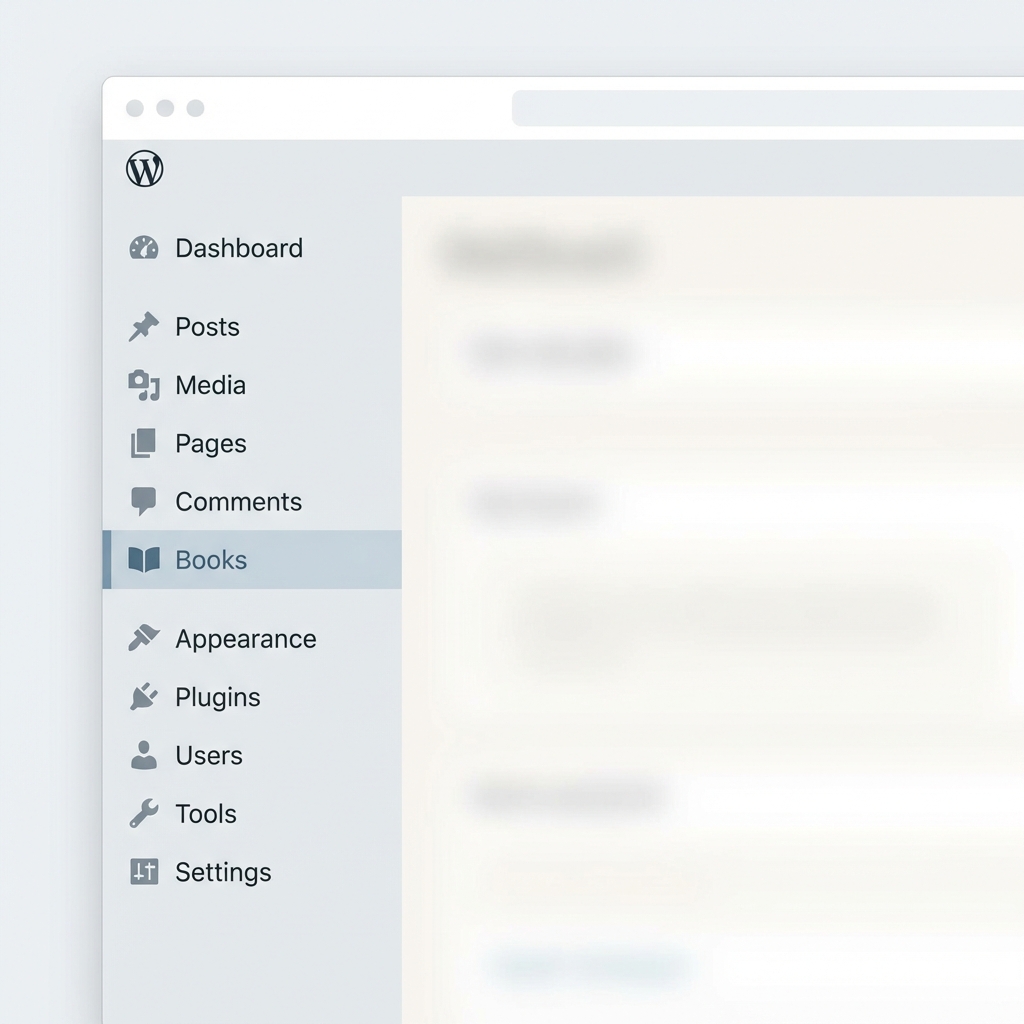
Immediately, you will see the menu Books appear on the left side.
Step 4: Fix errors and Update
Want to change the book icon to something else? Edit the line 'menu_icon' => 'dashicons-book' to 'menu_icon' => 'dashicons-media-document'.
Save the file.
Go back to the browser and press F5. The icon has changed! No need to restart the server, no need to deploy.
Comparison with other solutions
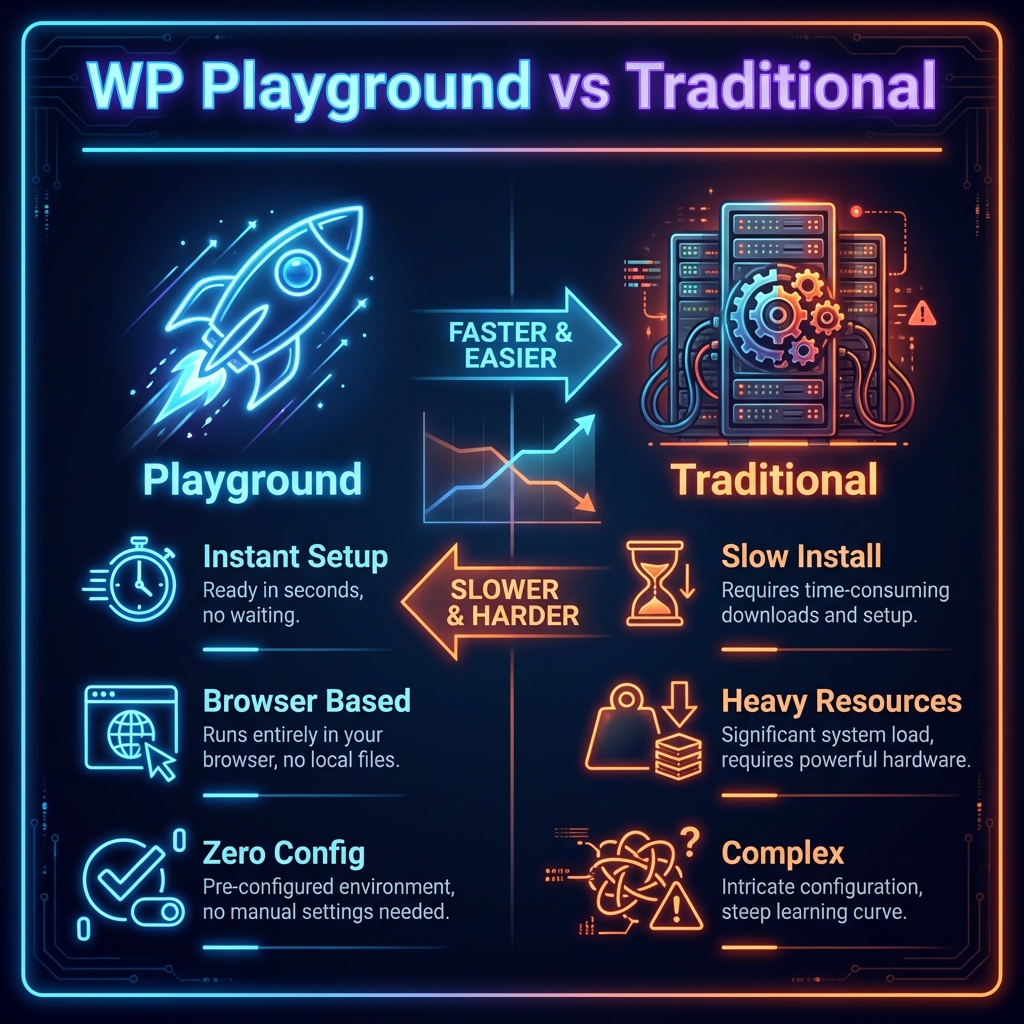
Why is this the future of WordPress development?
WebAssembly technology is changing the way we think about software. With wp-playground, the barriers to starting to learn WordPress programming are almost zero.
- For Education: Teachers can send a link, students click it and immediately have a practice environment, without spending the whole session installing XAMPP.
- Demo for Customers: You can send a working plugin demo directly in the browser that customers don't need a server for.
- CI/CD Testing: Integrate into GitHub Actions workflow to automatically test code every new commit extremely quickly.
Read more: To better understand how AI Agents interact with WordPress, don't miss the article WP MCP Connect: All-in-One Solution Connecting AI Agents with WordPress.
Conclusion
Skill wp-playground is not just a new tool, it's a new mindset in the development process. It makes WordPress development lighter, more flexible, and much more enjoyable. If you haven't tried it yet, install it today and feel the difference. Surely you (and your AI Agent) will love it!