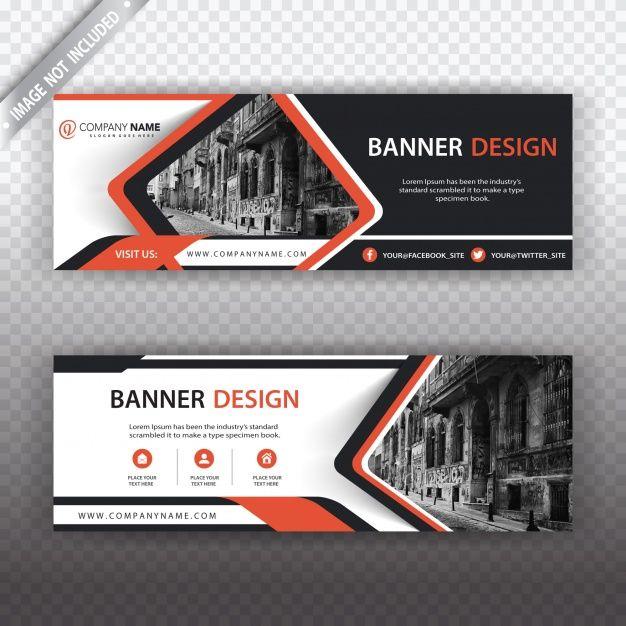

In today's digital age, banners it's not just a decorative element but also an essential tool for conveying messages. Designing banners with Photoshop is one of the important skills that anyone should know, from marketers to small business owners. When you master this skill, you will be able to create visually appealing products that attract customers' attention. According to statistics, 90% of information transmitted to the brain is through images, which shows that designing an eye-catching banner can make a big difference in a promotional campaign. When a product or service is presented through vivid and impressive images, the ability to attract and be remembered by customers will increase significantly.
In addition, having basic banner design skills also gives you a competitive advantage. Among countless messages and high-quality images on the internet, being able to design a banner yourself will help you highlight your ideas.Not only that, this skill also helps save costs for small businesses or individuals, avoiding the need to outsource while still having a sophisticated product. In this article, I will guide you on how to design a banner with Photoshop easily, starting from the most basic steps. Let's explore the essential tools and techniques so you can create unique works, thereby not only improving your own skills but also enhancing your brand value in the eyes of customers. Let's start this journey together with the simplest and easiest steps!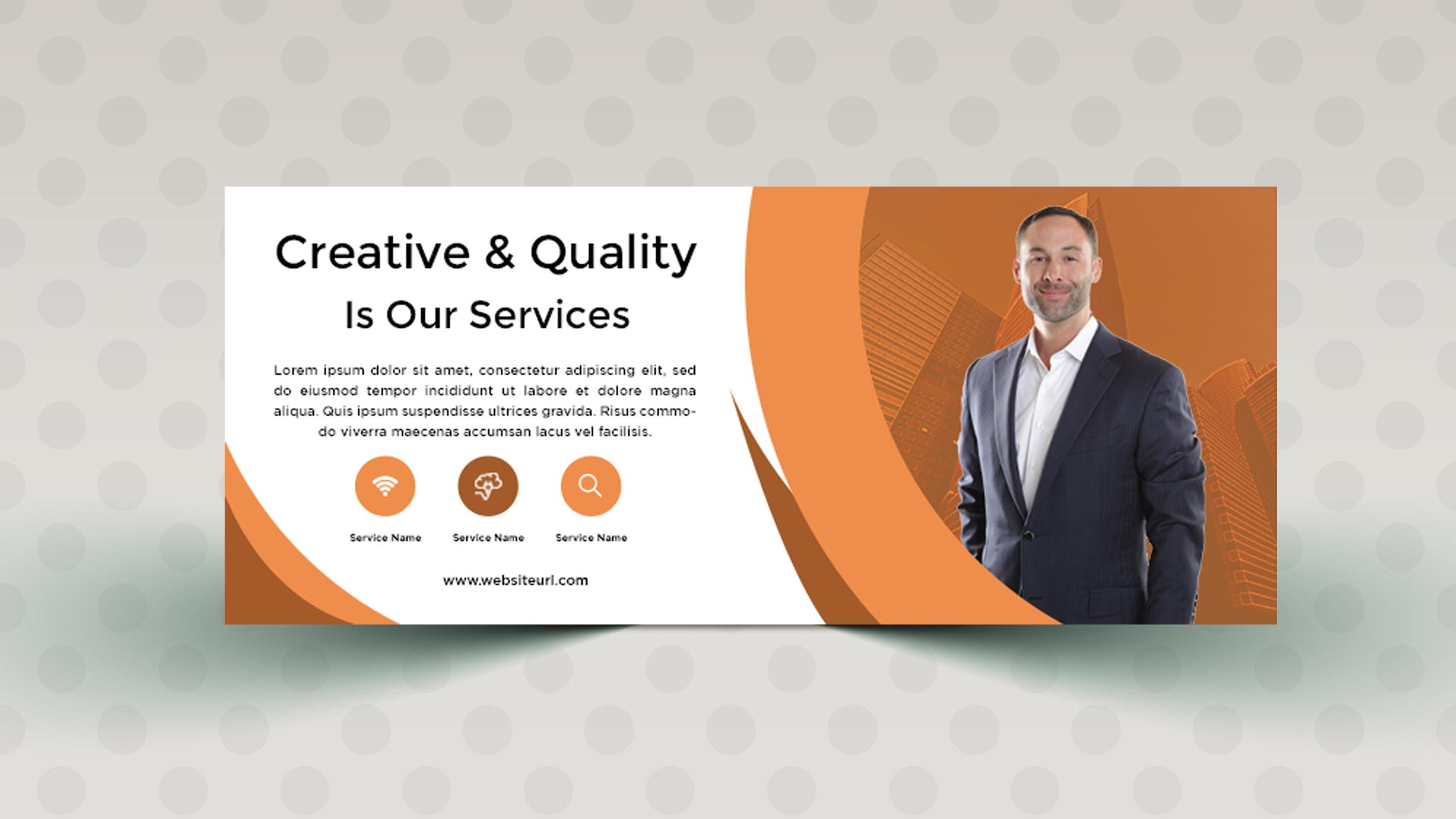
Explore the basics before starting to design banners
Fundamental elements in professional banner design
With over 10 years of experience in the field of graphic design at DPS, I have found that mastering the basics is the key to creating impressive banners. According to research by Nielsen Norman Group, users take only 50 milliseconds to form a first impression of an advertising banner. Therefore, factors such as balanced layout,harmonious color scheme and clear typography play a decisive role.
- Define the goal and target audience of the banner
- Choose the appropriate standard size
- prepare high-quality image resources
- Master the basic layout principles
| Banner Type | Popular size | Resolution |
|---|---|---|
| Facebook Cover | 820 x 312 px | 72 dpi |
| Website Header | 1200 x 300 px | 72-150 dpi |
| Display Ads | 728 x 90 px | 72 dpi |

Prepare necessary resources and tools in Photoshop
Essential tools in Photoshop for professional banner design
With many years of experience in the design field, I realize that preparing all resources before starting a banner project is extremely important. According to Adobe's 2023 survey, 78% of professional designers believe that good resource organization helps save up to 40% of working time.
- Basic resources: Beautiful fonts (recommended to use Sans Serif font family), high-quality images (at least 300 DPI), vector brand logos
- Photoshop tools: Pen Tool for precise cropping, Layer Style for professional effects, Color Adjustment for color correction
- Templates and mockups: Collection of standard-sized banner templates, PSD files with clear layer structure
| Tool | Purpose of use | Level of importance |
|---|---|---|
| Layer Panel | Manage design layers | Very high |
| Selection Tools | Select and edit objects | Cao |
| Type Tools | Create and edit text | Cao |
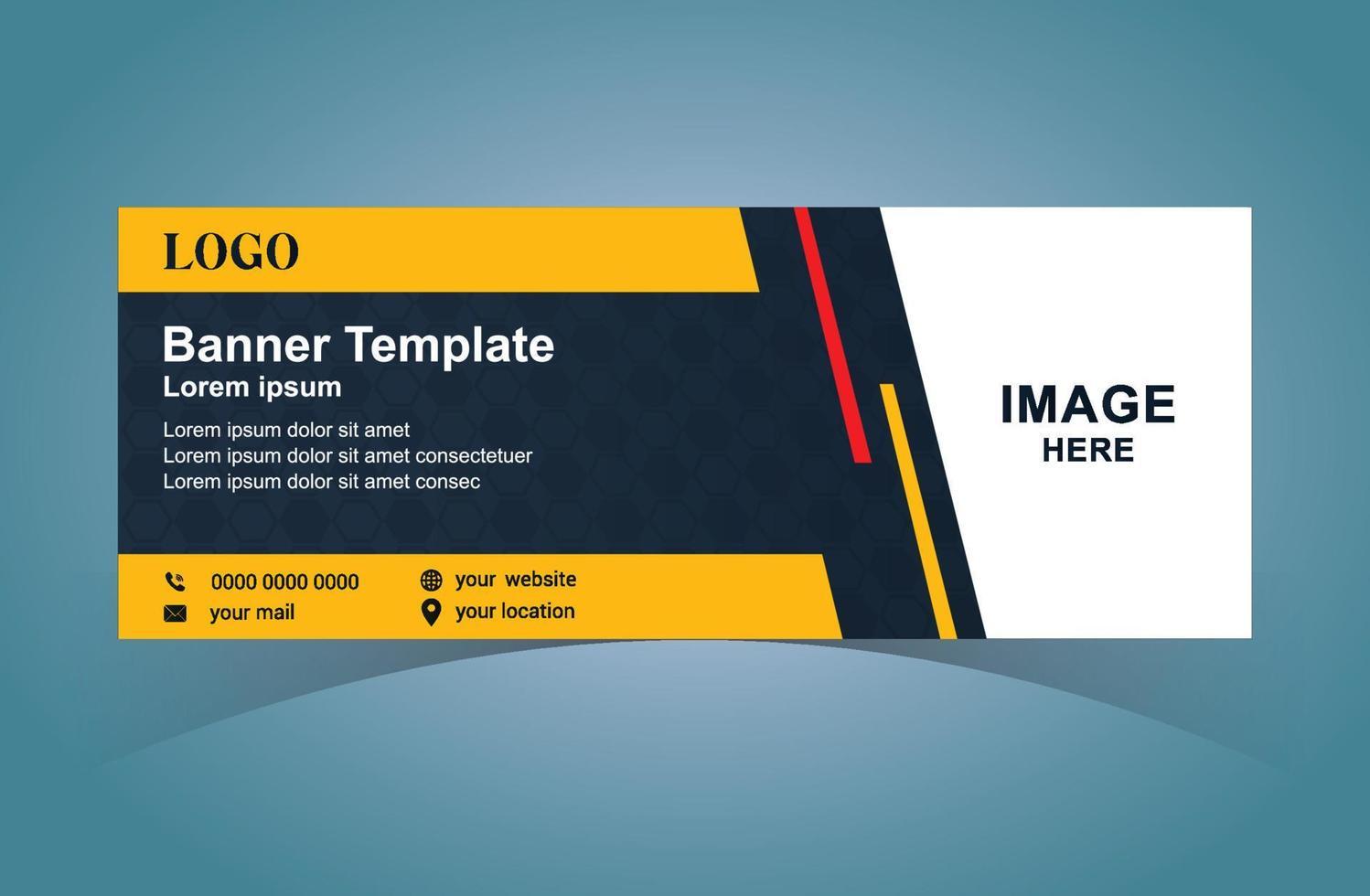
Step-by-step guide to creating banners with standard sizes
Professional banner design process
To create a quality banner, the first thing is to clearly determine the appropriate size for each platform. According to research by the Nielsen Norman group, users only take 10-20 seconds to decide to leave a website, so the banner needs to attract attention at first glance. Below are the basic steps I usually apply at DPS:
- Step 1: Create a new file with standard size (Facebook: 820x312px, Website: 1200x628px)
- Step 2: Set up guides and grids to align elements
- Step 3: Choose fonts and colors that match the brand
- Step 4: Arrange elements according to the Z-pattern design principle
| Platform | Size (px) | Resolution |
|---|---|---|
| 820×312 | 72 dpi | |
| Website | 1200×628 | 72 dpi |
| 1080×1080 | 72 dpi |
Color coordination techniques and font selection for professional banners
Color coordination principles in banner design
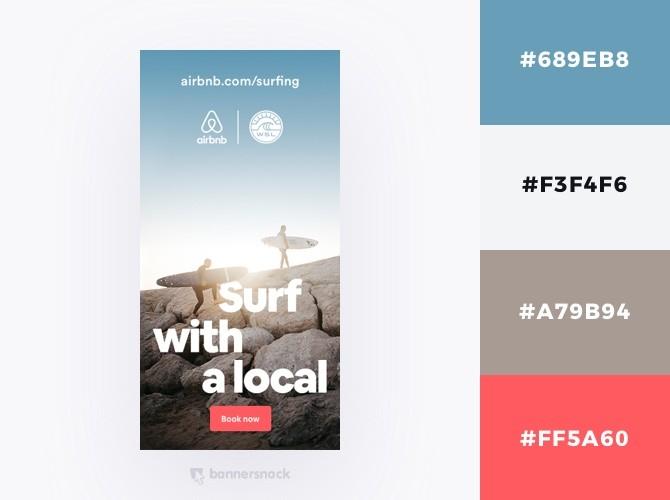
According to research by the Pantone Color Institute, choosing the right color palette can increase brand recognition by up to 80%. I often apply the 60-30-10 color rule, in which 60% is the main color, 30% is the secondary color, and 10% is the accent color. Contrasting tones like blue-orange, purple-yellow often create a strong visual effect for advertising banners.
Fonts and how to combine typography
- Main font: Sans-serif such as Helvetica, Arial are suitable for headings
- Secondary font: Serif such as Times New Roman creates contrast with the content
- Letter spacing: Adjust tracking from 15-25 to increase readability
| Font type | Purpose of use |
|---|---|
| Sans-serif | Title, slogan |
| Serif | Detailed content |
| Script | Emphasis, decoration |
Tips for editing and optimizing images in banners
Optimizing banner image quality
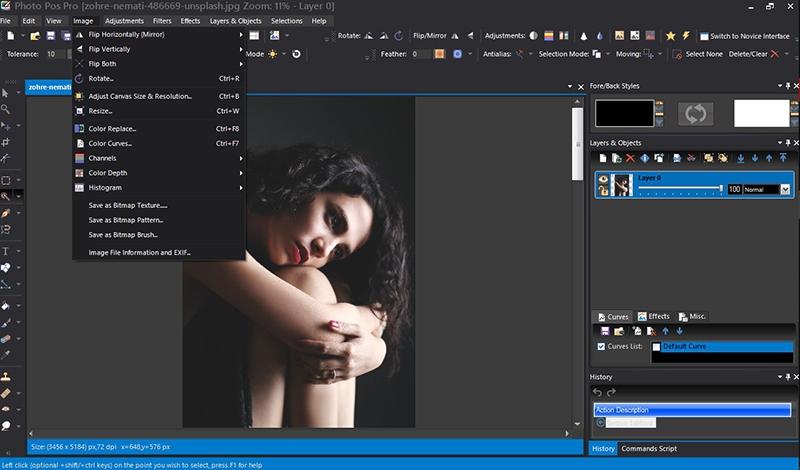
To create a professional banner, optimizing image quality is extremely important. According to research by the Adobe Design Institute, 90% of information received by the brain is visual. therefore, I always encourage designers to set image resolution at 72 DPI for web banners and 300 DPI for print banners. Adjusting contrast, brightness, and color saturation should also be done delicately using tools like Levels, Curves, and Vibrance in Photoshop.
- Use Smart Objects to avoid quality loss when editing
- Apply selective Sharpen filter to increase sharpness
- Optimize file size using Save for Web
| Banner type | Resolution | Optimal format |
|---|---|---|
| web banner | 72 DPI | PNG/JPG |
| Print banner | 300 DPI | TIFF/PDF |
How to export banner files correctly for each platform
Standard file sizes and formats for each platform
Exporting banner files must comply with the specific technical requirements for each platform. Through my design experience at DPS, I have found that understanding these parameters helps optimize display quality and save editing time. According to research by Nielsen Norman Group, banners with the right size and format can increase engagement rates by up to 28%.
- Facebook: 820x312px for cover, 1200x628px for ads (JPG/PNG)
- Instagram: 1080x1080px for square posts, 1080x1920px for stories (JPG/PNG)
- Google Display Network: 728x90px, 300x250px, 160x600px (GIF/HTML5)
- Website: 1920x600px for header banner (PNG/webp)
| Platform | Maximum file size | Recommended format |
|---|---|---|
| 4MB | PNG | |
| 8MB | JPG | |
| Website | 500KB | WebP |
A message from DPS
Through the above instructions, you have grasped the basic steps to design an impressive banner using Photoshop. Regular practice will help you master the tools and develop your own design style.
Don't hesitate to experiment with other effects and tools in Photoshop to create more unique banners. You can also learn more about color theory, typography, or layout principles to improve your design quality.
Besides banners, you can also apply these skills to design other products such as posters, Facebook covers, or YouTube thumbnails. Let your creativity lead the way and don't be afraid to try new ideas.
Have you ever designed a banner with Photoshop? Share your experiences and works in the comments section. We look forward to learning more from the design enthusiast community.