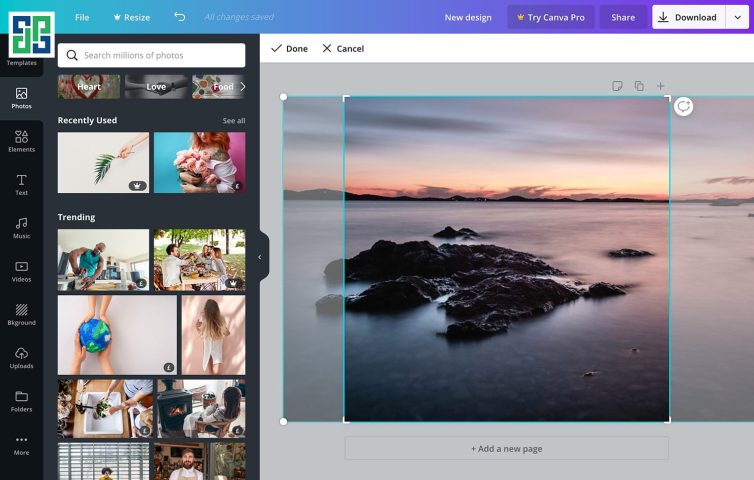

The Canva user guide is the information you need to know. If you don't know how to use professional design software like Photoshop, Illustrator, etc., but still want to be more proactive in creating images. Or simply, if you want to create your own design products, Canva is the powerful tool to help you do that.
In this article DPS will introduce you to what Canva is? A guide to using Canva for beginners, let's follow along now!
What is Canva? Who can use Canva?
Canva is a design tool that can be used on both phones and computers, serving the need to create simple, quick, and free image products.
Canva can be used by everyone, especially those who are not designers. You can feel completely confident to create without facing too many troubles or difficulties in using the tool.
Especially for those who are passionate about design but haven't had the chance to learn software like Ai, PTS, etc., Canva can be seen as a way to get familiar with arranging image layouts and colors for future work.
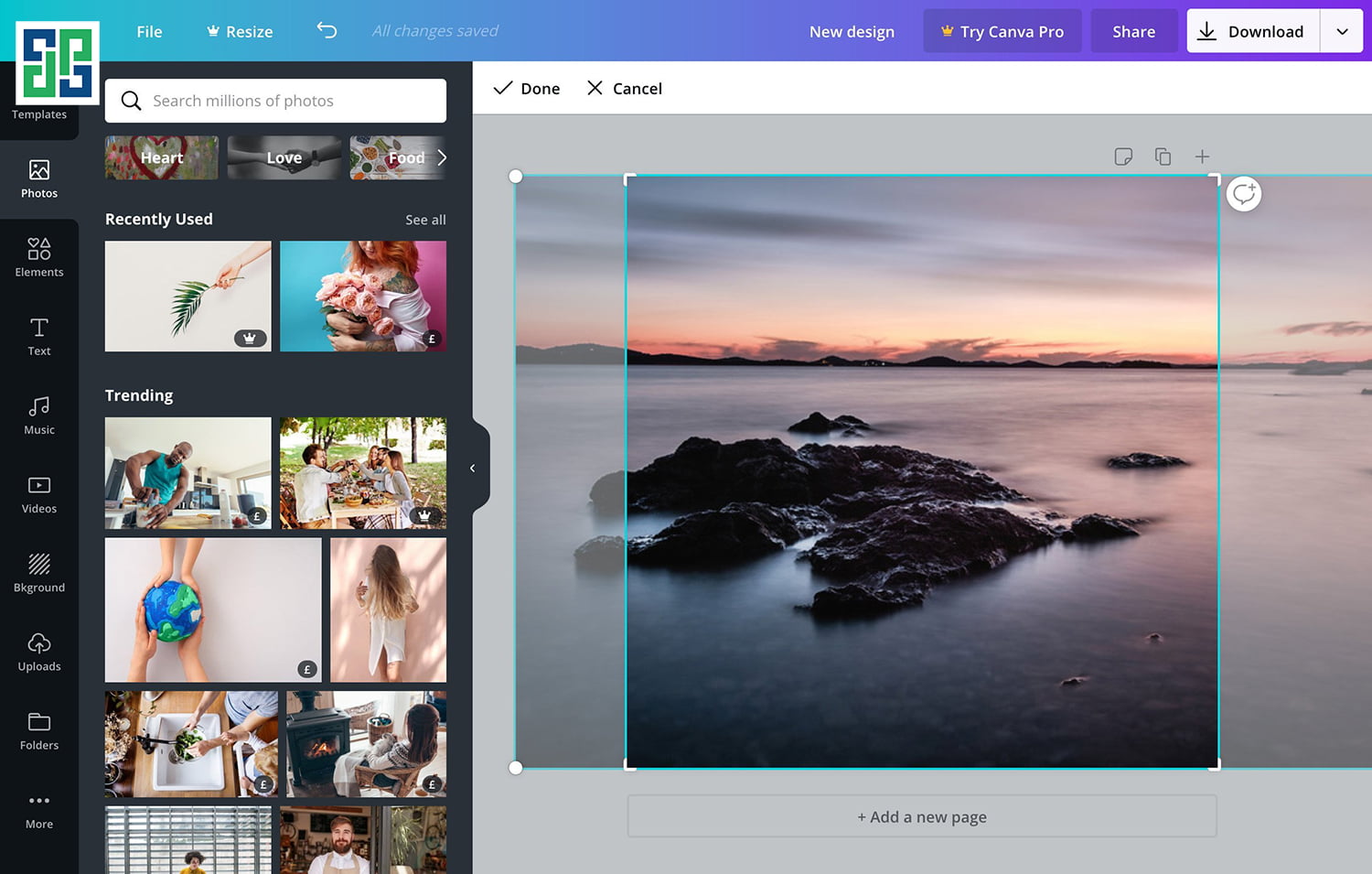
The great benefits when you use Canva
Canva helps ordinary photos become more professional
Ordinary photos will become much more beautiful if you add outstanding, luxurious layers, especially extremely impressive ones. With just a few simple steps, you can create a sparkling beautiful picture, no less than professional magazine covers.
See the Canva user guide to make image design quick and easy
Canva was created to meet the needs of speed and ease. With available design templates, your job is just to drag and drop your images in, then adjust the size and layout to fit best. This can be said to be the optimal solution for handling urgent image situations, both beautiful and time-saving.
Having beautiful images also helps you have a better position on Popular Digital Marketing Channels
Tens of thousands of free design templates, diverse fonts
Một điểm cộng mà không phải bất cứ trang web, phần mềm thiết kế online nào cũng có thể đáp ứng được đấy chính là tính đa dạng về mặt hình ảnh. tha hồ lựa chọn, lấy ý tưởng, các mẫu thiết kế chia theo nhiều danh mục như: facebook, Instagram, Youtube, Website,…. Thậm chí là cả hình ảnh động.
Hundreds of stylish, modern Vietnamese fonts can be easily changed in color and size to suit the content you want to convey. In addition, Canva also allows users to upload their own fonts. To do this, you need to register for a cheap Canva Pro account.
Instructions on how to use and upload fonts to a cheap Canva Pro account
Step 1: Log in to your Canva Pro account
Step 2: In the left Menu, select Brand Kit and then select Upload Fonts.
Step 3: Choose the font type you want that has been downloaded to your computer (it is recommended to use publicly shared fonts to avoid copyright issues)
Now you can use the font you want!
Adjust image size, download with high sharpness
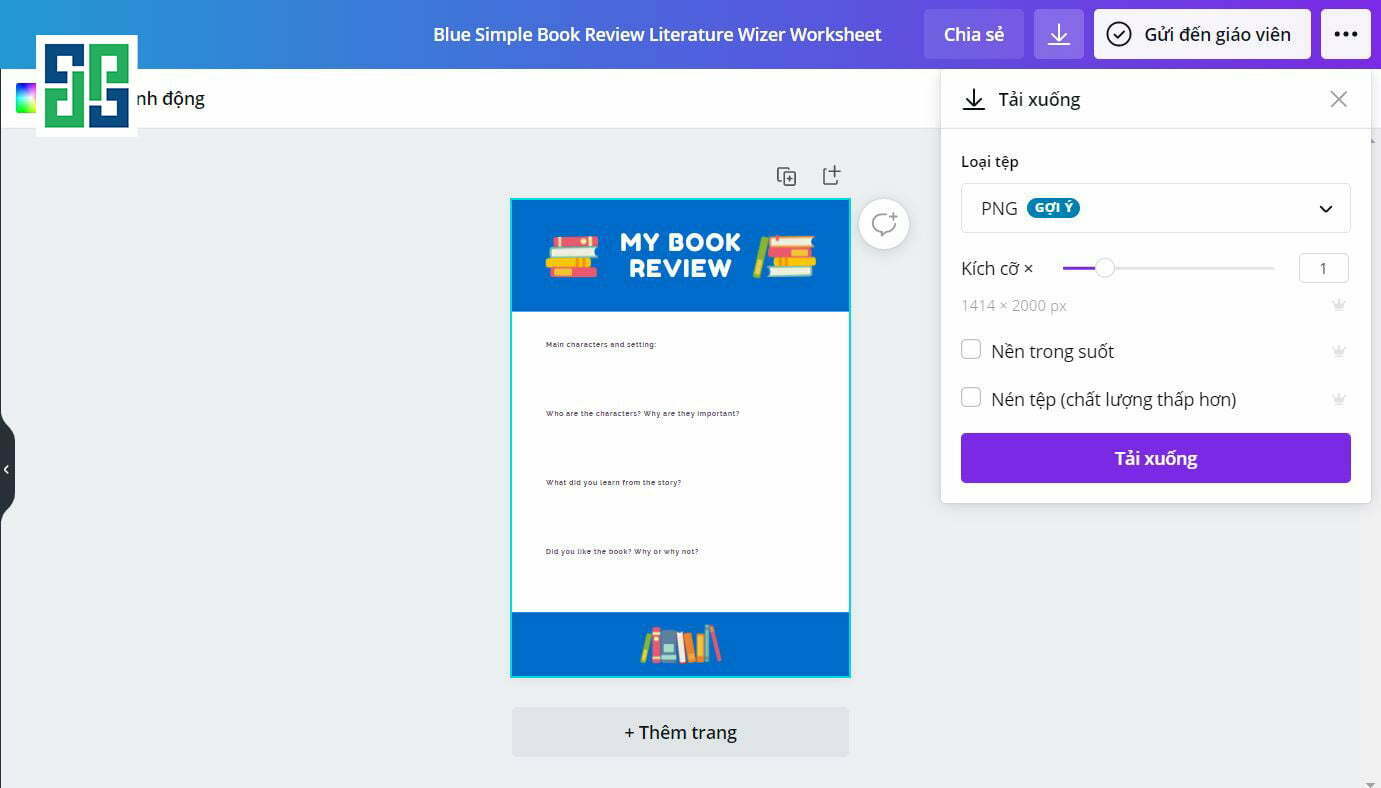
Whether designing or editing images, sharpness is always a top concern. A photo will look less impressive if it is blurry, noisy, or distorted compared to the original. Canva helps adjust image size as desired and download in high quality. Multiple formats such as JPG, PDF, PNG, SVG, GIF, and Video are available.
When mentioning Canva, we cannot forget the magical background removal tool. Even many designers sometimes have to use this tool as a lifesaver in urgent situations.
Canva user guide for beginners.
Using Canva will be more perfect if you master how to use the tool. Below are some instructions for beginners on how to use Canva.
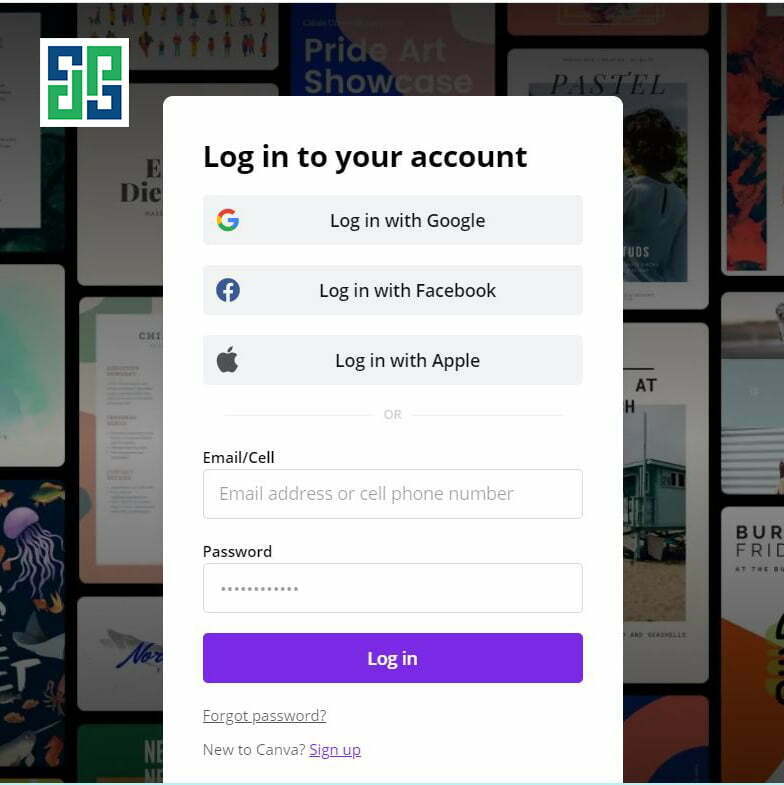
Step 1: Register an account
Go to the link: canva.com on your computer, or directly download the Canva app on your phone. Register an account using email or Facebook, then log in with the information you just registered.
Choose the appropriate usage type. Depending on the user, Canva offers different usage options for: students, businesses, non-profits, etc.
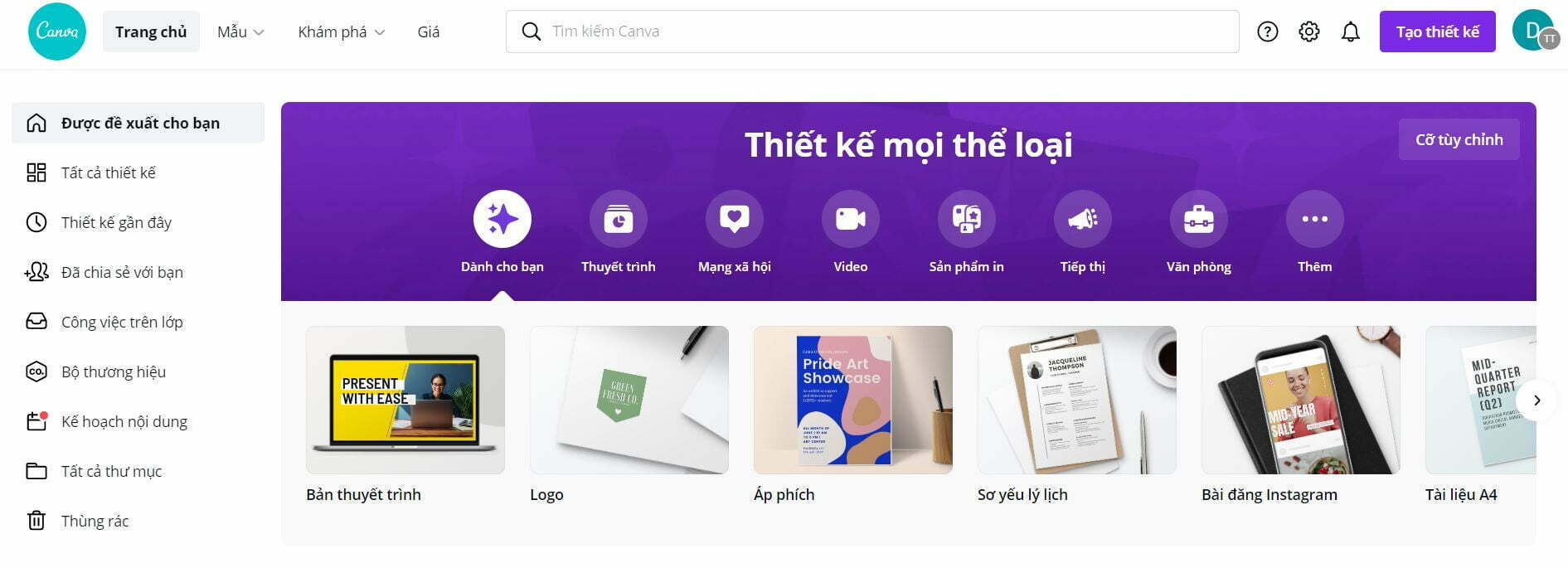
Step 2: Choose a design template
After completing the account creation process, you can start working on your desired design. In the File section, select the type of design you want. Or type the name in the search bar to find a template with keywords.
Step 3: Add more elements to your design template
You can add other elements yourself by clicking on the toolbar on the left side of Canva. Here you can insert text, stickers, etc., to match the aesthetics and trends of users.
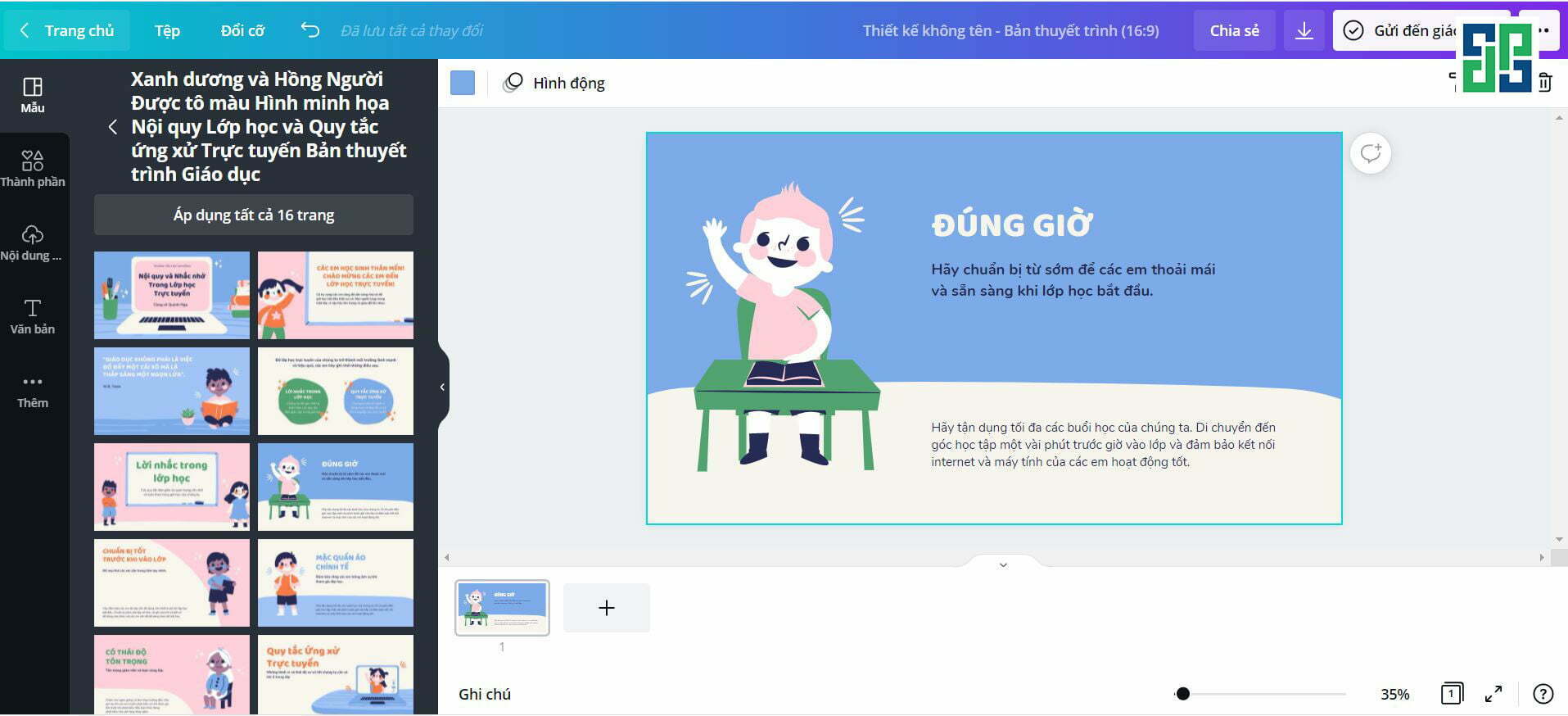
Step 4: Complete and download your design template
After completing the steps to create your publication in Canva as desired, the final step is to download the images from Canva to your computer or phone. The product, once downloaded to your device, ensures quality when uploading to social media platforms.
Should you use a cheap Canva Pro account or not?
Owning a Canva Pro account will give you many great experiences. Currently, there are many services sharing Canva Pro accounts at a not too expensive cost.
Using a Canva Pro account gives you access to design resources many times greater than a regular account. The storage capacity is bigger than ever, along with thousands of effects. Convert one design into multiple formats with just one click. And there are many other things waiting for you to discover.
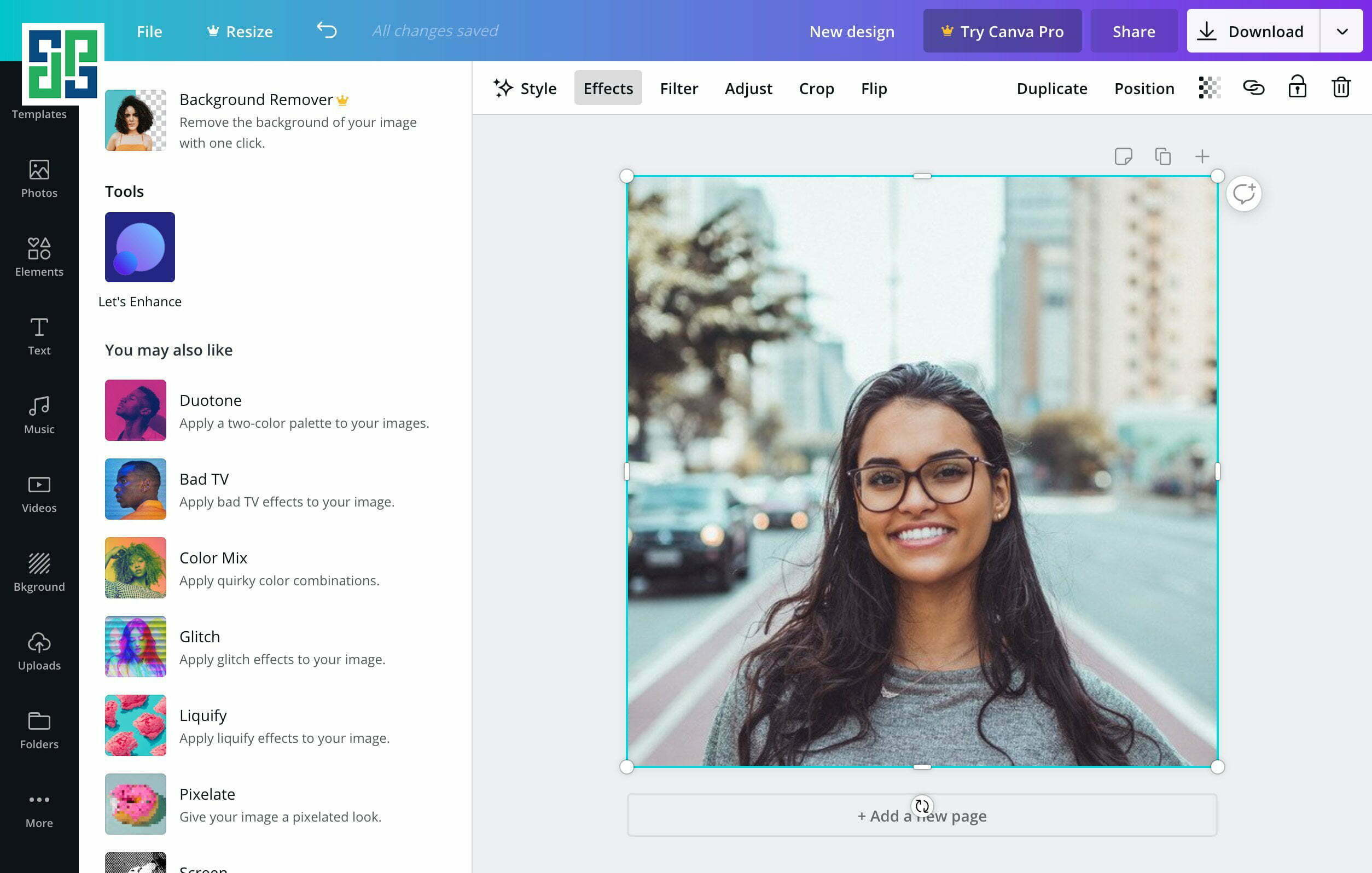
What are you waiting for? Find a place to share cheap Canva Pro accounts to use right now!
The above article has provided you with useful knowledge about what Canva is, as well as instructions on how to use Canva and how to download Vietnamese fonts in Canva. Hopefully, the above information can help you on your journey to start designing. Or simply help you create your own best publications!
See more: Most Effective Fanpage Management