Operating a system Supabase Self-Hosted gives you absolute control over data and costs. However, at some point, your current VPS may become overloaded, or you find another VPS provider with better performance at a bargain price. That's when you need to think about Migrate (Move) your system to a new home.
Many of you worry that this migration will be complicated, prone to data loss or damaging stable configurations. Especially when you already have a significant amount of user data (Users), Database, and Storage. Additionally, there's the concern about prolonged downtime (service interruption) during the transition.
Don't worry! This article will be the most detailed guide, instructing you step by step on how to migrate Supabase Docker from the old VPS to the new VPS in the safest way. In particular, we will use the method VPS-to-VPS transfer to ensure the fastest speed, and set up Nginx Proxy Manager to manage domains as well as secure your Dashboard (Studio).
Step 1: Understand Clearly the “Heart” of Supabase Self-Hosted
Before getting started, you need to understand the file structure of Supabase to know what to copy and what can be skipped. When you install Supabase with Docker, you can see in the folder /opt/supabase there are many subfolders like apps, packages, examples{"translations":[]}
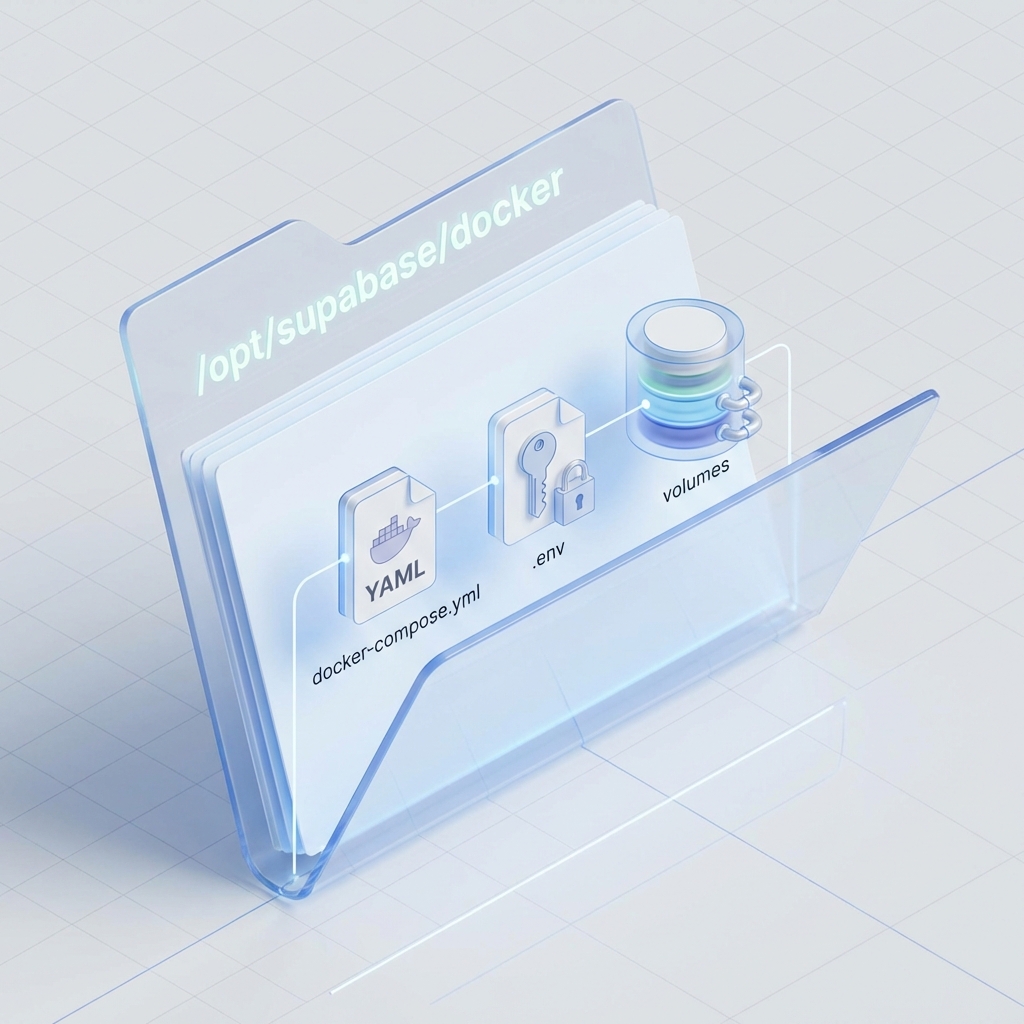
In fact: 99% the most important things are compactly contained in the folder docker. The remaining folders are mostly the source code of the Supabase project (Next.js apps, libraries…) that Docker Container does not use directly to run. Docker runs based on pre-built “Images” (for example) supabase/studio:latest, supabase/postgres:15, so copying the source code is unnecessary.
In the folder docker, we have 3 “immutable” components:
docker-compose.yml: This is the system design. It specifies which services will run (Database, Auth, Storage, Realtime…), which ports are open, and which volumes are mounted..env: This is where all your secrets are stored. Database password (POSTGRES_PASSWORD), JWT Secret (to generate tokens), API Keys (Anon Key, Service Role Key). Losing this file means losing control of the system.volumes/: The most important isvolumes/db/data. This is where the live PostgreSQL data is stored. If you only copy the config files and forget this folder, you'll have a brand new Supabase but... empty.
Step 2: Prepare the “New Home” (Target VPS)
You need to prepare a clean new VPS (Fresh Install). The recommended operating system is Ubuntu 20.04 LTS or 22.04 LTS to ensure stability and best compatibility with Docker.
First, SSH into the new VPS and update the system:
sudo apt update && sudo apt upgrade -yNext, install Docker and Docker Compose plugin. The fastest and most standard way is to use Docker's official automatic installation script:
curl -fsSL https://get.docker.com -o get-docker.sh
sudo sh get-docker.sh
After installation, check if Docker is running:
sudo docker --version
sudo docker compose version
If you see the full version, you're ready to receive the data.
Step 3: Transfer Data (“Shoot” Data via Rsync)
Instead of the traditional method: Download 10GB of data to your personal computer (slow network) -> Upload 10GB to the new VPS (slow network), we will use Rsync to transfer data directly between 2 VPS. The speed will be extremely fast by utilizing datacenter bandwidth.

Why use Rsync instead of SCP?
- Resume: If you're copying 90% and the network drops, running the Rsync command again will continue from 90%. SCP will have to start over.
- Preserves attributes: Rsync preserves permissions and timestamps of files, which is very important for Database files.
- Data compression: Flag
-zhelps compress data during transfer, saving bandwidth.
Implementation:
1. On New VPS: Create the parent directory in advance to avoid copying the wrong path:
# Create directory /opt/supabase
mkdir -p /opt/supabase
2. On Old VPS: Run the Rsync command below. This command will prompt for the root password of the new VPS.
# Run this command FROM the OLD VPS
# IP_VPS_NEW: Replace with the IP of the new server (e.g., 116.118.x.x)

rsync -avzP /opt/supabase/docker/ root@IP_VPS_NEW:/opt/supabase/docker/
Note the trailing / in the source path is very important. If you write it wrong, the folder docker may be nested (for example docker/docker). The above command is the most standard.
Step 4: Launch Supabase in the New Home
After the Rsync progress bar completes (reaches 100%), congratulations, the entire soul of the old system has moved to the new home. Now wake it up.
On New VPS:
cd /opt/supabase/docker

# (Optional) Check the .env file again to see if any edits are needed
cat .env

# Start the containers
docker compose up -d
The first run will take a few minutes for Docker to pull the images. Be patient. After it's done, check the logs to ensure no errors:
docker compose logs -fStep 5: Configure Nginx Proxy Manager & SSL
Supabase by default only opens local ports (like 8000, 3000) or internal ports. To allow users to access via a nice domain (https://api.your-domain.com) with SSL security, you need a Reverse Proxy. Nginx Proxy Manager (NPM) is an excellent choice because it has an intuitive interface.
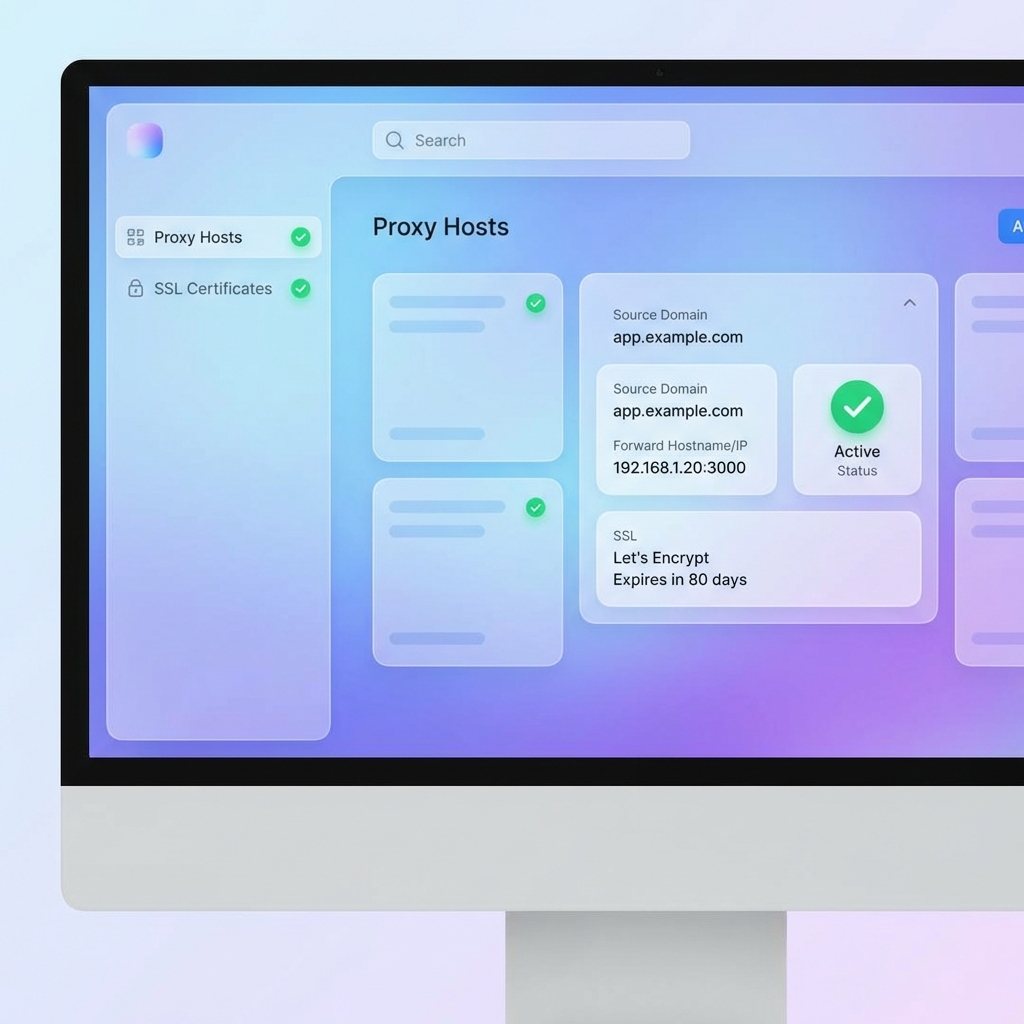
You need to create 2 Proxy Hosts separately:
1. API Gateway (Most Important)
- Domain Names:
api.your-domain.com(or your API domain) - Forward Hostname / IP:
172.17.0.1(This is Docker's default Gateway IP, helping NPM point back to the container on the same host). - Forward Port:
8008(This is the port of Kong/API Gateway in Supabase). - Websockets Support: MUST BE ENABLED (Supabase Realtime uses this).
- SSL Tab: Request a new Let’s Encrypt Certificate, Force SSL, HTTP/2 Support.
2. Studio Dashboard (Management Interface)
- Domain Names:
studio.your-domain.com - Forward Hostname / IP:
172.17.0.1 - Forward Port:
3003(Default port of Studio). - Websockets Support: Enable.
- SSL Tab: Configure similarly as above.
After configuring NPM, the final step is to go to your domain management page (DNS), point the 2 sub-domains above to IP of the New VPS. Wait about 5-10 minutes for DNS to update.
Step 6: High-Level Security (Access Lists)
A major vulnerability of Supabase Self-Hosted community edition is the Studio Dashboard has no login page. Anyone who knows the path studio.your-domain.com can access and edit your data. This is extremely dangerous.
But with Nginx Proxy Manager, we can easily patch this vulnerability using the Access Lists (Access Restriction).

How to implement:
- In NPM, go to the tab Access Lists, click Add Access List.
- Name it
Admin-Only. - In the Authorization, tab, add a Username and Password that only you know.
- (Advanced tip) In the tab Access, you can enter the static IP of your company/home and select Action: Allow. Then enable the option Satisfy Any.
- Meaning: If it's the correct “home” IP, access directly without any questions.
- If it's an unfamiliar IP (like at a cafe), the system will show a popup asking for password.
- Save.
- Go back Proxy Hosts, edit the line
studio.your-domain.com. At the Details tab, in the Access List, selectAdmin-Only.
Conclusion
Moving the server is not as scary as you think if we understand the nature of Docker and know how to use tools like Rsync. With the guide above, you will not only successfully migrate but also upgrade the security system for your Supabase.
Remember to always backup data periodically (cronjob backup folder docker) to prevent unexpected issues. Wish you success!