
Want to automate posting and content management on Blogger (Blogspot) without wasting time on manual operations? Community Node @hienhoceo/n8n-nodes-blogger is the perfect solution to connect n8n with Blogger API quickly.
This article dps.media will guide you through extremely simple installation directly on the n8n interface and configuration steps for smooth operation.
1. Extremely fast installation (No commands needed)
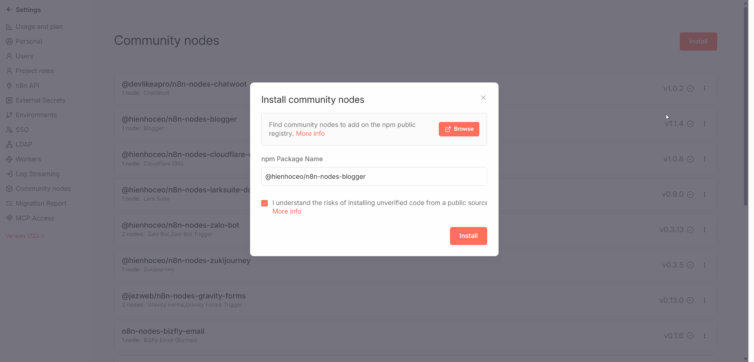
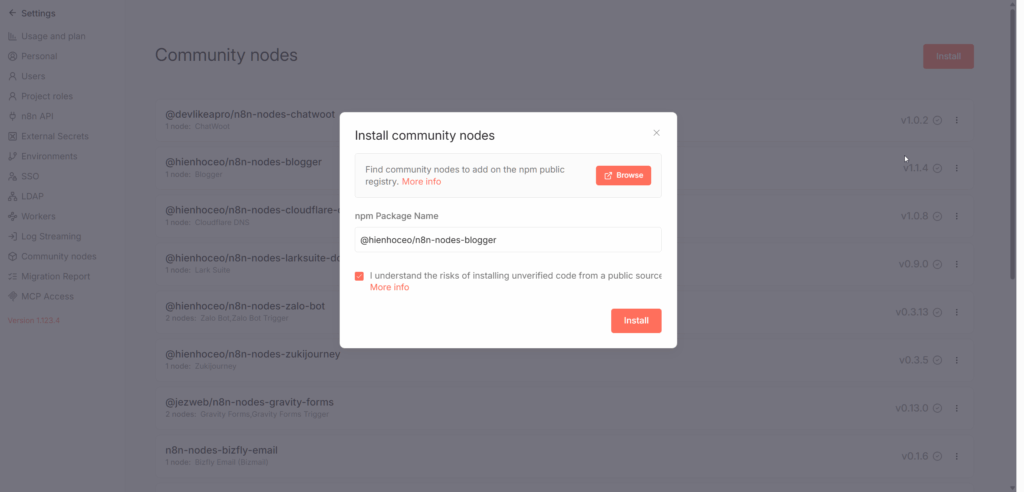
Instead of using the terminal, you can install this node directly from the n8n admin interface:
- Access your n8n, select Settings (gear icon) in the bottom left corner.
- Go to the section Community Nodes.
- Click the button Install a community node.
- Tại ô “NPM Package Name”, dán chính xác tên node:
@hienhoceo/n8n-nodes-blogger - Check agree to terms and press Install.
Sau khi cài đặt xong, n8n sẽ tự động nạp node mới. Bây giờ bạn đã có thể tìm thấy “Blogger” trong danh sách các node khi tạo Workflow.
2. Get OAuth Client ID and Client Secret (Google standard)
To allow n8n to access Blogger data, you need to set up OAuth 2.0 authentication. All steps must follow Google's official documentation at: 👉 Blogger Developers – Thao tác xác thực
Summary steps according to standard process:
- Register application: Access Google API Console, create a project and enable Blogger API.
- Configure OAuth: Follow the instructions at the link above to create OAuth 2.0 Client ID.
- Note: During creation, you need to fill in Authorized redirect URIs provided from the Credential creation section in your n8n.
- Get information: After completing the steps according to Google's instructions, you will receive
Client IDandClient Secret.
3. Connect with n8n
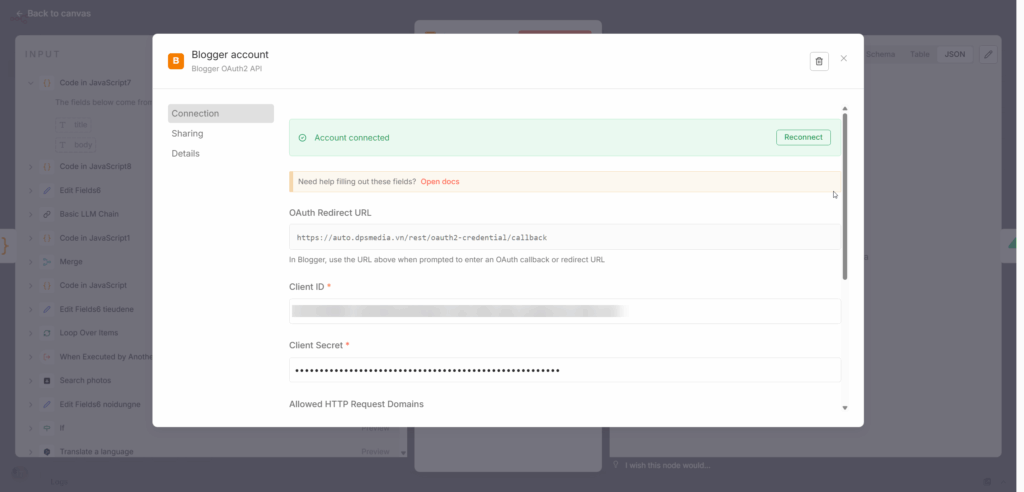
Once you have the authentication information from Google:
Press Connect my account and log in to your Google account to complete the authorization.
At n8n, go to Credentials -> New -> Search for Blogger OAuth2 API.
Fill in Client ID and Client Secret you just obtained.
4. Highlighted features of Blogger Node
This node provides all the tools to master content on Blogspot:
- Posts: List posts, search, create new posts (supports HTML), update and delete.
- Pages: Manage static pages on the blog.
- Comments: Track and manage reader feedback.
- Blogs/Users: Retrieve identification information for Blogs and user profiles.
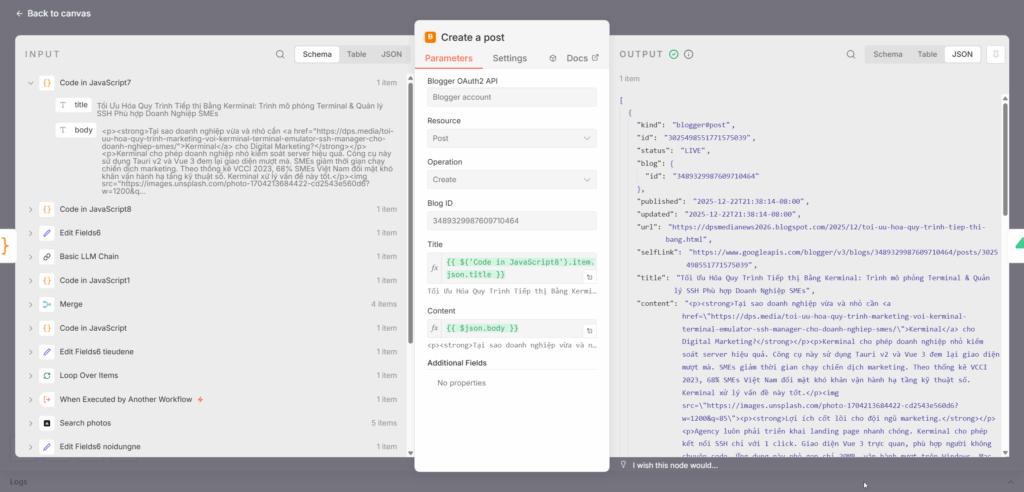
5. Real example: Auto post (Create Post)
If you have a data source (like Google Sheets or AI auto-writing), you can connect to the Blogger node as follows:
- Add node Blogger into workflow.
- Select Resource as Posts and Operation as Create.
- Enter Blog ID (The number sequence in the URL when you go to the Blogger admin page).
- Connect the fields Title (Title) and Content (Content) from previous nodes.
- Press Execute to automatically publish the post to the web.
6. Tips from dps.media
- Note the node name: Always ensure you install the correct version
@hienhoceo/n8n-nodes-bloggerto receive the latest updates and stable operation. - Security: Do not share your Client Secret with anyone. If you suspect it has been exposed, reset it on Google Cloud Console.
- Check Scope: Make sure you have granted permissions
https://www.googleapis.com/auth/bloggertrong quá trình thiết lập để tránh lỗi “Insufficient Permissions”.