LINE is one of the popular messaging applications, and integrating it into Chatwoot helps you manage customer messages in a centralized and efficient way. This article will guide you step by step to connect LINE Official Account with Chatwoot.
Implementation steps
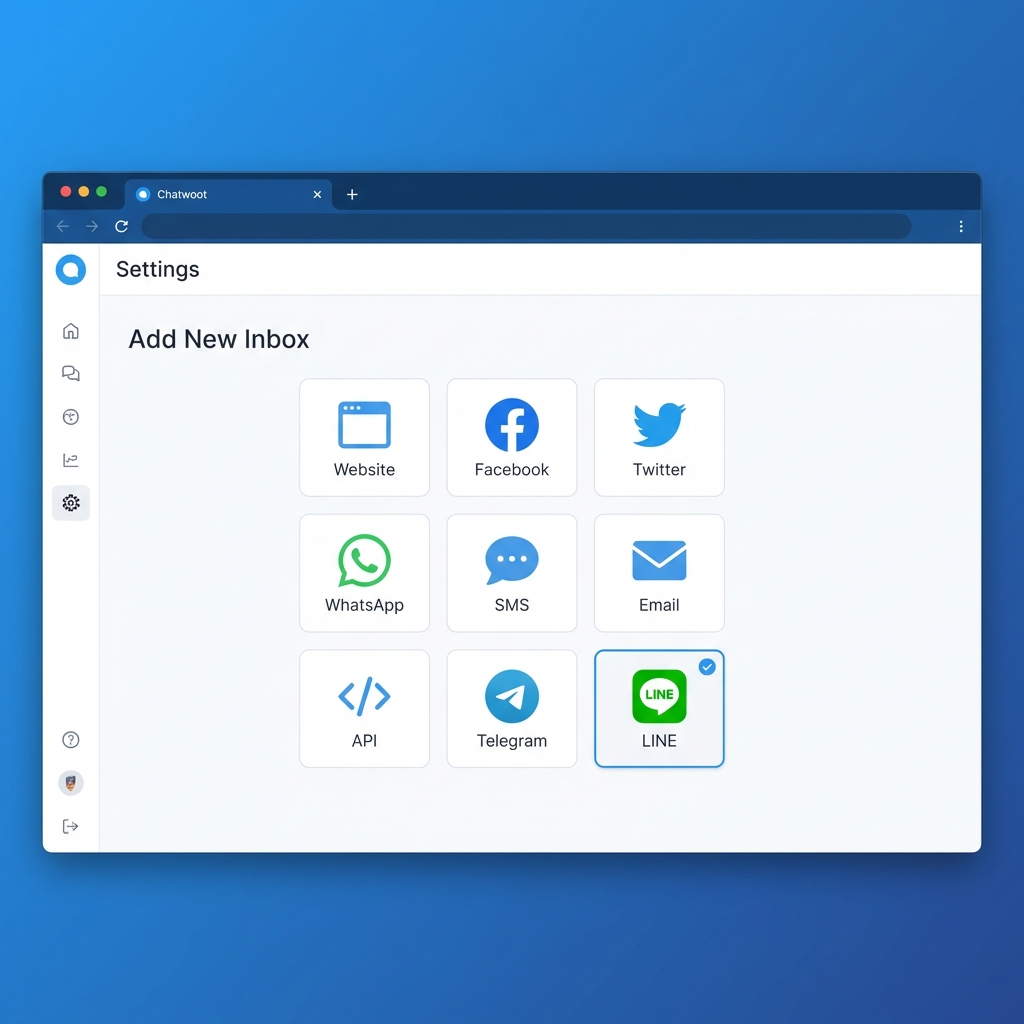
Step 1: Add new inbox in Chatwoot
- Access the Chatwoot dashboard.
- Go to Settings -> Inboxes.
- Click the button “Add Inbox” (Add inbox).
- Select the icon “Line” in the list of connection channels.
Step 2: Set up LINE Developers account
To connect, you need a LINE Business account and configuration in LINE Developers Console. Note: Currently, you cannot directly create a Messaging API channel from LINE Developers Console; you need to create a LINE Official Account first.
- Access LINE Developers Console.
- Log in with your LINE account (or create a new one if you don't have one).
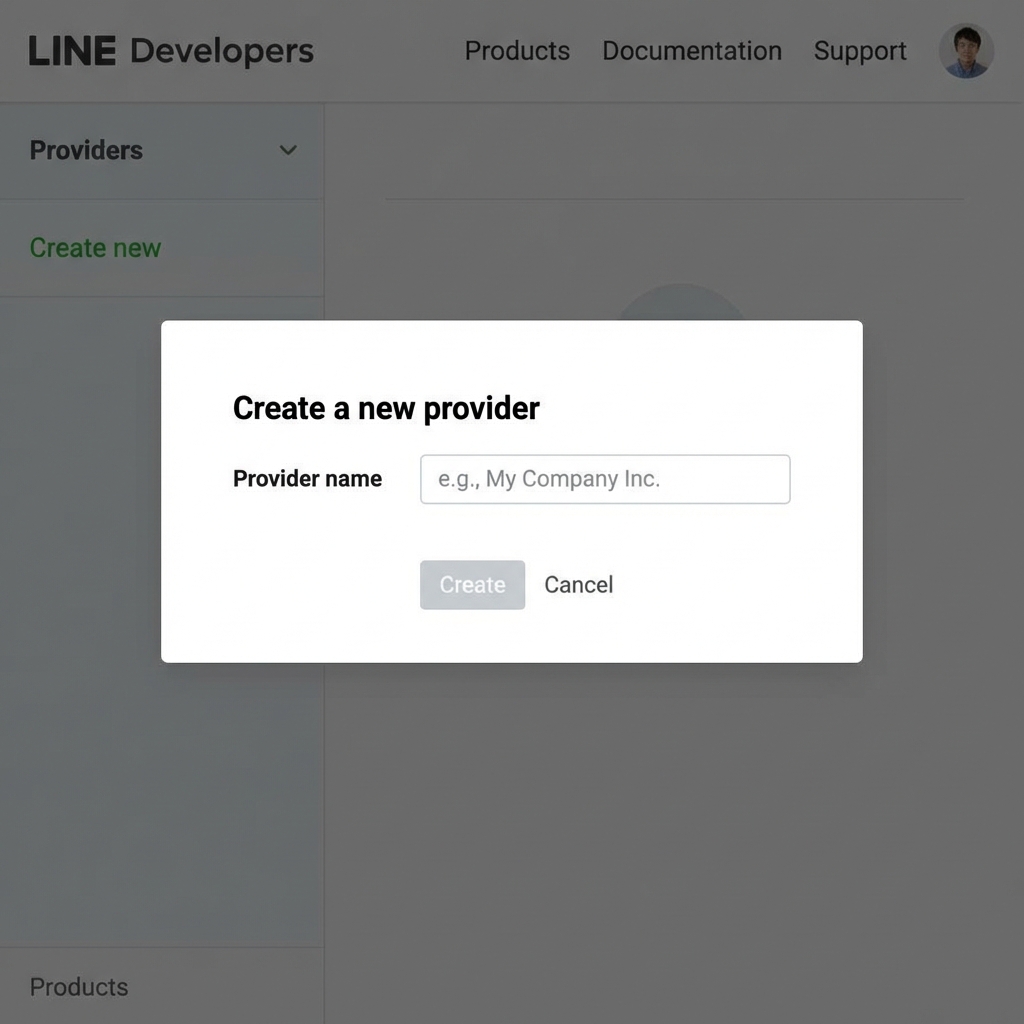
- Create a “Provider” new (Provider) if you don't have one.
- Create Messaging API Channel:
- Due to the new policy, you need to access LINE Official Account Manager to create a new Official Account.
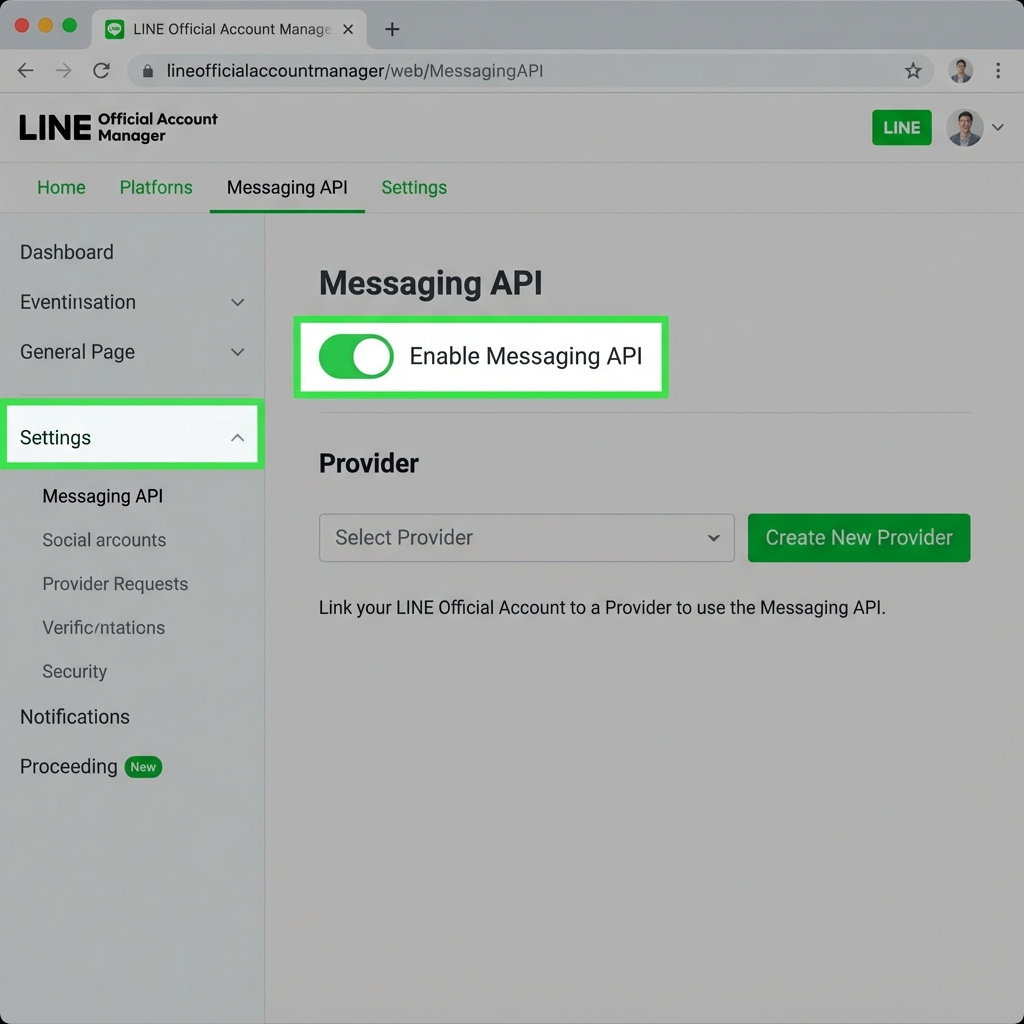
- After creation, go to the Settings (Settings) section of that Official Account.
- Select the Messaging API in the left menu.
- Press Enable Messaging API (Enable Messaging API).
- Select the Provider you created in step 3 to link.
Step 3: Get configuration information from LINE
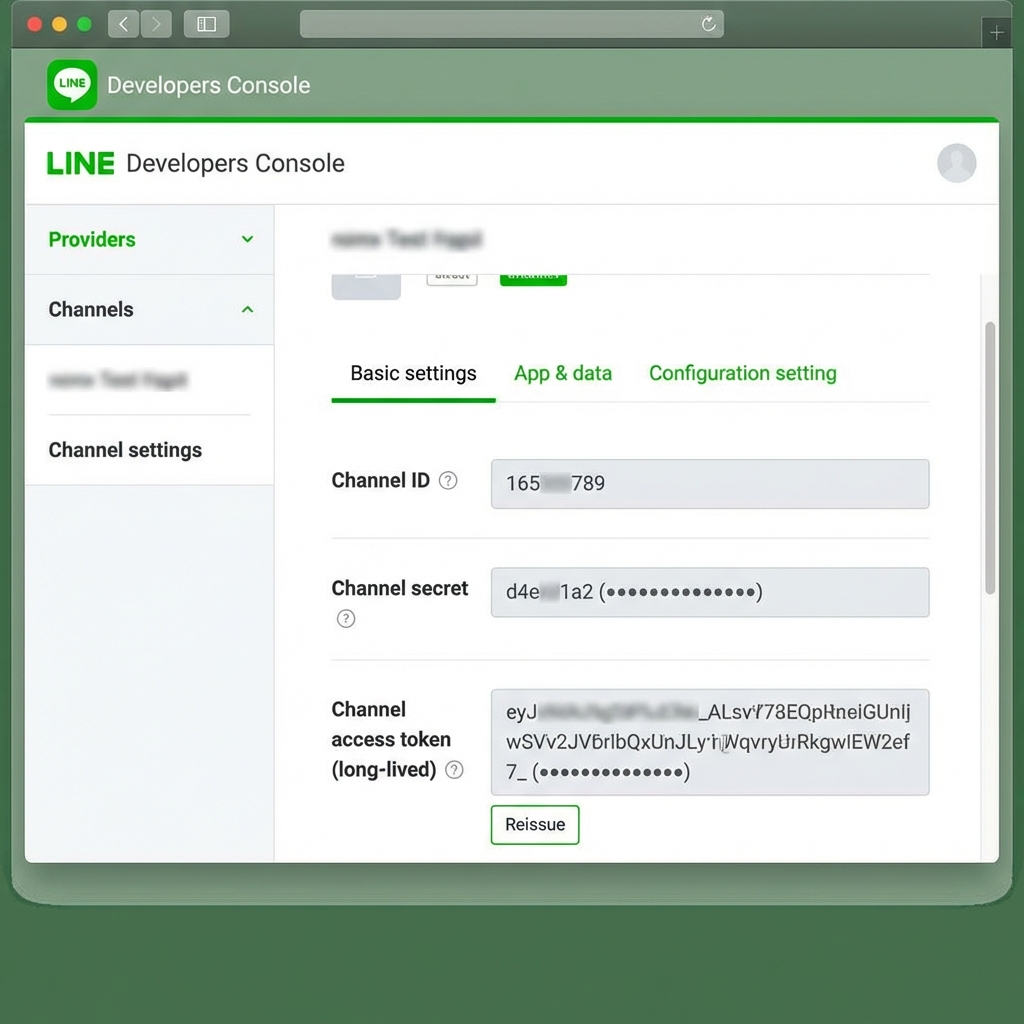
After enabling Messaging API, go back LINE Developers Console, select the Provider and Channel you just configured to get the information:
- Channel ID: Find in the tab Basic settings.
- Channel Secret: Find in the tab Basic settings.
- Channel Access Token:
- Switch to the tab Messaging API in LINE Developers Console.
- Find the section Channel access token (long-lived) and press Issue if not available yet.
Step 4: Configure in Chatwoot
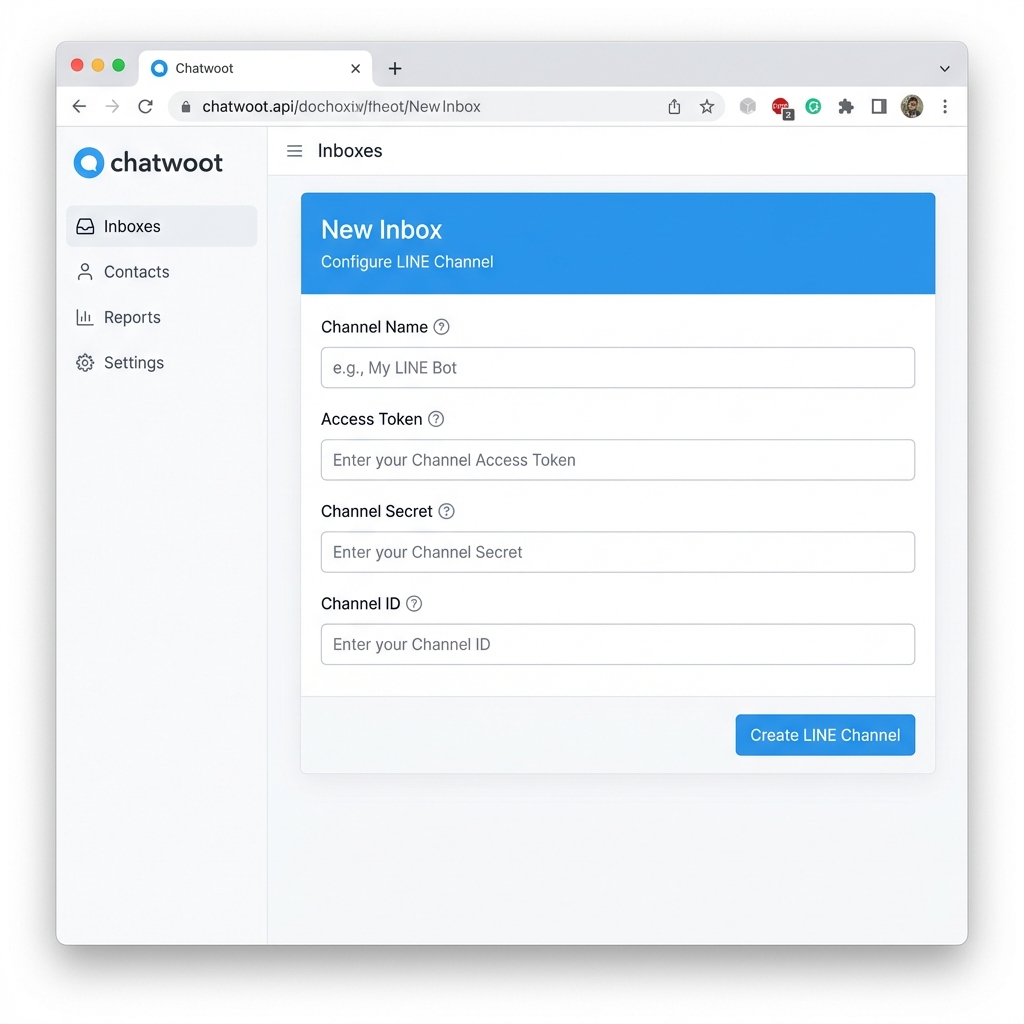
Go back to the Chatwoot settings screen and fill in the obtained information:
- Channel Name: Name your channel (e.g., LINE Customer Support).
- LINE Channel ID: Paste the copied Channel ID.
- LINE Channel Secret: Paste the copied Channel Secret.
- LINE Channel Token: Paste the copied Channel Access Token.
After filling in completely, press the button “Create LINE Channel”.
Step 5: Add staff
Select the employees (agents) who will manage this LINE inbox and complete the inbox creation.
Step 6: Configure Webhook
This is an important step for Chatwoot to receive messages from LINE.
- After creating the inbox, Chatwoot will provide you with a link Webhook URL. Please copy this link.
- Go back LINE Developers Console, go to the channel you just created, select the tab Messaging API.
- Find the section Webhook settings.
- Paste the Webhook URL path into and press Update.
- Press Verify to check the connection.
- Important: Remember to enable the option “Use webhook”.
Step 7: Configure Response (Response Settings)
In addition to configuring the Messaging API, you also need to enable Webhooks in the response settings of the LINE Official Account.
- Access LINE Official Account Manager.
- Go to the section Settings (Cài đặt) -> Response settings.
- In the section Webhooks, toggle the button to the state Enabled (On).
- (Recommended) In the section Auto-response messages (Auto messages), you should turn it off to avoid customers receiving automatic messages from LINE overriding messages from Chatwoot.
Step 8: Test
Now everything is ready. To test, you need to friend this LINE Official Account.
Friend (and chat) link is in the form: https://line.me/R/ti/p/@
For example, with the ID in your image being @048wmyra, the link would be: https://line.me/R/ti/p/@048wmyra
Try accessing this link on your phone, add friend and send a message. The message will appear in the Chatwoot inbox.
Tip: To get the embed code or QR code, you can visit LINE Official Account Manager -> Home -> Gain friends -> Add friend tools.