In the digital era, diversifying interaction channels with customers is a key factor in enhancing user experience and increasing conversion rates. Alongside traditional channels like Email or Website Widget, Telegram is emerging as a popular, secure, and efficient messaging platform, especially in the Vietnamese market as well as worldwide.
Integrating Telegram into a centralized conversation management system like Chatwoot helps your business not miss any messages, while centrally managing all interactions in one place. This article will guide you through the detailed steps to set up the Telegram channel in Chatwoot, as well as delve into advanced features like the latest Business Bot mode.
Why integrate Telegram into Chatwoot?
Before diving into the technical details, let's highlight the significant benefits this integration brings to your customer support team:
- Centralized Management (Centralized Inbox): Instead of opening multiple tabs or mobile devices to check Telegram messages, your staff can respond directly from the Chatwoot Dashboard interface.
- Team Collaboration: Chatwoot allows assigning conversations to specific staff, adding internal notes (private notes) that customers can't see, making problem resolution coordination smoother.
- Automation: Use Chatwoot's automation rules to label, classify customers from Telegram, or trigger simple chatbots.
- Customer History: Capture the conversation history context of customers if they have contacted through other channels (if there is a unified identification mechanism), helping personalize the experience.
Preparation before installation
To ensure a smooth setup process, you need to prepare:
- Chatwoot Account: You need administrator access (Administrator) or access to the Settings section of the Chatwoot account.
- Telegram Account: A personal Telegram account to create the bot.
- Bot Creation Permissions: Most Telegram accounts can create bots for free via BotFather.
Detailed step-by-step setup guide
Follow the steps below to connect Telegram to Chatwoot.
Step 1: Initialize the flow to add a new Mailbox
First, log in to your Chatwoot system.
In the left sidebar, click on the icon Settings (gear icon), then select Inboxes.
In the inbox management interface, you will see the button “Add Inbox” in the top right corner. Click there to start.
Step 2: Select the connection channel
Chatwoot supports many different channels like Facebook, Twitter, WhatsApp, Email, etc.
On the channel selection screen, find and click on the icon “Telegram”. This icon usually features a distinctive paper airplane on a blue background.

Step 3: Create and configure Telegram Bot
This is the most important step. Chatwoot operates based on the Telegram Bot API mechanism. You need to create a bot on Telegram to act as a bridge for receiving and sending messages.
You don't need to know programming, as Telegram provides the tool BotFather to make this extremely simple.
- Open your Telegram app (on phone or computer).
- In the search bar, type
@BotFatherand select the account with the blue verification check. - Press Start to begin the conversation.
- Send the command
/newbotto request a new bot. - BotFather will ask you to set Display Name (Name): This is the name customers will see (e.g., “ABC Customer Service”).
- Next, set Username: This name must end with
bot(e.g.:cskh_abc_botand is unique across the entire Telegram system.
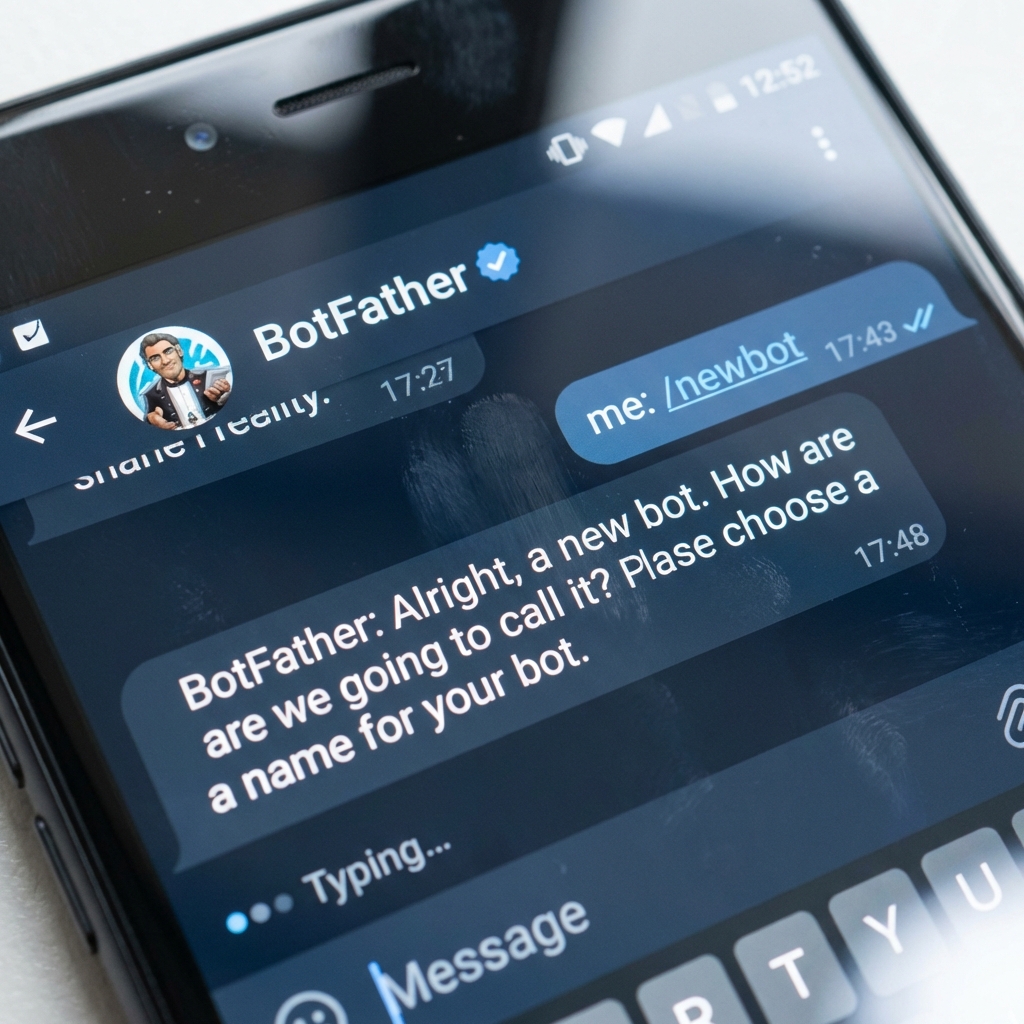
If successful, BotFather will send you a congratulatory message along with API Token. This code is in the form of a long string of characters.
Note: Please keep this Token code secure, as anyone who has it can control your bot.
Step 4: Connect to Chatwoot
Return to the Chatwoot interface in your web browser.
In the input field API Token, paste the code you just copied from BotFather into.
After pasting, click the button “Create Telegram Channel”.
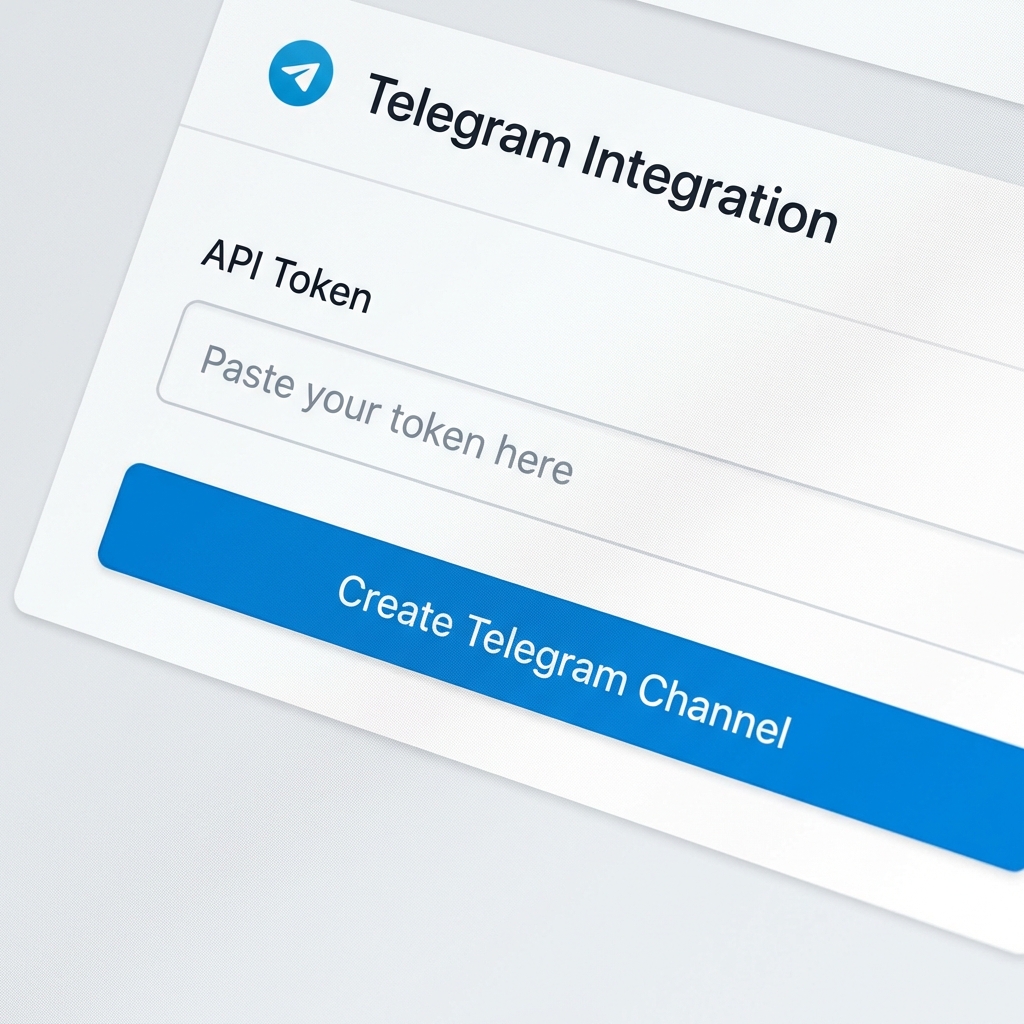
The system will verify the Token code. If the code is correct, the inbox will be created successfully.
Step 5: Assign management permissions (Add Agents)
After the inbox is created, Chatwoot will ask which staff you want to assign to this inbox.
- Select staff: Check the boxes for those who will be responsible for responding to messages from Telegram.
- Access rights: Only the staff added can see messages from this inbox (unless they are Administrator).
Click “Add agents” to complete the setup process.
Step 6: Check and verify configuration
To ensure everything works stably, please check the configuration again.
Access the Inbox list again, select the newly created Telegram inbox and go to the Settings of that inbox.
Check if the inbox name matches the Bot name you created. You can also update the avatar for the inbox here for easy recognition.
Step 7: Real-world testing (Test Connection)
Never skip this verification step before announcing the support channel to customers.
- Use a personal Telegram account (different from the bot creation account if possible, or ask a colleague).
- Search for your bot by username on Telegram.
- Press Start and send the message “Hello, I need support”.
- Open the Chatwoot Dashboard, check if a new conversation appears.
- Try replying from Chatwoot and check if Telegram receives the response immediately.
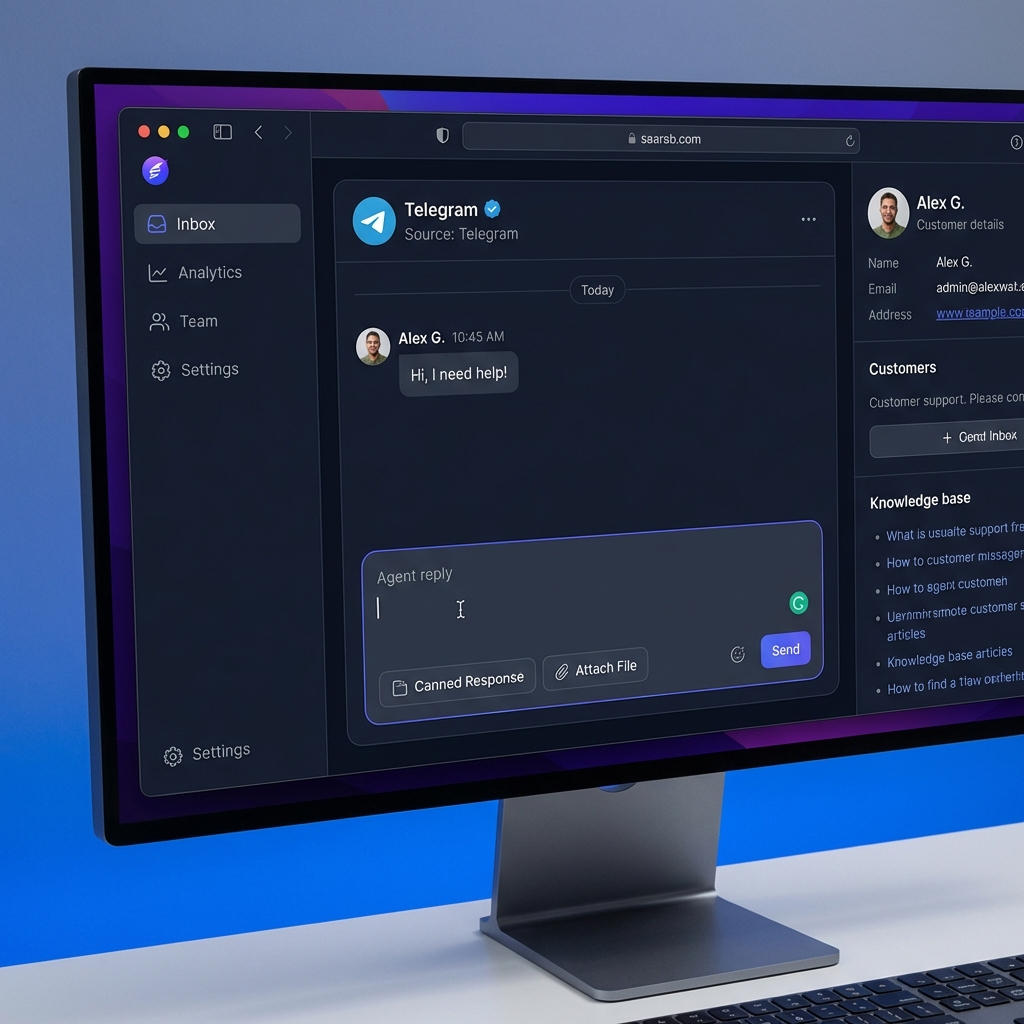
If messages go back and forth smoothly, congratulations! You have successfully integrated.
Advanced features and Frequently Asked Questions (FAQs)
Support for Telegram Business Bot
A notable recent update is that Chatwoot (from version v4.3.0, released June 2024) now supports Telegram Business Bot. This is a feature for Telegram Business accounts, allowing you to connect the bot to a business account to manage personal messages like a professional business.
How to activate Business Bots:
- In the chat with @BotFather, send the command
/business_mode. - Select the bot you want to convert and confirm activation.
- Create a new Telegram inbox in Chatwoot as instructed above (if not already done) and use this bot's token.
- Chatwoot will automatically detect Business mode and register the necessary webhooks.
Important note about Business Bot:
- 24h Rule: Telegram applies the 24-hour response window rule. You can only reply to customers within 24 hours from their last message. After this time, you cannot proactively send marketing messages or spam them.
- User experience: If the customer has previously chatted with the bot (before enabling Business Mode), messages may appear as coming from the bot instead of the Business account. To avoid confusion, it is recommended to create a completely separate bot dedicated solely to Business Account purposes.
- Feature limitations: The current Business API still has some limitations compared to regular Bots (e.g., lack of “typing” indicators, or some complex multimedia message types).
Why aren't messages coming to Chatwoot?
If you encounter issues with messages not coming through:
- Check if the Bot is connected to any other service (e.g., n8n, Zapier). Telegram Bot only supports 1 webhook at a time. A new connection will override the old one.
- Check Chatwoot's system logs (Server Logs) if you are self-hosted to see if there are network connection errors to the Telegram API.
Conclusion
Integrating Telegram into Chatwoot is a simple yet highly effective strategic step. It not only professionalizes your customer care process but also expands your brand's touchpoints to millions of potential Telegram users. Hope this detailed guide helps you implement successfully. If you have any questions, don't hesitate to leave a comment or contact the support team.