
Introduction
Are you struggling to work with files shared on Google Drive in n8n? The default Google Drive node cannot search for files in shared folders?
Today I would like to introduce n8n-nodes-shared-folder-google-drive – một node n8n community mà tôi đã phát triển để giải quyết triệt để vấn đề này!
Problem to Solve
The built-in Google Drive node in n8n encounters serious problems when working with shared folders:
- Cannot find files in shared folders
- Cannot search for files in shared folders
- Lacks important API parameters
- Lỗi “File not found” với file tồn tại
- Cannot access Team Drives/Shared Drives
Cause: Default node is missing important parameters such as supportsAllDrives=true, includeItemsFromAllDrives=true, and sharedWithMe for shared folders.
Solutions
n8n-nodes-shared-folder-google-drive is an n8n community node specially designed to:
- Powerful file search in all shared folders
- Work with shared folders easily
- Support upload/download files in shared folders
- Seamless integration with Google OAuth2
- Automatically add required API parameters
Key Features
Smart File Search
- All shared files: Search in all files shared with you
- Specific folder: Search in a specific folder
- Powerful query: Support Google Drive API search syntax
- File type: Filter by file type (PDF, video, image, etc.)
Folder Management
- List Items: List files/folders in shared folder
- Get Item: Get metadata or download file content
- Upload Item: Upload file to shared folders
- Update/Remove: Manage metadata and delete file
Flexible Interface
- Simple Mode: Search all shared files (no ID required)
- Query Language: Use Google Drive query syntax
- Error Handling: Smart error handling with continue-on-fail
Settings
Method 1: Via Community Nodes (Recommended)
- Go to Settings > Community Nodes in n8n
- Select Install
- Import:
n8n-nodes-shared-folder-google-drive - Accept and install
- Restart n8n
Method 2: Manual Installation
cd ~/.n8n/nodes
npm install n8n-nodes-shared-folder-google-drive
OAuth2 Configuration
- In n8n, create a new credential: Shared Folder Google Drive OAuth2 API
- Go to Google Cloud Console
- Create a new project or select an existing project
- Enable Google Drive API
- Create OAuth 2.0 Client ID
- Add authorized redirect URI:
https://your-n8n-instance.com/rest/oauth2-credential/callback - Copy Client ID and Client Secret into n8n
- Connect your Google account
How to Get Folder ID
- Open the shared folder in Google Drive
- Look at the URL:
https://drive.google.com/drive/folders/16prcpIImJ6vb73yh05q_zaT4qQJhQzJK - Copy the ID part:
16prcpIImJ6vb73yh05q_zaT4qQJhQzJK
Common Search Syntax
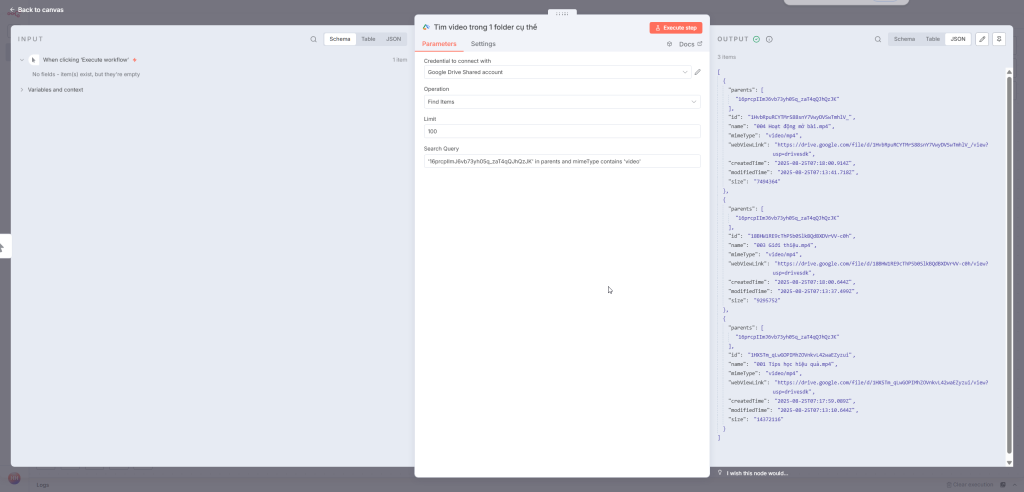
Find files in a specific folder:
'FOLDER_ID' in parentsFind videos in a folder:
'FOLDER_ID' in parents and mimeType contains 'video'Find PDFs by name:
name contains 'invoice' and mimeType = 'application/pdf'Find recent files:
modifiedTime > '2024-11-01T00:00:00'Find large files (over 10MB):
'FOLDER_ID' in parents and size > 10485760Find files by time range:
createdTime > '2024-11-01T00:00:00' and createdTime < '2024-11-30T23:59:59'Search by content:
fullText contains 'invoice'Search with multiple conditions:
(name contains 'report' or name contains 'report') and mimeType = 'application/pdf'Real-World Use Cases
1. Automatically Clean Up Old Files
modifiedTime < '2024-10-01T00:00:00' and trashed = false2. Invoice Backup
name contains 'invoice' and mimeType = 'application/pdf' and modifiedTime > '2024-11-01'3. Media Management
mimeType contains 'video' and size > 1048576004. Data Sync (files modified within 7 days)
modifiedTime > '2024-11-16T00:00:00'5. Word File Processing
mimeType = 'application/vnd.openxmlformats-officedocument.wordprocessingml.document'Comparison With Default Node
| Feature | Built-in Node (Default) | Shared Folder Node (Custom) |
|---|---|---|
| Search in Shared Folders | ❌ Not working | ✅ Works perfectly |
| Requires Folder ID | ❗ Required | ➖ Not required (optional) |
| Supports sharedWithMe | ❌ No | ✅ Yes |
| Full Google Query support | ⚠️ Limited | ✅ Full |
| 404 error when accessing folder | 🔥 Frequent | 🛠️ Fixed |
| Upload to Shared Folders | 🚫 Limited | ✅ Works well |
Tips and Tricks
Performance Tips
- Use the field parameter to retrieve only necessary fields
- Limit the limit with a reasonable value (100-1000)
- Use specific queries instead of retrieving all
Search Tips
- Use quotes for file names with spaces:
name contains "my file" - Combine multiple conditions with
and,or - Use
notto exclude:not trashed = true
Best Practices
Backup important data before performing bulk operations
Test the query in the Google Drive UI before adding it to the workflow
Verify the correct folder ID