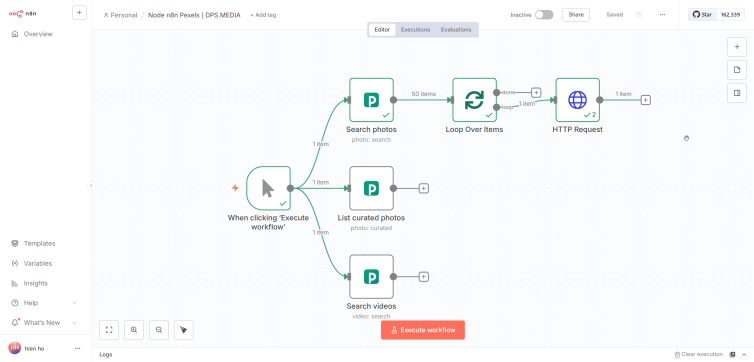

Are you looking to automate searching and using high-quality photos and videos for your project? Today, I would like to introduce n8n-nodes-pexels – một node cộng đồng mới giúp bạn tích hợp API của Pexels vào workflow n8n một cách dễ dàng.
Pexels – Kho tàng media miễn phí khổng lồ
Pexels is one of the world's largest platforms providing free high-quality photos and videos today. With over 3 million media files continuously updated, Pexels has become an indispensable resource for developers, designers, and content creators worldwide.
Điểm mạnh của Pexels nằm ở chất lượng và sự đa dạng: từ ảnh phong cảnh đẹp mắt, chân dung chuyên nghiệp, đến video cinematic ấn tượng – tất cả đều được cung cấp miễn phí với license rộng rãi.
Features of n8n Pexels Node
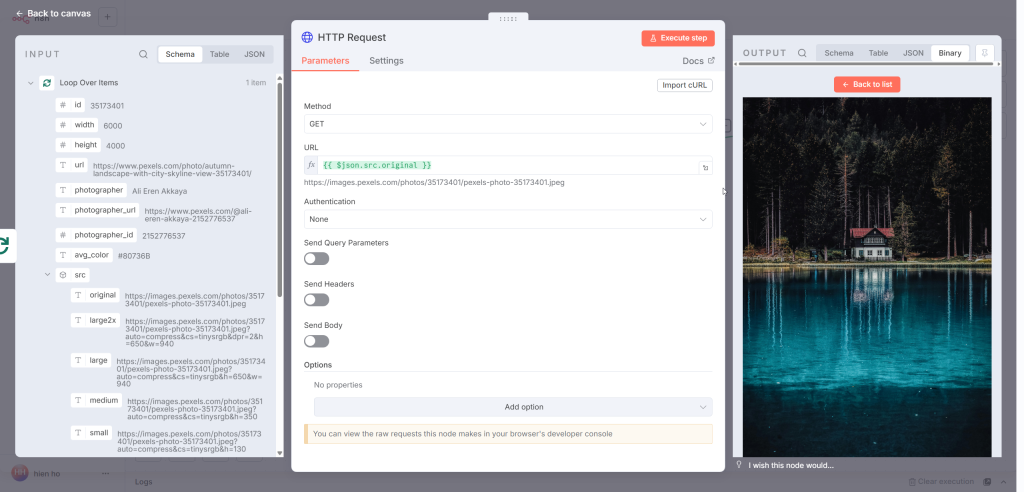
The n8n Pexels Node is designed to bring the full power of the Pexels API right into your hands within the automation workflow. Here are the main features:
🔍 Search Photos
Search photos by keyword with many flexible filtering options:
- Orientation: Select images by orientation (portrait, landscape, or square)
- Size: Filter by size (large, medium, small)
- Color: Find images by dominant color
- Sort: Sort by popularity or newest
- Pagination: Easily paginate search results
🎥 Search Videos
Similar to image search, but dedicated to videos:
- Filter by orientation (portrait, landscape, square)
- Filter by file size
- Select video length (short, medium, long)
- Full pagination support
📸 Curated Photos
Truy cập vào bộ sưu tập ảnh được biên tập viên Pexels tuyển chọn kỹ lưỡng – những bức ảnh chất lượng cao nhất, phù hợp với xu hướng hiện tại.
🎬 Popular Videos
Discover the most loved video list on Pexels, perfect for projects needing trending content.
Detailed Installation Guide
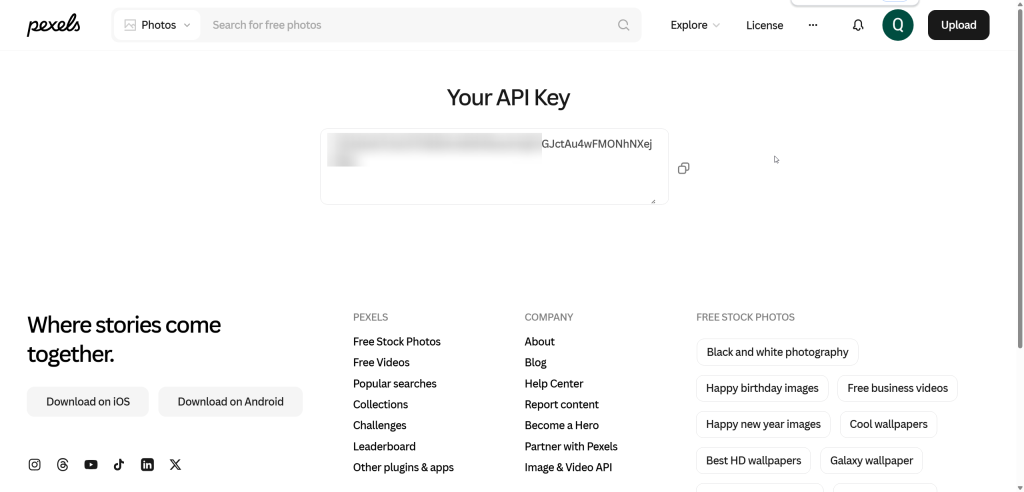
Step 1: Get API Key from Pexels
Getting an API Key from Pexels is extremely simple and free:
- Access: https://www.pexels.com/api/key/
- Log in with your Pexels account (or sign up if you don't have one)
- API Key của bạn sẽ hiển thị ngay trên trang – không cần điền form hay đăng ký ứng dụng gì cả
- Copy the API Key and save it for use
Note: Keep your API Key secure and do not share it publicly. This is the unique key used to authenticate your requests to the Pexels API.
Step 2: Install node in n8n

There are two ways to install the node:
Method 1: Via npm (Self-hosted n8n)
Open the terminal and run the command:
bash
npm install n8n-nodes-pexelsThen restart n8n to make the node take effect.
Method 2: Via interface (n8n Cloud or Self-hosted)
- Go to Settings → Community Nodes
- Click Install a community node
- Import:
n8n-nodes-pexels - Click Install
- Wait for the installation process to complete
Step 3: Configure credentials

After installing the node, you need to add credentials:
- Go to Settings → Credentials
- Click Add credential
- Find and select Pexels API
- Paste the API Key you got in Step 1
- Đặt tên cho credential (ví dụ: “Pexels Main Account”)
- Click Save
Now you're ready to use the Pexels node in your workflows!
How to use in workflow
Create your first workflow
- Create a new workflow in n8n
- Add node Pexels from the nodes list
- Select the credential just created
- Select Operation appropriate (Search Photos, Search Videos, etc.)
- Configure the necessary parameters
- Connect with other nodes to process the results